Loading Files into Layers in Photoshop
When I first started scrapping way back in 2008 I used Photoshop Elements – version 5 I think. What I really liked was that I could open all sorts of files and pull them all into my layout at once as separate layers and the individual files would retain their original file name rather than convert to “Layer 1” etc.
After scrapping for a couple years with Photoshop Elements I decided I wanted to upgrade to Photoshop CS4. I remember being excited to do my first layout in my new program. I opened all sorts of files from a kit and realized I needed to drag every file on to my layout one by one. What a pain! I also realized that when I did drag my files on to my layout, the file name changed to “Layer 1”, “Layer 2” etc. I was not happy. Right when I was thinking of uninstalling my new program and going back to Photoshop Elements, I did an internet search for loading files into layers in CS4. I remember coming across a Script Command that I have used for every layout I’ve completed from that day on. I’m going to share it with you in case you are in the frustrated spot that I was in a couple year ago.
I’m no Photoshop guru so maybe there is an easier way out there to do this but here is the method I use in PSCS4 to get all my files into nice neat layers with their original file names.
Step 1
First create a new document for your scrapbook layout.
Step 2
Go to File>Scripts>Load Files into Stack

Step 3
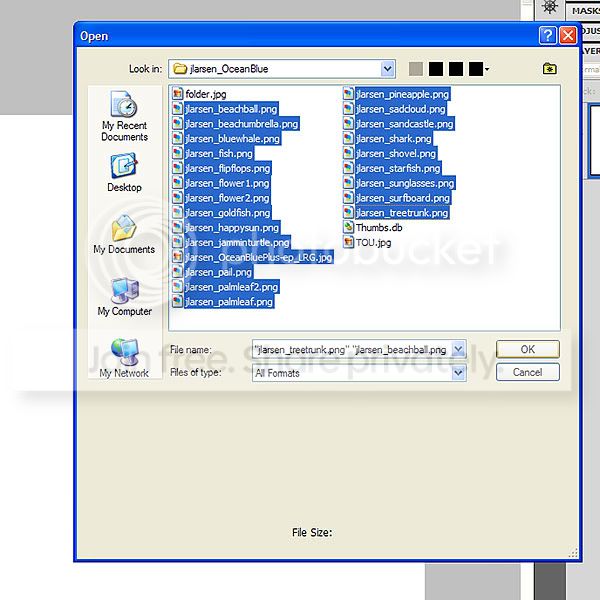
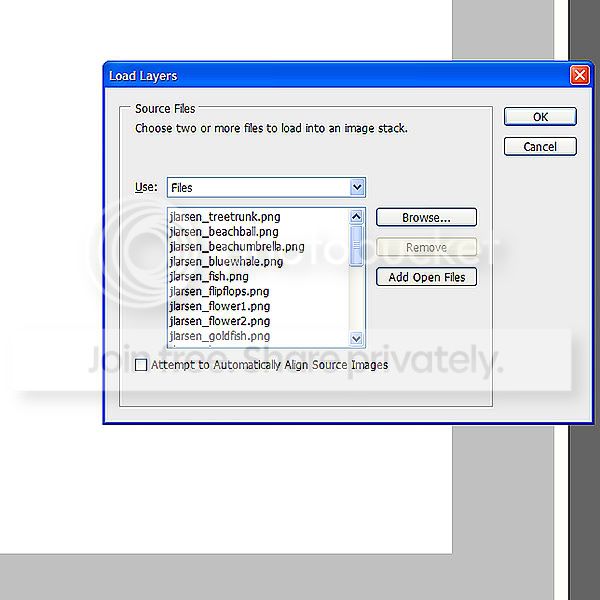
The Load Layers dialogue box should open. Make sure the ‘Use’ field is set to ‘Files’ and click Browse. Find the files you would like to add to your layout and holding down the Control key, click on each of the files you want to open. Alternatively, if you’re like me and want to open them all, click the first file, hold down the Shift key and then click the last file. This will select all the files in between the first one you clicked and the last one. Once you’ve selected the files you’d like, click OK.
Step 4
Each file you selected should now appear in the Load Layers dialogue box. Click ‘OK’ to run the script or Browse to add some more files from a different folder. I quite often grab my alpha, my elements, and my papers all at once by browsing through different folders on my computer.
Step 5
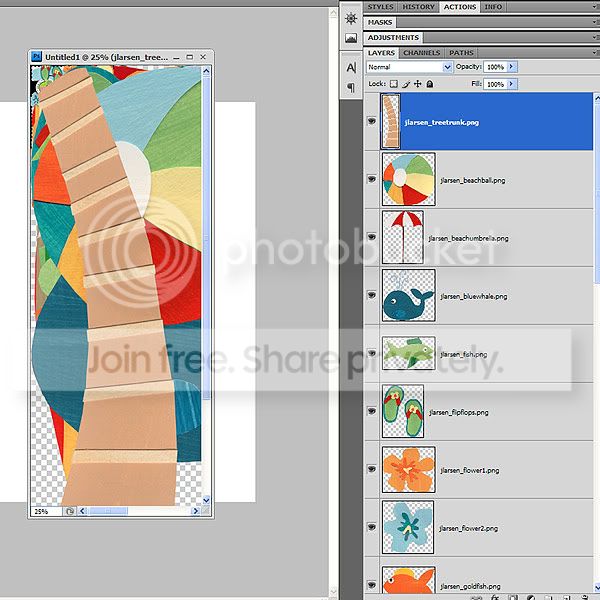
Photoshop will run the Script and you should have a new canvas with each file on it’s own layer. Once again click on the first layer and hold down the Shift key and click on the last layer in the Layer Palette. This will select all layers. You can then drag these layers on to your Layout.
I hope you’ve found this tutorial helpful. If there are any other topics you’d like covered in a future Tips and Tricks blog post, please leave a comment on this blog post telling us what it is.
Thank you.
Tiki