
Tips & Tricks: Organizing Digital Supplies in Lightroom
This is Polly Beth. I’d like to share my system of organizing all the yummy digital scrapbooking products I’ve collected over the years so I can easily find what I want for my layouts. Before I get to the specifics of using Lightroom I want to stress that Lightroom is just a tool and that you could use this system with other software products. The most important part is the system and not so much the tool. I will also admit that I tend to over-think and over-engineer so keep in mind that this method could still be used with a much simpler system. Be sure to read to the end for some examples of how easy this makes finding the specific supply you want!
Start by Creating Your Taxonomy
Taxonomy is a fancy word for an ordered system of relationships between terms, or in layman’s terms, your keyword/tagging terminology, or your metadata, as well as the rules for how to apply it. I was a Librarian for over thirty years working primarily cataloging materials, adding metadata, and managing databases so I have worked a great deal with taxonomies. You don’t need to create a taxonomy from scratch. If one already exists for your subject, then borrow it. Mine has evolved from a system I found in 2009 at a website dedicated to ACDSee tools for scrapbooking that no longer exists. I tailored it to fit my needs. It’s continually evolving as new product types appear and my needs change.
Here’s the top level of my taxonomy and a few examples of the second level. Under each of these main keywords are other sub-keywords. For example, under Designers I have two sub-keywords, and then under each of these are the designers’ names. This hierarchy allows me to search for products by Lilypad designers very easily, or to search for a particular designer. I can also easily move individual designers between these groups as needed. If you would like to see my entire taxonomy, please message me and I’m happy to share.
- Color
- Black
- Blue
- Yellow
- Designers
- Lilypad
- Other
- Elements
- Overlays
- Frames
- Embellishments
- Word Art
- Paper
- Previews
- Shapes
- Styles_Actions
- Templates
- 1 Photo
- 2 Photo
- Multi-page
- Textures_Patterns
- Themes
- Animals
- Dogs
- Cats
- Nature
- Trees
- Flowers
- Animals
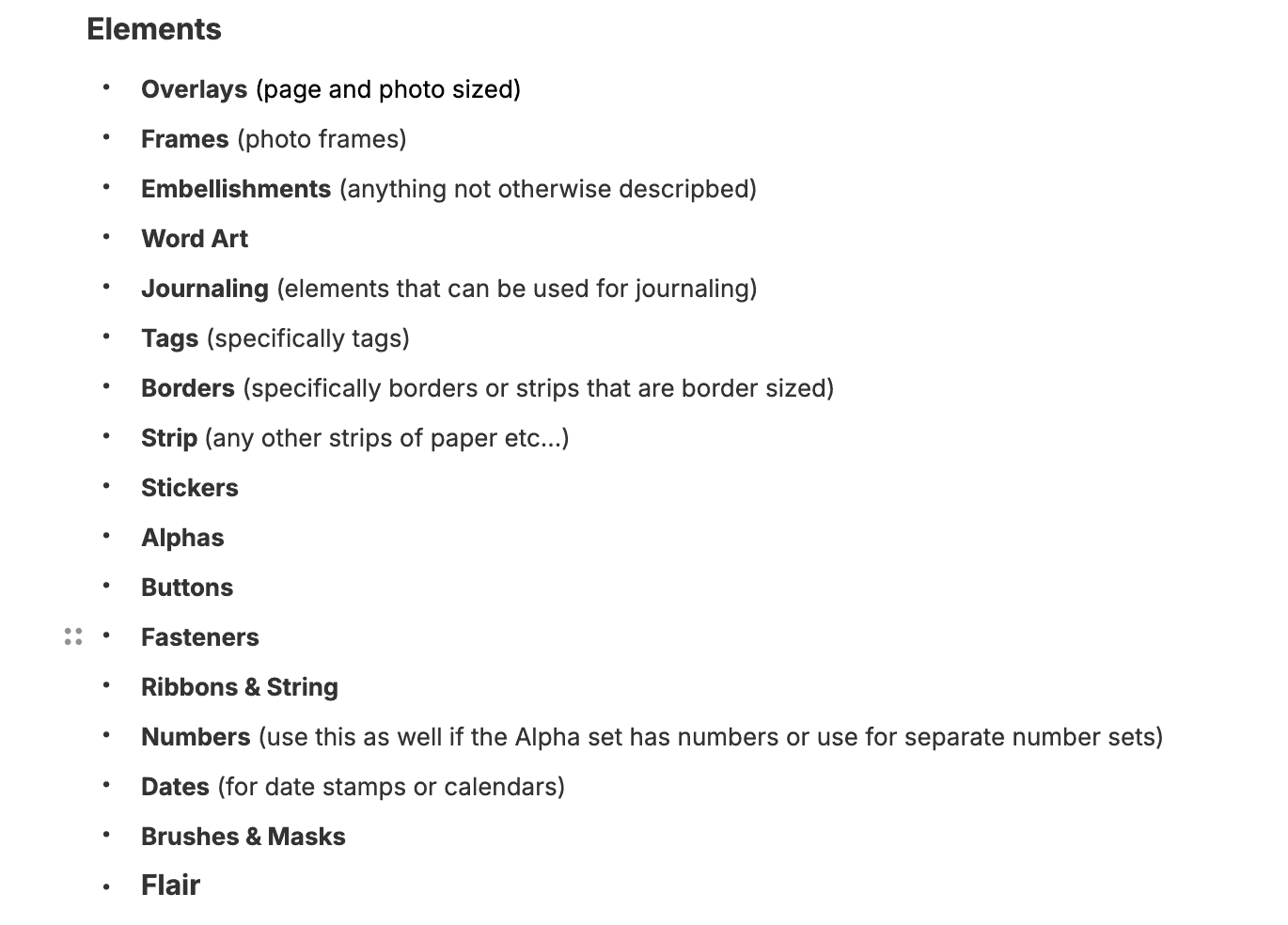
When you are first applying these keywords it’s a best practice to define what you mean by the keyword and what types of products you will apply the keyword to. This allows you to be consistent in how you tag your products so that similar items will have the same keyword. In library terminology this is called Authority Control. Here is a screen shot of my original working notes as I created my taxonomy.
Then Apply It in Lightroom
Lightroom works by building a catalog. Your individual photos (scrapbook supply files) live in folders on your laptop (or external drive). The catalog works just like a library catalog. It’s a database that stores where each photo lives, keywords, edits, collections, ratings, and thumbnail previews. Lightroom does not move the actual files unless you tell it to — it just remembers where they are.
I built my supplies catalog over time by importing scrapbooking supplies stored in folders on my Mac, then adding keyword tags from my taxonomy list. It is also possible to create your taxonomy keyword list and import it into Lightroom at one time if you prefer. It did take some time to go back and add products I already owned but now I just apply my system to new products as I add them to my collection.
Step One: Importing Items Into Lightroom
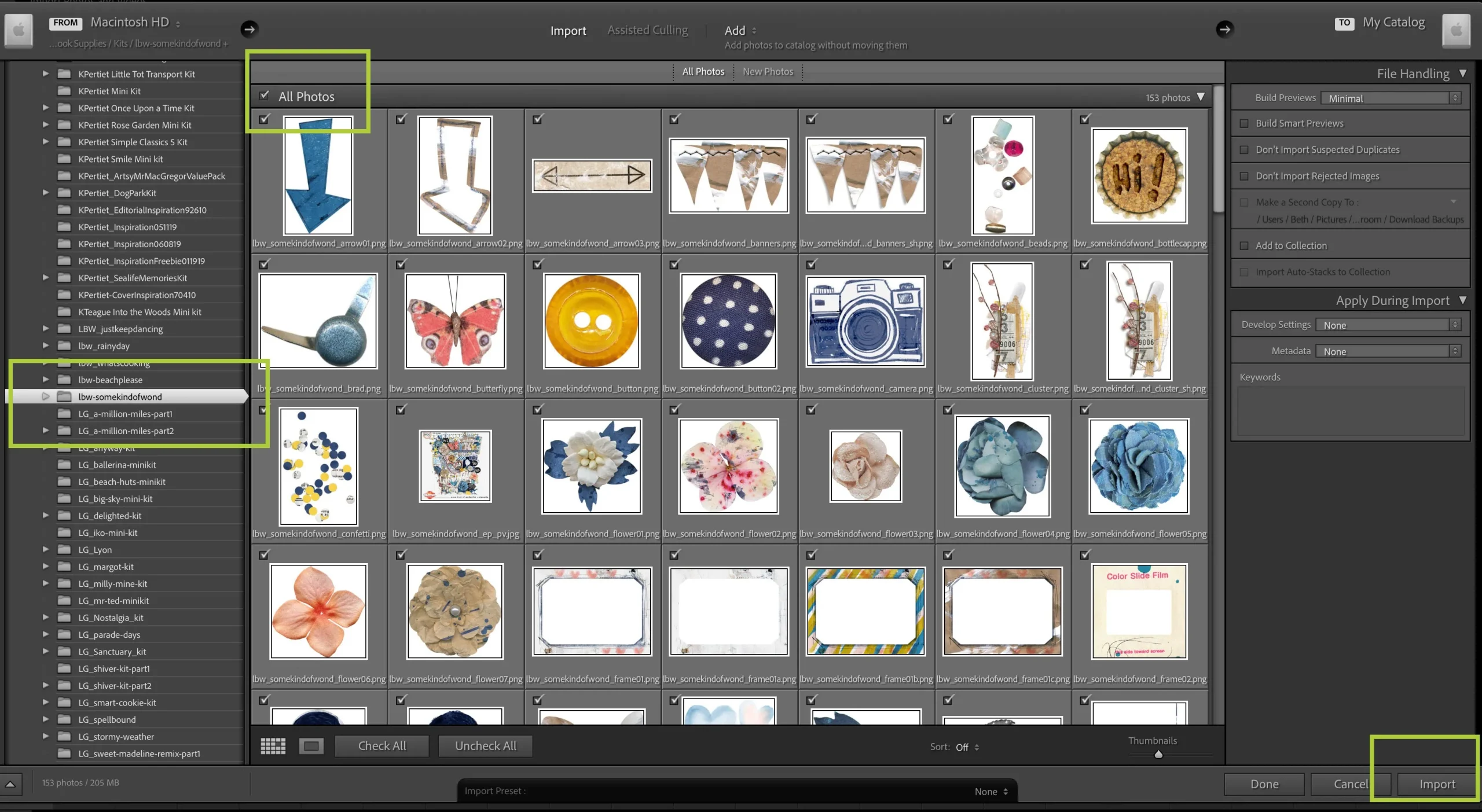
When I add a new scrapbooking supply to my stash, I import the folder/s into Lightroom. In this example I’m importing three different products which are all part of Some Kind of Wonderful by Little Butterfly Wings. This is an easy process of clicking the Import button, choosing the folder from the list of folders from your computer or drive, reviewing what is selected and then clicking on Import again. Lightroom grays out the thumbnail if that file has already been imported.
Step Two: Keyword Tagging
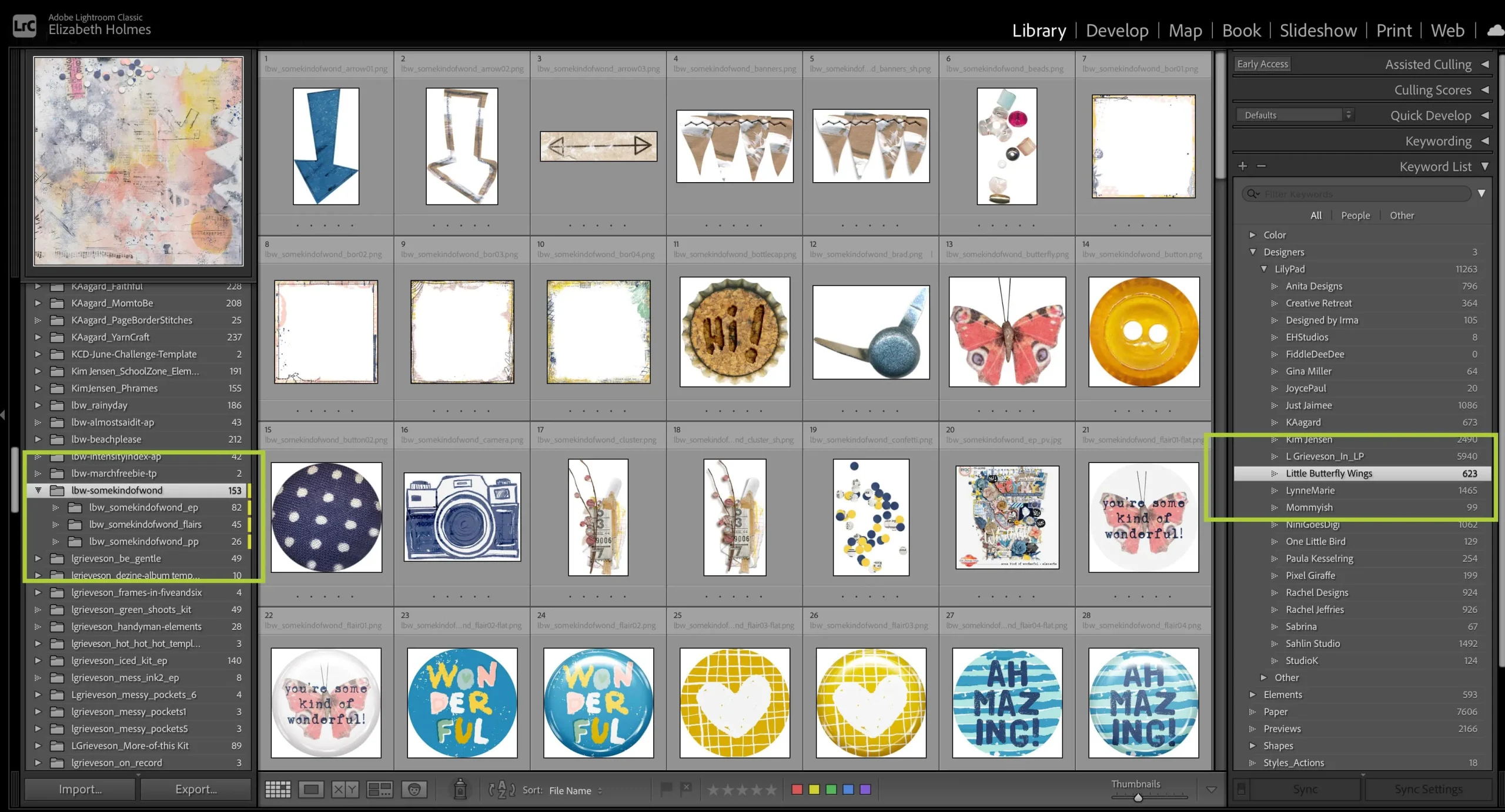
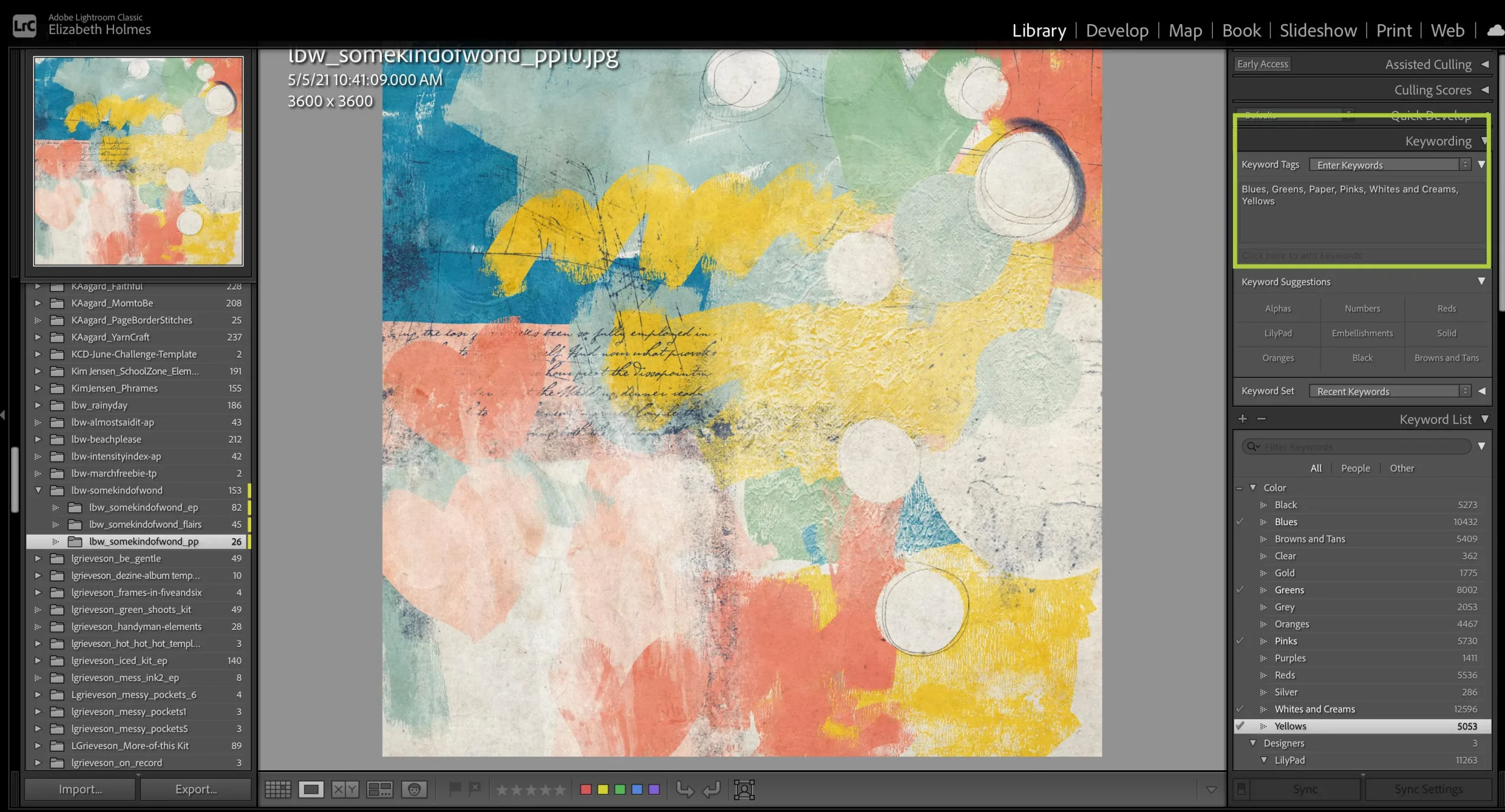
Once the files are imported into Lightroom I start tagging them with keywords. I prefer to do this from the folders in my folder list on the left. I can easily do this by right clicking on one of the thumbnails I’ve just imported and choosing “Go to Folder in Library”. I start by adding keywords that apply to all the items I imported. I’ve selected the folder that contains the three Some Kind of Wonderful products and select all the thumbnails using Ctrl/Cmd A and I then add the keyword: Little Butterfly Wings from the Designer section by finding that keyword in the list on the right and dragging it onto the thumbnails. I also add the keyword Everyday from the Themes section. The process goes faster when you group as many like items together and apply the keyword once. I can see which keywords I’ve assigned to an item by selecting that thumbnail and then looking in the Keywording panel on the left.
Then I go to the individual folders within a kit so I can easily group together like items. In the screen shot below I’ve selected the folder that contains papers. selected all the photos/files and tagged with with keyword paper, then I deselect all and select the Preview to tag it with Preview. The next step is to add colors from the Color section. I select all the items with yellow in them and then drag the keyword yellow onto those items.
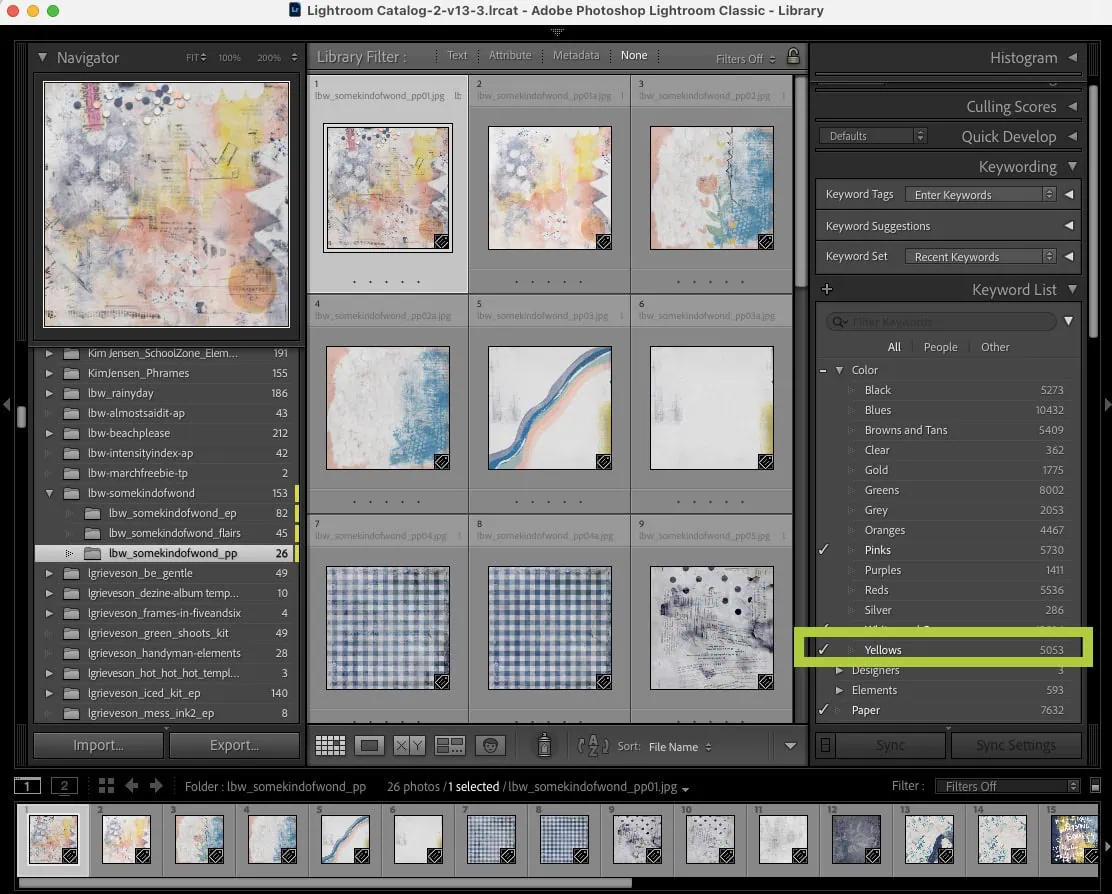
I can easily see which keywords I’ve tagged an item with by selecting that thumbnail and then looking in the Keywording panel on the left.
How This Makes Finding Supplies Easier
Here are some examples of why I took, and continue to take the time to use this system to organize my supplies in Lightroom.
Example One:
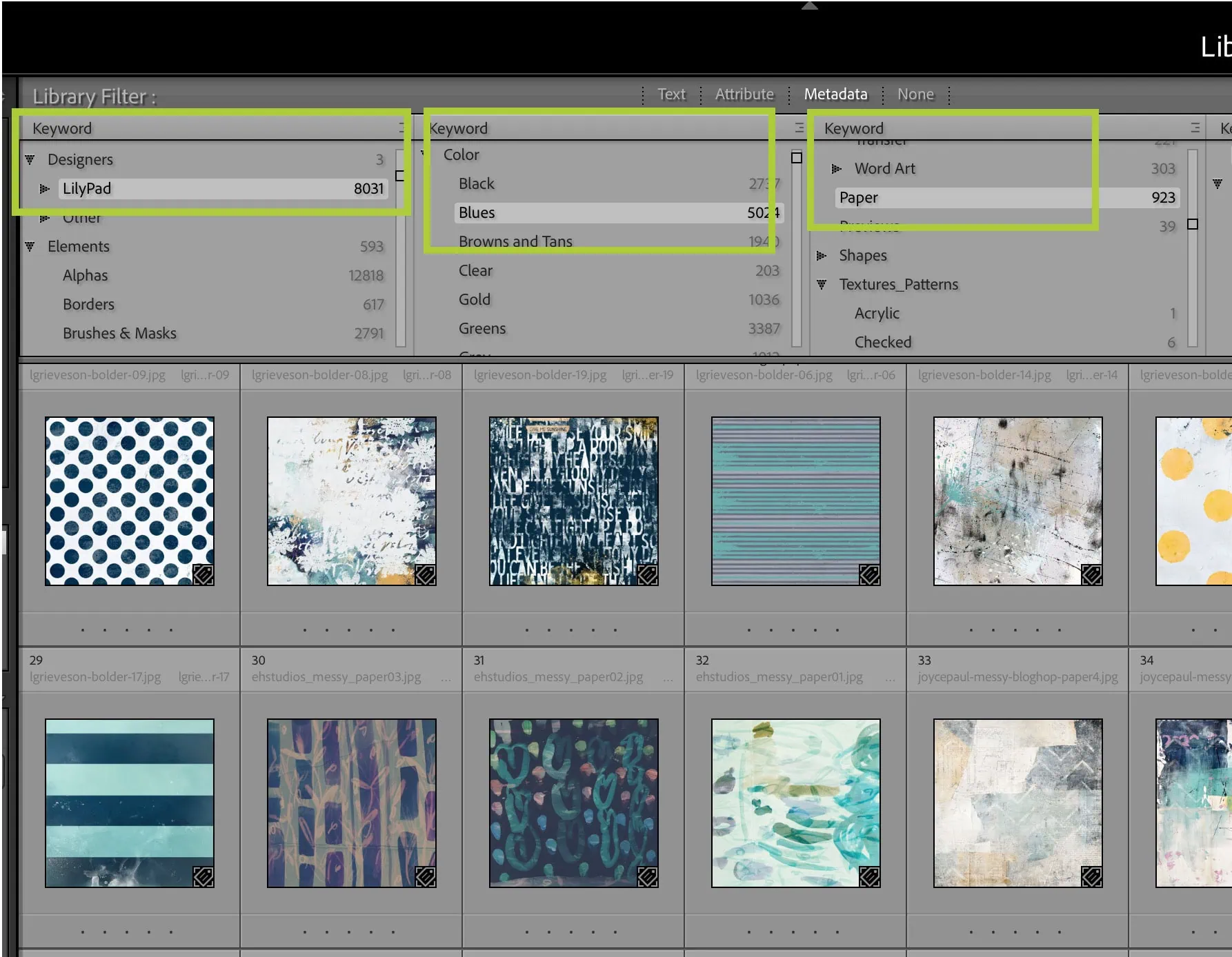
I’m working on a Monthly Challenge at the Lilypad, and I want to find a paper with the color blue to match my photo. I can search all my scrapbooking products by filtering on the keywords I’ve applied to them. Lightroom allows you to filter your folders by up to four keywords at a time. You can see below that I’ve filtered first to only Lilypad products, then to only Lilypad products that I’ve tagged as Blue, and then within that group to only items tagged as Paper. The results below are now only products that have the tags: Lilypad, Blue AND Paper.
Example Two:
I’m working on a layout for Valentine’s Day and I want to use several heart elements on it and I’d like them to be pink. I can easily find everything in my stash that I’ve tagged with the keyword Heart in the Shapes category, and the keyword Pink in the Colors category.
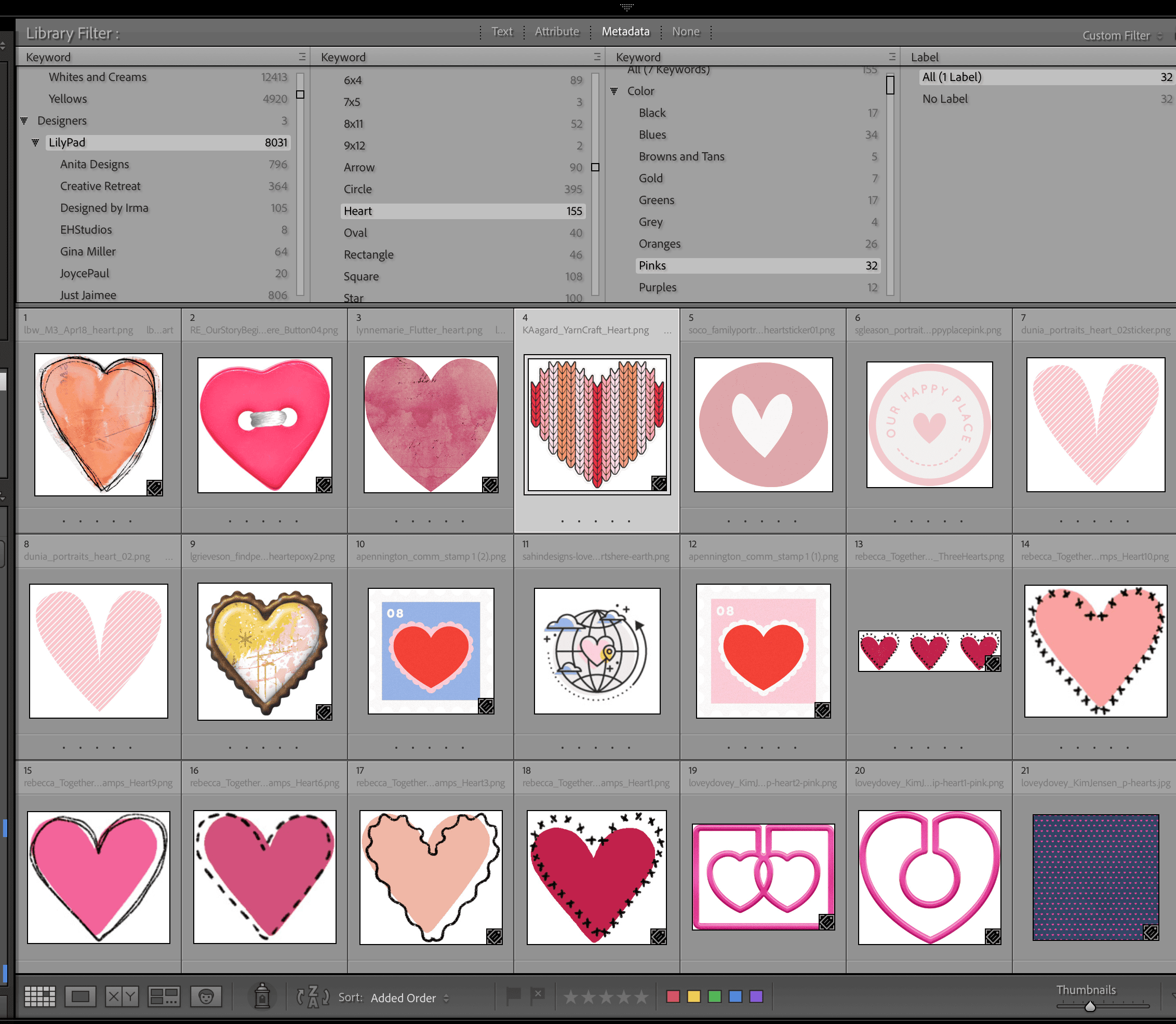
Once you select the item you want to use in your layout right click on it and open it in the software you use to create your layouts.
When I am creating a layout. I use my keywords to select items I may want to use and then assign them a color from the panel at the bottom of the screen. I then use the same Metadata section at the top to see only items with the color red. I can also use this same Metadata section to search my files (the filename) by text. You can also Rate items in Lightroom with one to five starts and see only things you’ve rated with 5 stars, for example. I’ve assigned 5 stars to a handful of products I used regularly so they are easy to locate.
In Conclusion
This system works for me, but I am thinking of ways to streamline it so it is easier to keep up with and so it continues to work for me. There are some keywords I don’t use much and I may eliminate and others where I want more detail and may need to create more sub-keywords.
I’m always interested in how others organize and find the scrapbooking supplies they want to use. and I’m happy to chat with any of you on this topic. If you’d like to know more detail about Lightroom and how to use it contact me. If there’s enough interest I can do a chat session or tutorial. You may also want to take a look at videos on using Lightroom from the Lilypad’s 2016 Summer School in the Learning Pad.
I was born in North Carolina and grew up all over the place because my Dad worked for Citibank and was transferred every few years. I lived in: New York State, Ireland, England, Belgium and finally Baltimore, Maryland which I call home. My husband was in the Navy, so we moved around a lot for those 8 years but now We’ve have settled down in Barrington, Rhode Island with our Pug dog. Our only child, a daughter, lives with her husband and daughter in Pennsylvania — I wish they were closer! I had a 30+ year career as a Law Librarian and an Academic Librarian which I loved, but took early retirement last September which has freed me up to be a Grandma and to really get in to all of my hobbies — digital scrapbooking, as well as knitting, reading, taking walks, and hanging out with my dog. I’m also learning to play Mah Jongg.
My creative style is primarily clean and simple, but I do enjoy trying out new styles but am uncomfortable using lots and lots of elements on my pages. My primary motivation for scrapbooking is to document my life and to tell stories, so my layouts always have at least what the photo is and a date, and often there is a whole story. My default style is either using one or two photos only and making them the star of the layout or using a lot of photos to document an event with minimal elements and journaling. Templates are great for this and for many years I always used templates as a starting point, but lately I have either not been using them, or I will take one as a starting point and then change it to suit my needs.
My words of advice for new scrapbookers are: You can’t do it wrong, just get started and enjoy the process. Be patient with yourself as you learn new techniques and skills.
I am inspired by my fellow scrapbookers at the Lilypad, and by our designers’ products. I love color and am drawn to art, layout, products and images with lots of color. I start with the story I want to tell and the photos that document it and draw from the colors in the photo and from the theme of the story. I use Lightroom to organize supplies, and Photoshop to create layouts.




Wow! This is so awesome! I love that you skills as a librarian came in handy for organizing your digital scrapbooking stash too!
This is so helpful to me. I am too easily confused by several folders and tags that are identical, or nearly identical, and then strewn about haphazardly amongst my various devices. Nothing makes sense anymore…
I need to start off anew in a central location where I pull together my favorite digital scrapbooking supplies, photos, and programs.
I would love to see your entire taxonomy!
Thank you for your lovely tutorial . 😁