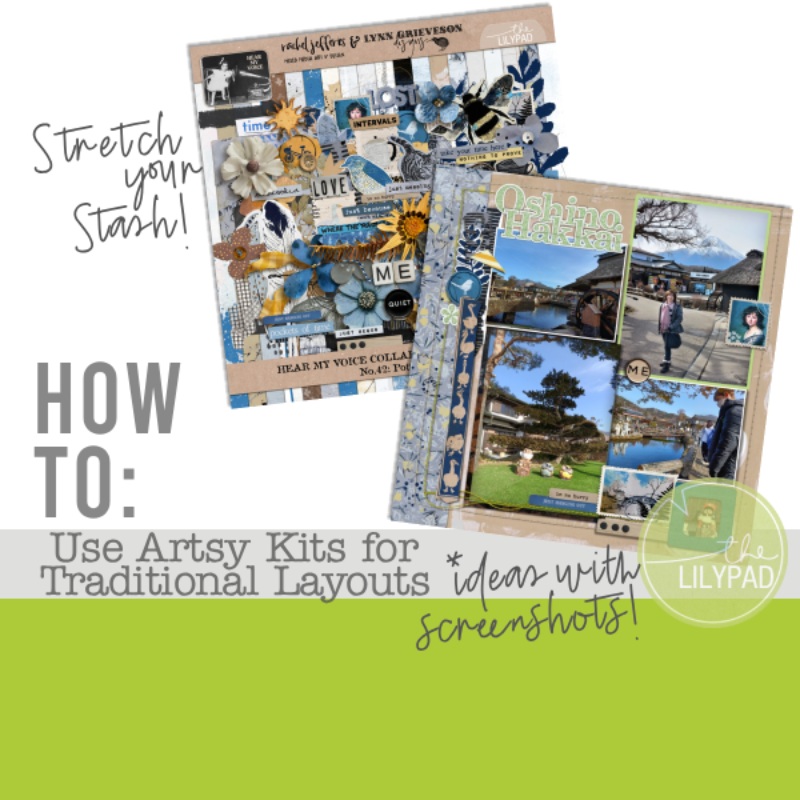
Extend Your Digital Stash – Clipping Mask Fun
Hello everyone – it’s another fabulous Something Old Something New day! I’m dropping in with a quick tip for extending the versatility of your digital scrapbooking kits. The clipping mask function (available in most digital scrapbooking programs such as Photoshop and PSE) allows you to use digital elements in non-obvious ways.
Take a look at this layout that I created mainly with kits from today’s SOSN Sale (click on layout for full credits):
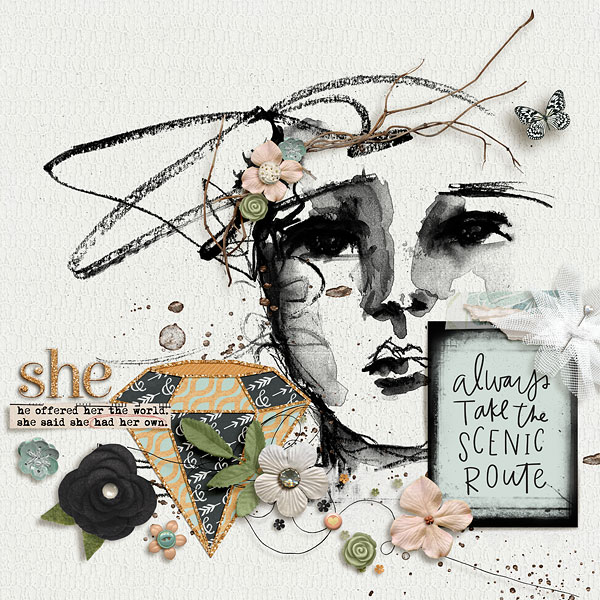
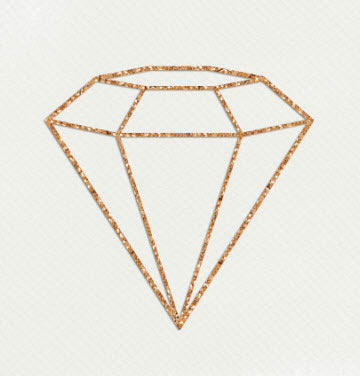
Notice the gold glitter around the gemstone element? I created that effect with the clipping mask function and this Alpha (which coordinates with the main kit):
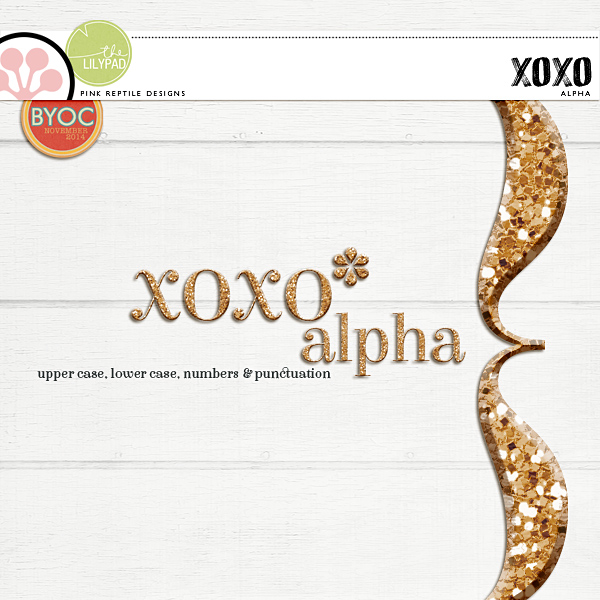
The clipping mask function is super-easy to use and available in most digital scrapping programs. Here is a quick rundown on how I made the glittered gem border on my page.
Step 1: Choose a Letter/Element
I chose to use the capital “I” because it was wide enough to cover each line of the gem border and straight like the lines I wanted to clip it to.
Step 2: Place the Letters/Elements
I placed the capital “I” on the layer above the gem outline and used the Transform Tool (Ctrl>T) to turn the letter so that it covered a portion of the line. Then I duplicated the alpha element several times (Ctrl>J) and moved each letter around the outline until it was covered entirely.
Step 3: Clip Letters/Elements to Shape
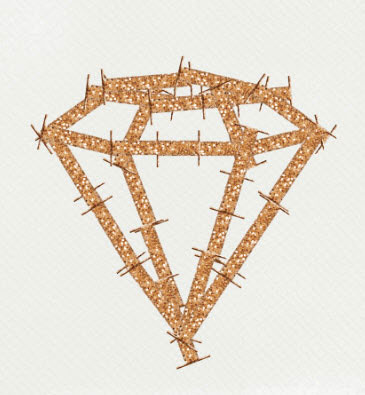
Finally, I clipped all of the “I” elements to the gem outline using the short cut (Ctrl>Alt>G) in Photoshop. Activate the top layer (the one you want to clip to the bottom layer) and press Ctrl>Alt>G to clip that layer to the bottom layer. You can also press the Alt key and hover your mouse on the line between the two elements until you see a square and a directed arrow and then click to clip the top layer to the bottom one. These two shortcuts are the easiest way to clip each letter individually (one at a time).
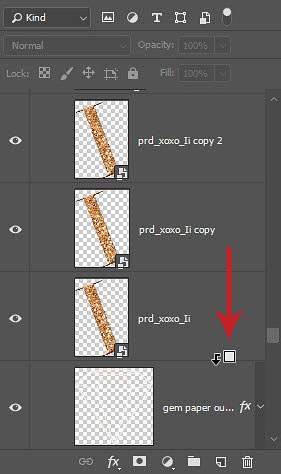
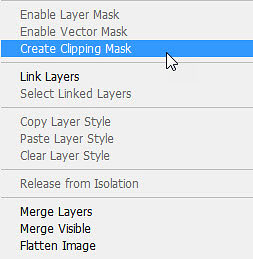
However, if you want to clip all the alpha layers at the same time, select them in the layers palette and then right click on one of the them and choose Create Clipping Mask in the pop up menu. This function will clip all of the alpha layers at once (saving lots of valuable scrapping time – especially with the 25 alpha elements that I clipped on my page).
And here is what the final clipped version looks like:
I love using elements in non-obvious ways and extending the versatility of my digital kits! Be sure to share your favorite tips with us in the comments – we would love to hear them. 🙂
Until next time ~
Judie (HeyJude)