Hybrid Stretch Card
Hello! I’m back once again with my simple style of hybrid to help stretch your stash and today I’m literally stretching it. All I’ve done for this card is cut a digital element in half and put a long rectangle…

Hello! I'm back once again with my simple style of hybrid to help stretch your stash and today I'm literally stretching it.
All I've done for this card is cut a digital element in half and put a long rectangle in between those two halves. It gives you a different kind of fold and spot for your internal message or writing.
Here's a look at the finished effect.
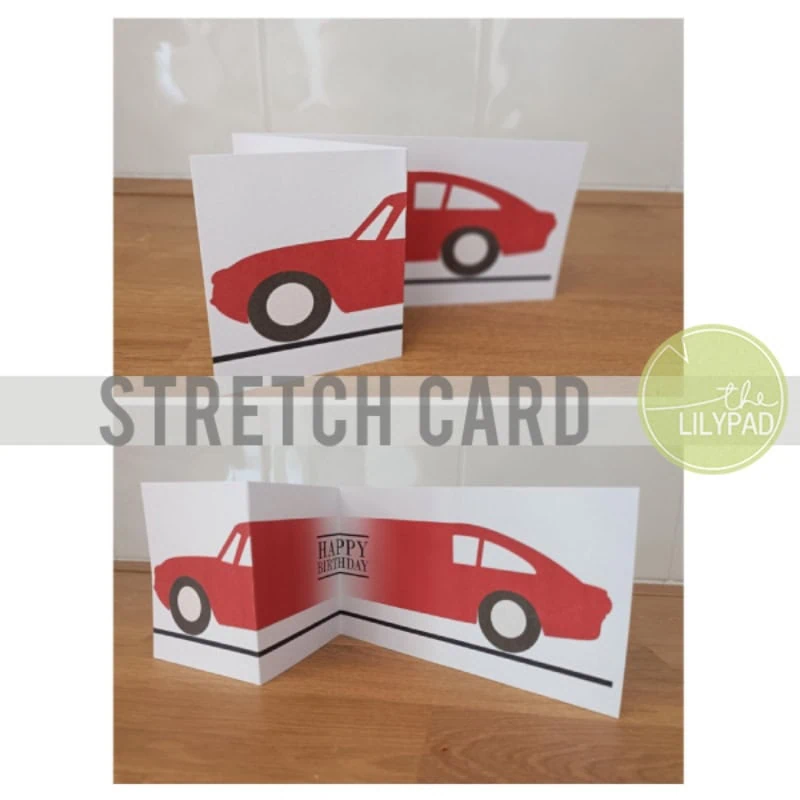
I'm using a somewhat iconic car from the Project Mouse: Cars element pack.

This should work vertically as well- maybe you could give a giraffe wearing a party hat an extra long neck!
Here are my steps and screen shots to set this up for an easy print & a quick fold.
Drag in the element (car) and set up guides that show where you want to cut the element (it doesn't have to be exactly in half).
Select the rectangular marquee tool and drag a box around your left half, from the first to the middle guide. Copy that (Ctrl C in most programs) & Paste it on a new layer. Do the same for the right half of the original element layer. - So now there are 3 layers. The car still looks 'whole' but you have the 2 halves in their original position over the top of the whole original car.
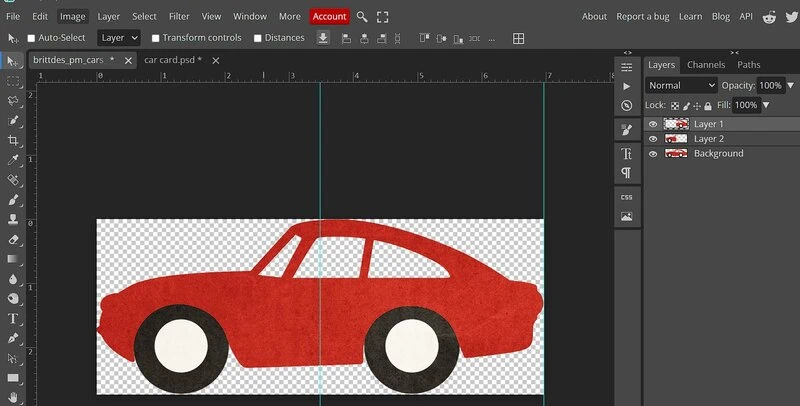
Now go to the Image menu and enlarge the Canvas. Enlarge it only in one direction. I'm making it bigger horizontally. So the ruler in the screenshot above shows my car is 7cms long, in the next one, it is about 60cm. Then move your two car halves to opposite ends of the canvas. They need to still be aligned with each other so they will join cleanly in the next steps, just 'nudged' to opposite ends
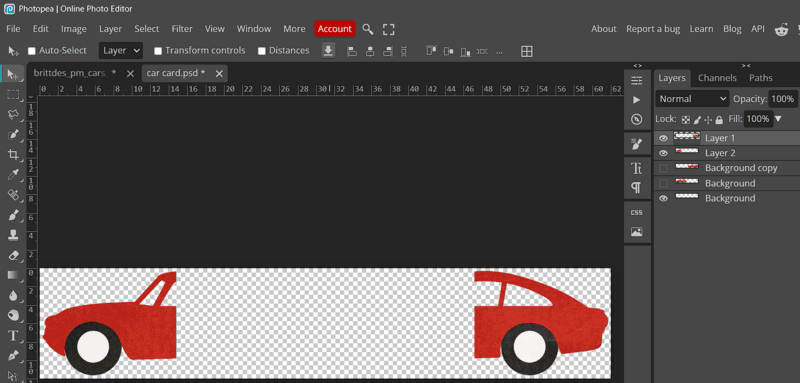
Now I've dragged a basic rectangle between the 2 ends. It's default black and labelled as Layer 4 in the Layers Palette. This could be enough for your element but I decided to use a gradient that matches the car's colour, so I've now switched to the Gradient Fill tool & here's my gradient set-up. You can customise the colour by just clicking on the bottom square to enable the eye-dropper and clicking on the car or your element.
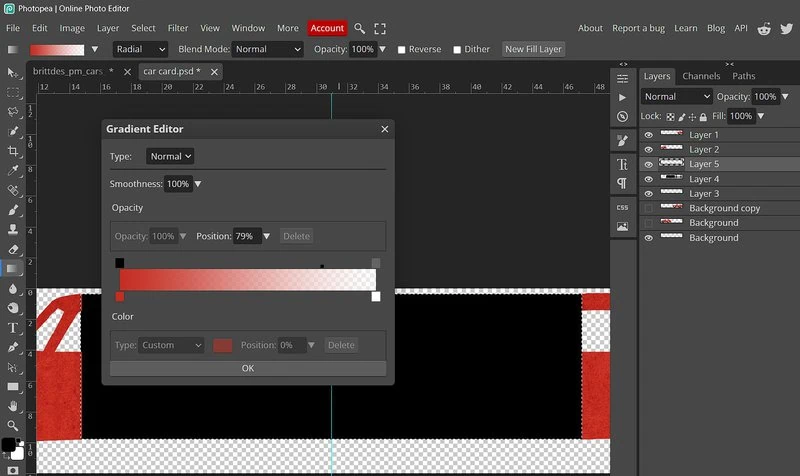
I have the Radial style of gradient selected at the top of the screen above (but that didn't look so good so I changed it to Reflected and forgot to screenshot it again), and already Ctrl Clicked my Layer 4 rectangle to get marching ants around the perimeter of it & in a second I'll have a gradient rectangle on a new Layer (Layer 5). Here I've turned off the black rectanlge's visibility and dragged the gradient points while holding shift to create a clean horizontal gradient
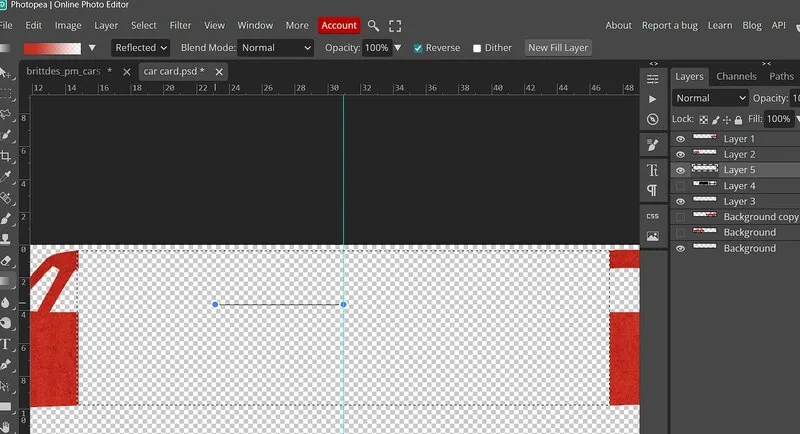
and here it is done, ready for whatever sentiment, wordart or handwriting you want to include.
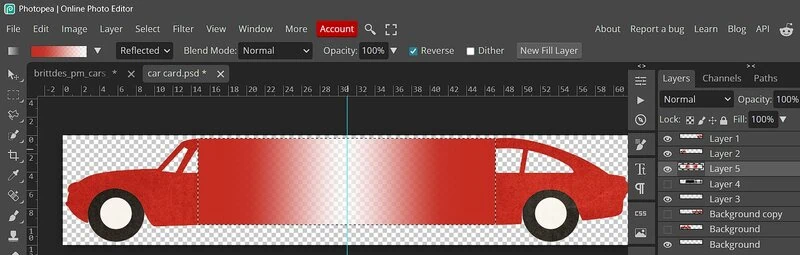
To format this for printing, I flattened the image and saved it as a JPEG after typing in a phrase and putting in a solid 'road' line, making sure the length of the stretched car fit on our printer paper.
After printing, I used a paper trimmer to cut it down & the scoring blade to crease and fold it at the end of the gradient rectangles, where the guides were, to reassemble the car and pop it in an envelope.
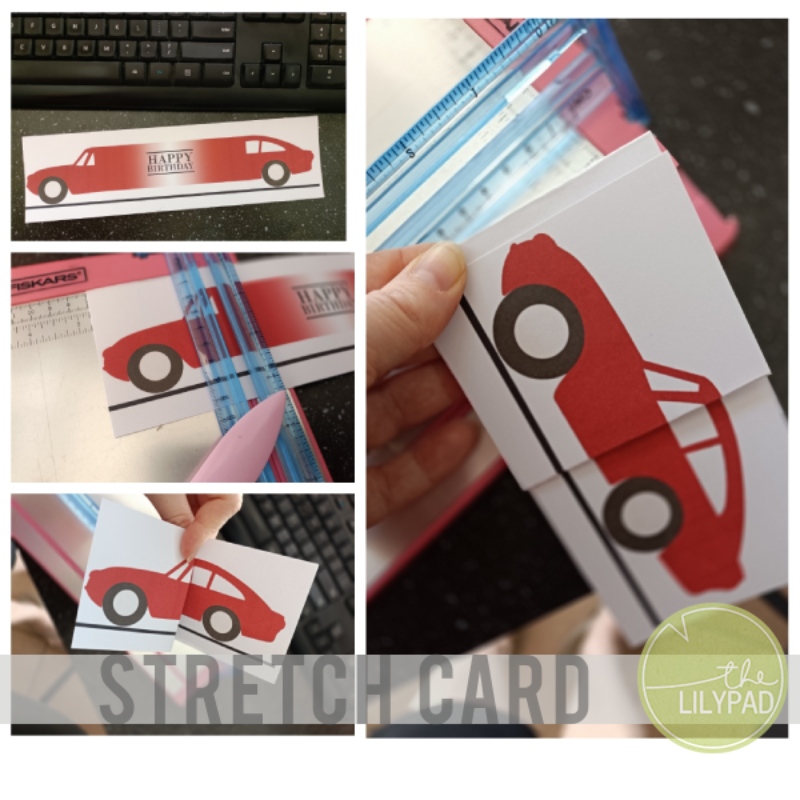
Scroll back up to the top of this post to see the finished card opened and unfolded again. Happy hybriding!
Hello! I’m back once again with my simple style of hybrid to help stretch your stash and today I’m literally stretching it. All I’ve done for this card is cut a digital element in half and put a long rectangle…
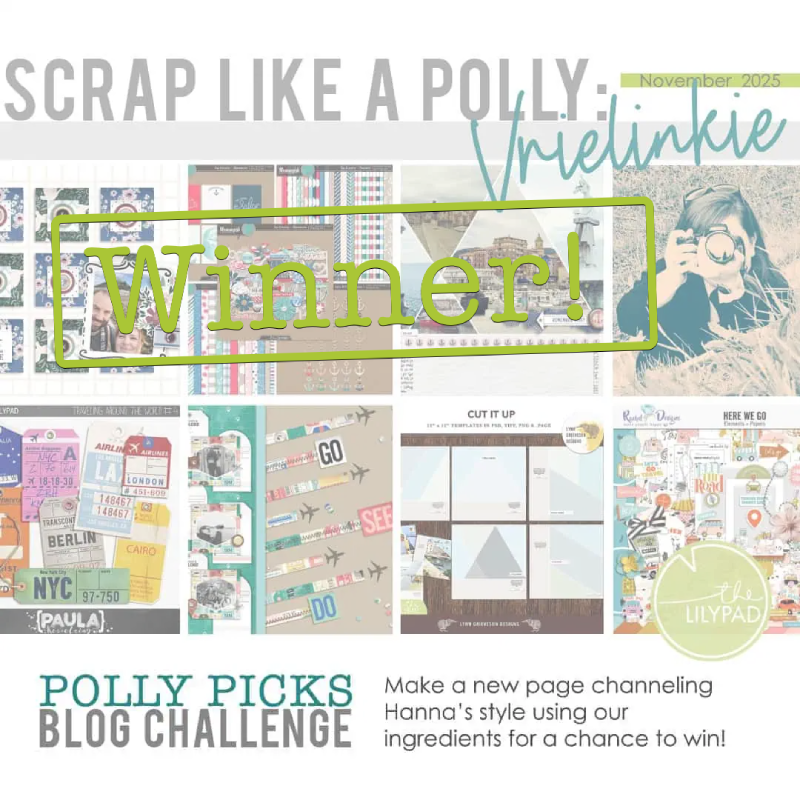
Happy *almost* Christmas! I’m popping in with the winner announcement for the November Scrap Like Vrielinkie Challenge to wrap this up before I wrap up a few last minute real world things. I’ve loved seeing everyone’s versions of this year’s…
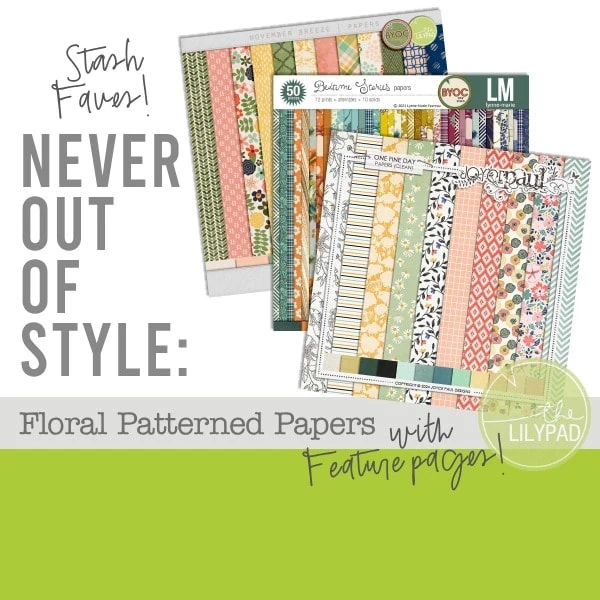
Have you seen the ever changing ‘Still Trending’ category of the store? It’s a great way to rediscover some products from the depths of the store that change seasonally but I’m going to highlight some different products that I feel…
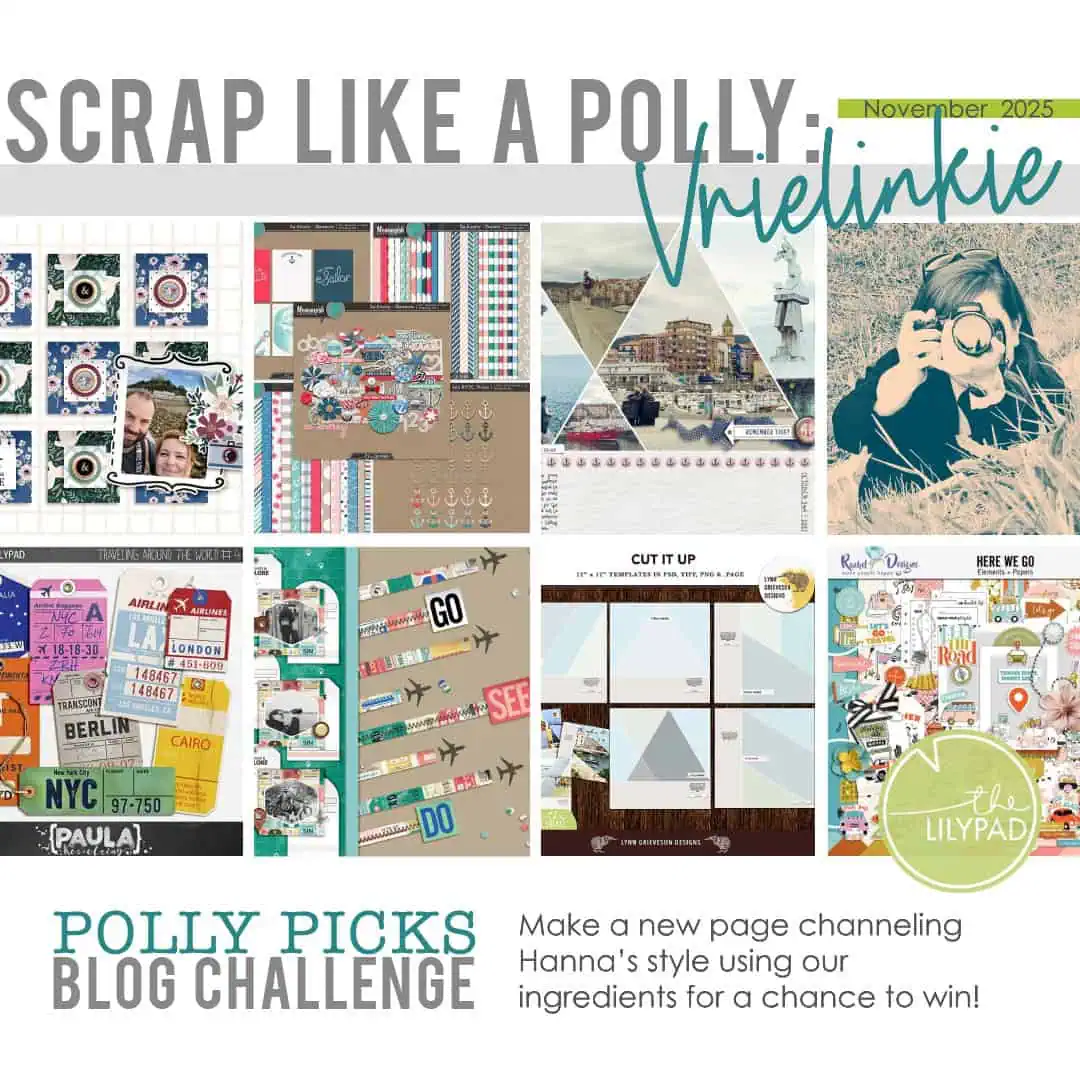
Welcome to the next edition of our newly revamped Polly Picks series, where each month we will chat with one of our Pollys about their scrapbooking style and fave things and give you the chance to win a $5 code…
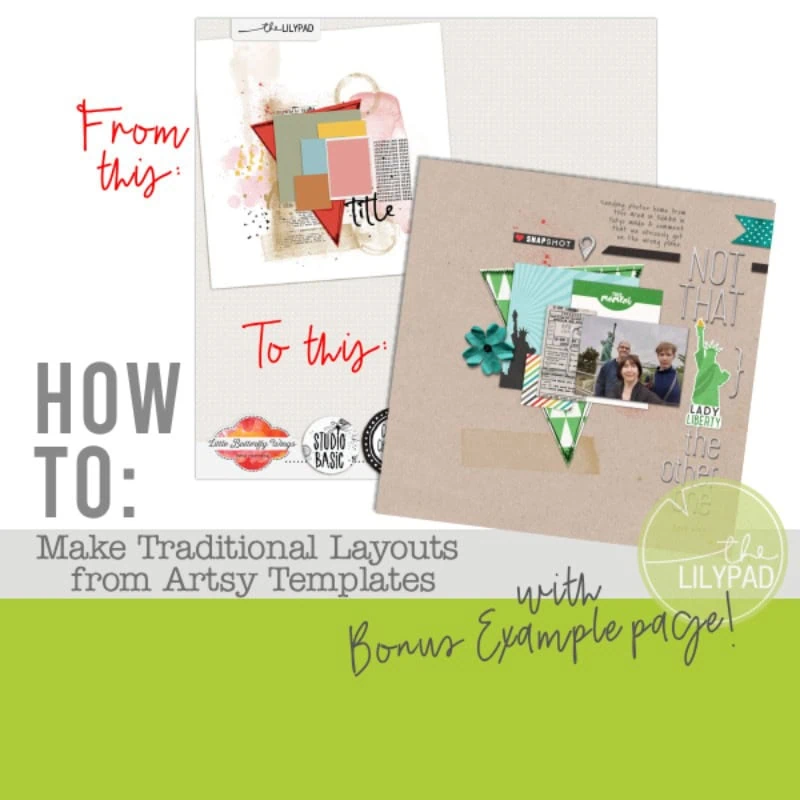
Sometimes we pigeon-hole ourselves or our products. As a longtime scrapper and template user, I’ve gone through various creative styles myself and seen product trends come and go. I freely admit that I rarely use a template 100% as it…
Welcome to the next edition of our newly revamped Polly Picks series, where each month we will chat with one of our Pollys about their scrapbooking style and fave things and give you the chance to win a $5 code…

Hey! What’s your immediate reaction to a journaling challenge? Do you dread them? Are you filled with trepidation or are you in the opposing ‘no problem, I can fill a page with words!’ camp? Do templates with significant journal spots…
Welcome to the next edition of our newly revamped Polly Picks series, where each month we will chat with one of our Pollys about their scrapbooking style and fave things and give you the chance to win a $5 code…
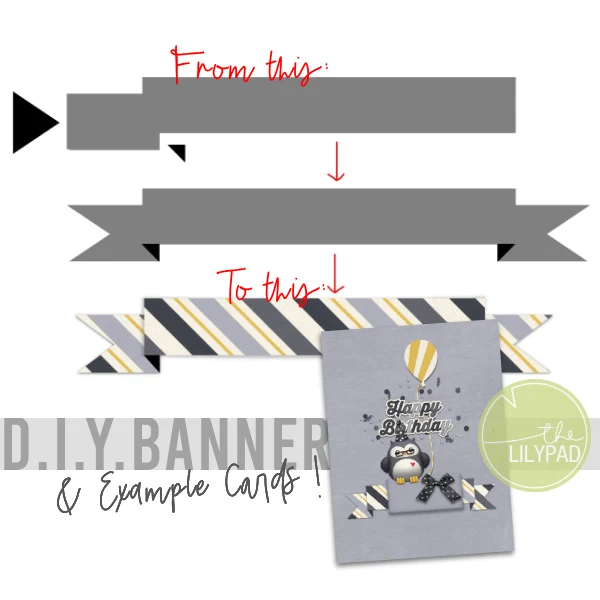
Hey there! The other day I blogged a paper card I made with a banner shape and here’s the digi ‘behind the scenes’ look at how I made the compound banner shape from a few other simple shapes in Photopea….
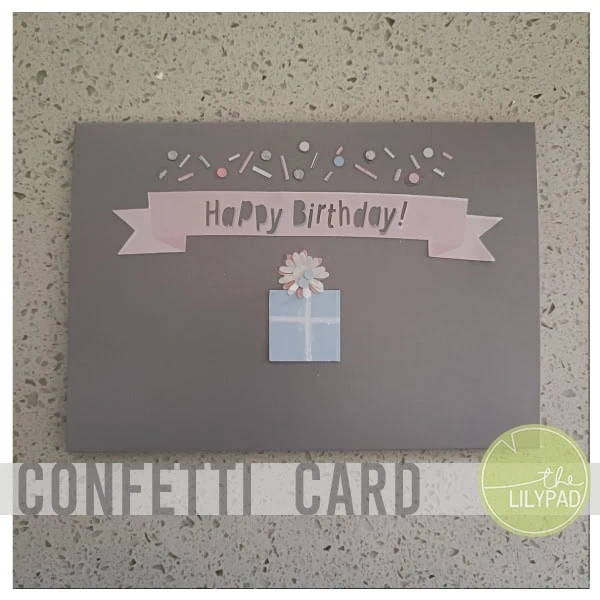
Hey there!I’ve documented some of my hybrid Silhouette Cameo and cardmaking adventures on the blog before and I feel like sometimes we overcomplicate things. Hybrid and card making doesn’t have to be daunting and use all the things. I still…
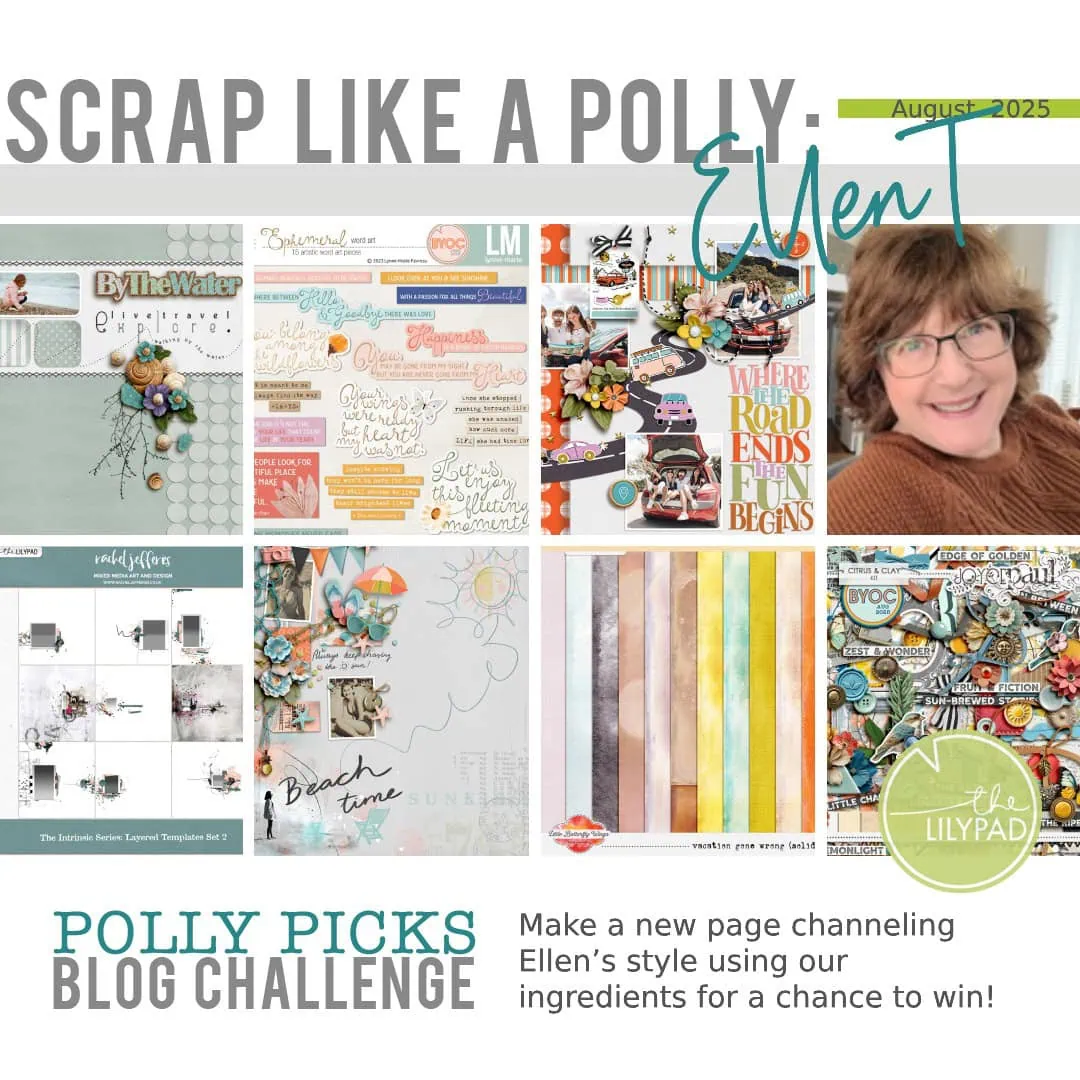
Welcome to the next edition of our newly revamped Polly Picks series, where each month we will chat with one of our Pollys about their scrapbooking style and fave things and give you the chance to win a $5 code…

Welcome to the third edition of our newly revamped Polly Picks series, where each month we will chat with one of our Pollys about their scrapbooking style and fave things and give you the chance to win a $5 code…