Tips & Tricks: Rounded Corners
Rounded corners. They are a classic look, aren’t they? I don’t think they will ever go out of style. I did it when I paper scrapped to soften up a page, and I continue to use them every now and again to soften up a page! If you haven’t played around in photoshop a whole lot, and you consider yourself still learning then you may not have this technique down yet. It’s another little tip that I get asked about a lot when I teach someone the ins and outs of photoshop. And of course, just like with every other thing in photoshop, there seems to be 5 different methods to achieve the same end results. Here is the method I use the most.

- Select the rounded rectangle tool from your tool bar. The shortcut for this tool is to push your letter u button.
- Select the appropriate roundness by entering a number in the radius box. I go by pixels so I have mine entered as 75 px (or any number you like. The higher the number the more round the corners)
- Hold and drag to make a box inside your picture or paper that you have opened. You will see a selection made that you cannot move or modify yet. Also note that if you would like your selection to be an exact square (but with rounded corners of course), you can hold down shift while you drag to make your selection.
- Now you will need to go over to your layers palette in the lower right hand side and you should see the file tab that says paths. If you do not have that you can open it by going to the “window” option along the top bar and put a check next to the word paths. Once you are in paths you will have 6 options along the bottom, four of them circle type pictures, the square, and the garbage can. The third circle in from the left is a circle that will say “load path as a selection” if you hold your cursor over it. You will want to click that and then you can see that your rounded rectangle selection on your photo or paper has now become a marching ants selection that you can move around if need be with your arrow keys.
- Once you have the selection the way you would like it, you can go to your move tool (v button) and then you should be able to drag your newly rounded rectangle picture or paper into your layout!
Here are a few beautiful examples of some LO’s with rounded corners
By CD Mucksoky
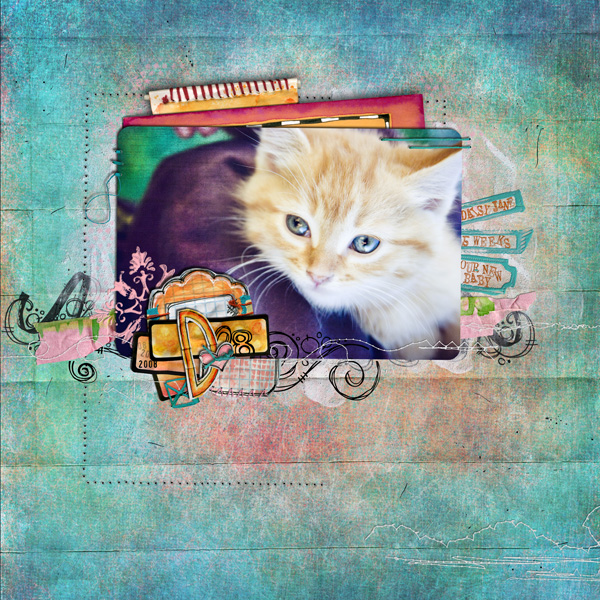
By Julie (mrsa250)
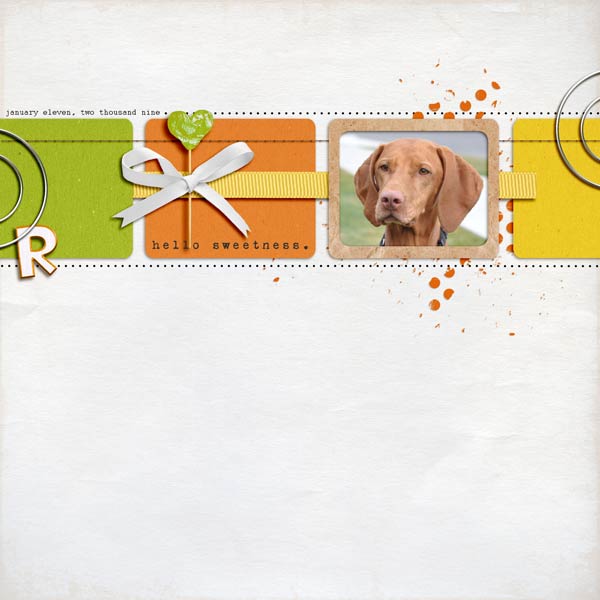
By Norton94
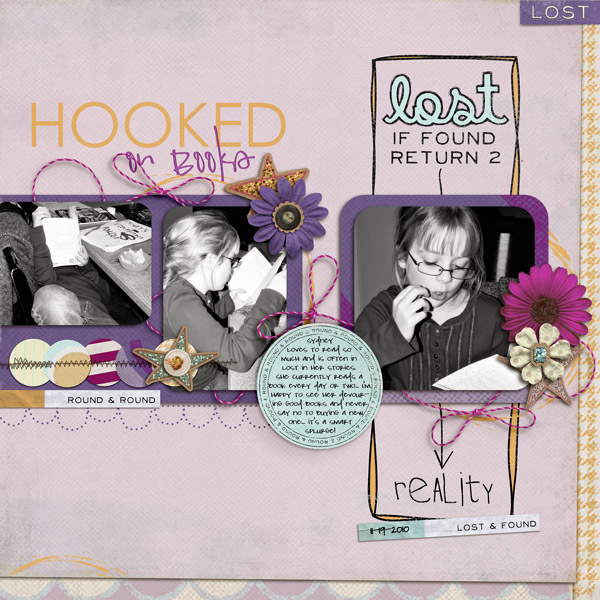
By me (MandaKay)

I hope you have seen that there are a lot of fun things to do with rounded corners on layouts, and I can’t wait to see what you create using this tip! Do share if you have discovered the fun of rounded corners!