Tips & Tricks: Font Fun
So tell me, who is LOVIN’ the new fonts in the store by Heather???!!! I love it that The-Lilypad now has our own resident font designer!!! So today’s tip has to do with fonts and a few of the things you can do with them in most of the photoshop programs! I hope that you can take at least something new away from this post that you maybe haven’t used or tried before!
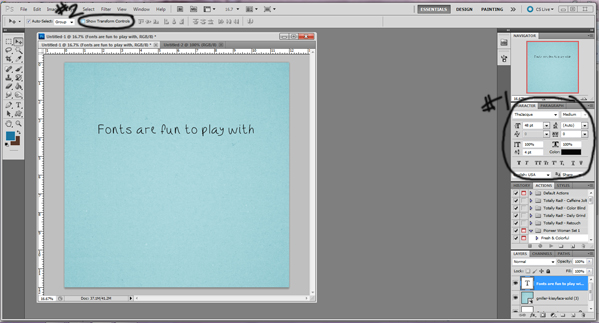
Once you have your type tool selected (shortcut for this is the letter “t” on your keyboard), and you’ve typed your text, there are a few things that are fun to play with within your character/paragraph box and also along the top of your photoshop screen! I generally have my character/paragraph box open as a window/palette, which can be done by going to “Window” along the top bar and selecting “character”. You will notice in my illustration (sorry for the not so great quality of the illustration by the way – I have yet to master how to do a great preview of my screen – someone will need to do a great tips and trick post on that!) that my character palette is open along the right side of the preview with the #1 by it. Here is where I do most of my typography playing. Now let’s say I want to view different fonts right on my page to figure out which one I want to use. All I have to do is highlight the font scroll down area at the top of my character box and I can start scrolling down with my arrow keys. I do this while I am in the move tool, and per illustration #2, if I unselect the “show transform controls” box, then I can see my sentence nice and clear without the bounding boxes around it!
There are many great things you can do with the type tool, and many of them are similar to what you would see in a Word document or a program of the like! Again, most of your options will be in the character/paragraph palette rather than on the top bar when on type tool! But basically you can right justify, left justify, center your text, change font color, bold, italic, and so much more!
I’ve also had some people ask about creating a text box. To create a basic text box you just need to be on your type tool and then take your mouse, click somewhere on your layout, click and hold downyour left mouse button and drag out the box to the size of your liking, not letting go of the left mouse button until you have your marching ants text box. And one more trick when you have a text box – if you want to widen or heighten the size of your text box with the bounding boxes, you will want to do that when you are on the type tool not the move tool. If you play with the vertical or horizontal boxes of your text box while on the move tool you will misconstrue your text, but if you play with those while in the type tool then your text justifies accordingly!
Now go and have fun playing with your new fonts, and if you have any questions please feel free to leave them here and we will try to answer them as best we can!