nhudao
Well-Known Member
- Joined
- Jan 25, 2013
- Messages
- 804
Follow along with the video below to see how to install our site as a web app on your home screen.
Note: This feature may not be available in some browsers.

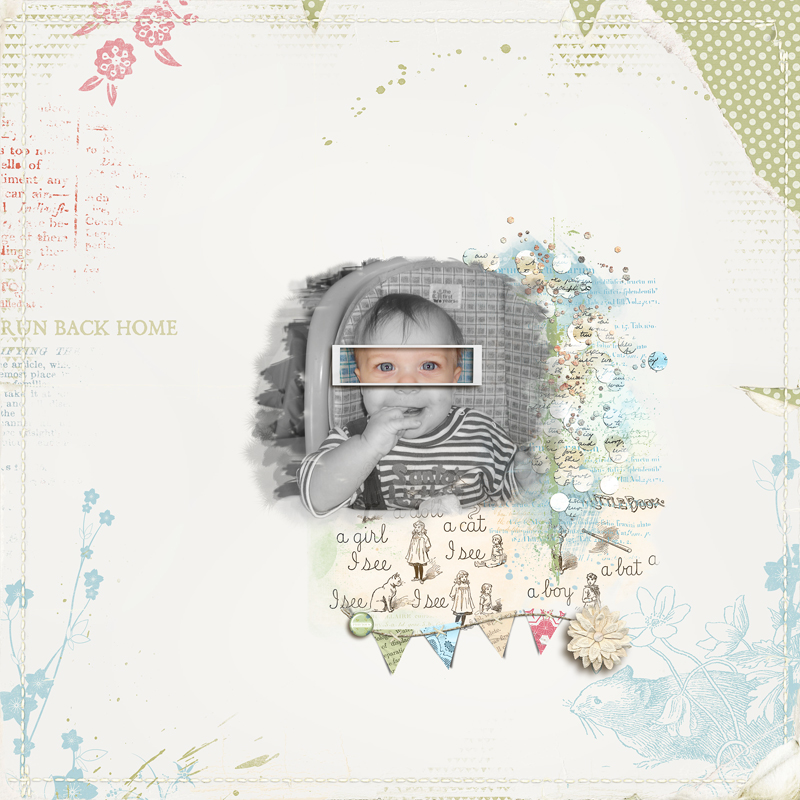
You probably have a mask or two in your stash. Or you can start with a shape. Then use the eraser tool with an opacity of less than 100% to soften the edges. You can also add other elements to it. However, you need to flatten them together before you start erasing - you also need to fill it with black. What I did was group the items, copy them off to the side, and then flatten the original, erase, etc. That way if you need to go back, you can delete the flattened "mess" and use the grouped items to start over. I suggest you build the mask over your picture so you can see if it will cover it.
When you have the mask built, select, Ctrl-C, then go the photo, add a mask effect, but in the drop down box for the mask selection, do a Paste and it will pop in your mask. If you don't like it, backup a few steps and repeat.


Angi, where did you get stuck re the frame edge? I put a white stroke on mine using a style but any frame would have been fine to add. What program do you use? If you want me to clarify for future reference, please let me know and I will help you further. I am sorry you had some trouble making the frame.Thanks for hosting this challenge! I did have some trouble with trying to add a frame around the rectangle. But great instructions and I really appreciate that you included the shortcut keys for Mac.