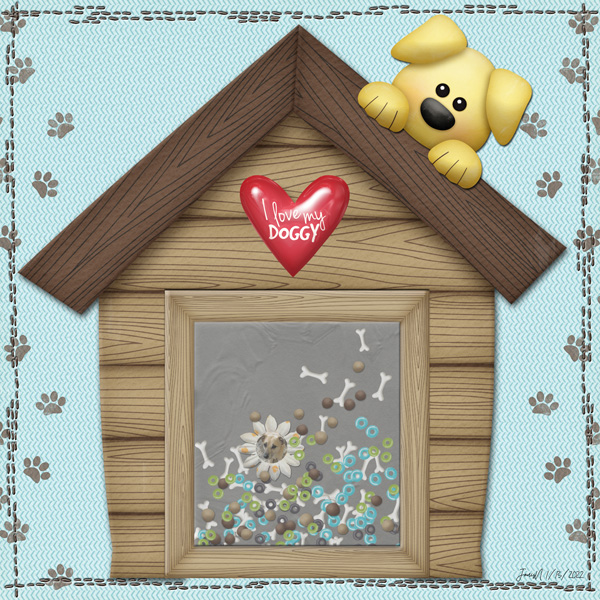
January 13: Create a shaker box

Okay, so I either overthought, or underthought, this shaker thing. I'm pretty happy with my results, but I'm pretty sure I don't know how to replicate them.


Can someone *please* point me to a tutorial on creating the shaker "bits" with the mask for the item you are putting them in? I had SO MANY LAYERS going - somehow in the tweaking, saving, and messing about, I got them to merge into a png, but I was surprised when it finally worked. Still so much to learn!
 
Soooo, this kinda happened. I had no idea what I was going for, but this is what I ended up with. I hope it's okay! I must admit I haven't done that kind of fiddly element cutting and placement in a loooooong time. This was awfully fun to make, too! Thanks for the great challenge.

 
Okay, so I either overthought, or underthought, this shaker thing. I'm pretty happy with my results, but I'm pretty sure I don't know how to replicate them.


Can someone *please* point me to a tutorial on creating the shaker "bits" with the mask for the item you are putting them in? I had SO MANY LAYERS going - somehow in the tweaking, saving, and messing about, I got them to merge into a png, but I was surprised when it finally worked. Still so much to learn!

Which program do you scrap in?
 
It took me literally ALL day long to pick which subject I wanted to scrap for this, but I am thrilled with all the agonizing and that I picked this topic. :giggle This layout will make me giggle for many years to come. :agree Thank you for the fun inspiration Kayla!

 
I am struggling with getting the ripples to show up in my shadowbox....if its the very top layer I see them fine but as soon as I put it in the right place any detail of the plastic is lost....can anyone help me?
 
Not sure how to get the plastic to show either. Is it done by a shadow? I think I need to make it stand up a little to look like it holds things?
 
I am struggling with getting the ripples to show up in my shadowbox....if its the very top layer I see them fine but as soon as I put it in the right place any detail of the plastic is lost....can anyone help me?

I found that the inverse tip - ctrl + I - helped, then I had to lower the opacity of the plastic to make it show much. But then in the end, it was so small, those ripples didn't really show much... hope that helps!
 
I found that the inverse tip - ctrl + I - helped, then I had to lower the opacity of the plastic to make it show much. But then in the end, it was so small, those ripples didn't really show much... hope that helps!

In my case that made things show up even less....maybe its because I have a darker background to my shaker box
 
Photoshop Elements 2020 - I'm in there now, trying to figure out what I'm not getting. :)

Cheryl just did a Watch Cheryl Scrap tonight where she did the shaker box challenge. She'll be posting the recording in post #2 as soon as it's ready.

In the meantime, to answer your question about masking the shaker items you'll want to put them in a group. It’s easier to work with one group than multiple layers. In PSE, highlight them in the layers panel and click on the stacked paper icon above your layers to put them in a group. Then add a layer mask (rectangle with hole cut out) to the whole group. Then click on the mask in the layers panel and use a black brush to mask the items extending outside your shape. Here's what my group and layer mask look like. HTH

 
Last edited:
In my case that made things show up even less....maybe its because I have a darker background to my shaker box

Jennifer, for darker backgrounds you will want to try the lighten blend mode or other blend modes in that section to see which look best with your paper. Also you can duplicate the plastic with the blend mode to see what looks best. Also move the plastic around to get an area that has lots of ripples.
 
Back
Top