At An Angle – Tilting Designs in Photoshop and PSE
Hey everyone! I’m popping in today with a quick tip for adjusting the angle of your page design in Photoshop or PSE. There are a couple of templates in today’s SOSN Sale with angled page designs that are simply fabulous. One of my favorite things to do when my pages all start looking the same to me is to change up the overall angle of the design. Changing your design angle is amazingly easy in either Photoshop or PSE – and you can even use this technique on a template with a straight horizontal design.
I used this technique on one of Fiddle-Dee-Dee’s Stay Focused templates, which are available in today’s SOSN sale, along with the Brighter Days Kit that I used by Etc. by Danyale.

Here is the original template:

This is my process for “tilting” a template page design:
Step 1. Select all of the element layers in the Layers Panel. The easiest way to do this is to select either the top of bottom layer and then Shift > Click on the layer at the other end. This will automatically select all of the layers in between the top and bottom. If you want to tilt your own page design, I find it easiest to build the design horizontally first, then select all of the elements and follow the steps below.
Step 2. With all the layers selected, activate the Transform mode with the shortcut Ctrl/Cmd T. You should now see a box around all of the selected elements.
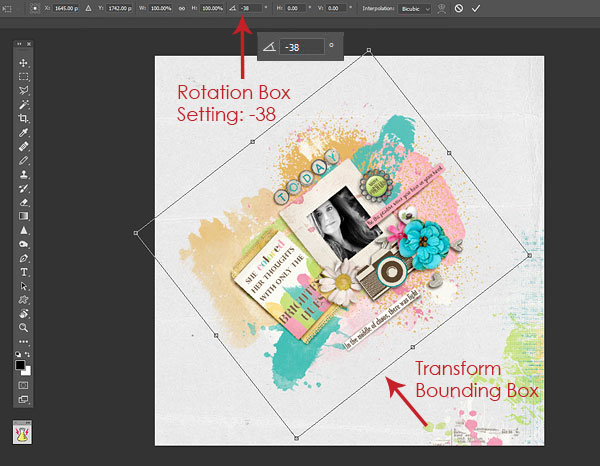
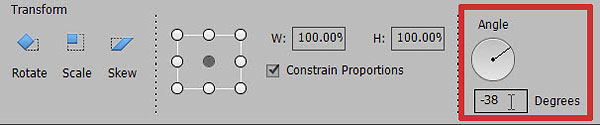
Step 3. You can now tilt the design at an angle by positioning the cursor just outside of one of the corners and shifting the box until it is set at the angle you want. If you want a particular angle, you can do this easily by typing in an amount in the Rotate box located in the Transform menu. I adjusted my design to -38 degrees. Here is what it looks like in Photoshop:
And here is what the Transform settings look like in PSE (15):
And that is all there is to it! I hope you have fun tilting your designs and finding your favorite angles. 🙂
Until next time ~
Judie (HeyJude)