January 14: Mosaic Photo Effect

@IntenseMagic

The Paint Shop Pro video includes having to install other things on your computer and using them outside PSP. I do not recommend that video at all as a long time PSP user. However, I do know that there is a script available for purchase ($5.99) at another site that can be used within the program that does the same thing. The script automates the process.
 
I have PSE 12 and I used Andrea Photo Mosaic builder (suggested by JenEm) which is free to use - with credit given.
Andrea Mosaic Home Page
THANKS! I have PSE15, and tried the collage maker but the results were kinda hideous- like someone threw photos onto a table. So Im gonna try this program instead!
 
Thanks Jan :) I did this technique years ago for a friend of mine for a memorial..

Your challenge was a lot of fun to revisit the technique and do it differently than I remember doing it!! (gosh I think it was at least 10-12 years ago).. Thanks for hosting this fun challenge! (That is cool to make the mosaic a pattern!)


I chose this 11 month photo of Liam (youngest grandson) and his 11 month journey from being born 9 weeks early, NICU stay during a pandemic until now...I used almost 115 photos and overlaid it on his 11 month pic taken 1/8/22. He has come so far and is doing great and catching up to Baby Koda (who is only 3 days older than him).

Credits:
S Basic & R Jeffries: Trust the Journey: Stay Patient
Template by SWL - modified
 
Users of PSE 11 - PSE 2022 will need to be in EXPERT MODE and use the Create Function (upper right of screen) to create a photo collage. It only lets you use 8 photos though.

First you need to open 8 photos and then select Create > Photo Collage.
It does it's magic and then let's you select (double click) the layout style you want to use. I picked facebook cover because that one made the photos the smallest and had portrait and landscape orientations for more variety in the pattern later.

Next you will need to click on the advanced mode (top left of screen) so you can adjust the photos to get rid of the white borders. Once in advanced mode select window > layers. This will open the layers panel and you can make adjustments there. The photo collage function put each photo in it's own group with a photo and a mask. Click on the group name and use the arrow keys to move each group next to each other so it looks like one photo with no white between them. I did a row at a time and then moved a whole row next to the other row.

Then get the marquee selection tool and select the whole photo collage, leaving out any white border that was left when you moved the photos together.

Select Edit > Define pattern from selection and continue on in your instructions.

You may have to simplify the pattern overlay layer before being able to adjust the lighting and shadows/highlights, but that should get you to a point where they can get the mosaic. HTH :agree
 
I have to figure out how to do this in Artisan. So I figured out a way to do this in my software. I added 1.5x1.5 photo boxes to my page and added all my photos. I flattened the photos and changed the photos to black and white. I made the image smaller to copy and paste it 3 more times. I then lowered the opacity down to 30 and added my image as the background photo and then added my elements. I love the way it turned out. Thank you for challenging me Jan!
 
Last edited:
It’s anyone’s guess on this one. I think you’ve got the best idea there and it will be time consuming to say the least. Maybe do a small section and repeat it? Or use one of the tutorials Jan listed.

I do have photoshop (I just haven’t learned to use it yet) so I’ll be breaking it out for this challenge.

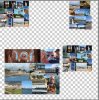
I did it manually. Couldn't figure out the suggested app. It only took about 30 minutes. I made several collages
Collage making.JPG
then reduced them in size and merged them. :D Hope this helps anyone who is puzzled ( sorry for the pun!) by this. Not difficult, really.
 
Last edited:
Users of PSE 11 - PSE 2022 will need to be in EXPERT MODE and use the Create Function (upper right of screen) to create a photo collage. It only lets you use 8 photos though.

First you need to open 8 photos and then select Create > Photo Collage.
It does it's magic and then let's you select (double click) the layout style you want to use. I picked facebook cover because that one made the photos the smallest and had portrait and landscape orientations for more variety in the pattern later.

Next you will need to click on the advanced mode (top left of screen) so you can adjust the photos to get rid of the white borders. Once in advanced mode select window > layers. This will open the layers panel and you can make adjustments there. The photo collage function put each photo in it's own group with a photo and a mask. Click on the group name and use the arrow keys to move each group next to each other so it looks like one photo with no white between them. I did a row at a time and then moved a whole row next to the other row.

Then get the marquee selection tool and select the whole photo collage, leaving out any white border that was left when you moved the photos together.

Select Edit > Define pattern from selection and continue on in your instructions.

You may have to simplify the pattern overlay layer before being able to adjust the lighting and shadows/highlights, but that should get you to a point where they can get the mosaic. HTH :agree
Thanks so much, Kayla!!
 
I did it manually. Couldn't figure out the suggested app. It only took about 30 minutes. I made several collages
View attachment 484093
then reduced them in size and merged them. :D Hope this helps anyone who is puzzled ( sorry for the pun!) by this. Not difficult, really.

that’s what I was thinking - I was also planning on repeating the collage to get the bigger mosaic effect. Thanks for being the pioneer!
 
Back
Top