
- Joined
- Feb 28, 2012
- Messages
- 13,334
January 14 - Mosaic Photo Effect
Hey, hey everyone and welcome to Day 14 of MOC10!! I hope you all are enjoying the challenges, learning new things, and stretching your creativity!! The best part of MOC for me is learning something new. Even if I don’t ever use all of the technique again, there are parts of it that I can take with me into other projects! So, I hope you learn something new or get a refresher from this challenge
Today, I am challenging you to create a Photo Mosaic! We’re going to make a photo look like it was made from a lot of little photos!

There are probably lots of different ways to go about doing this, some more time consuming than others, and how you go about creating this look is entirely up to you, but today I’m going to show you one fairly easy way to go about this all within Photoshop. Don’t let the length of the post intimidate you, it’s really not that bad! I’ll have some links I found for other programs at the end of this post
The first thing you want to do is find your main image, the one you are going to add the mosaic overlay to. My layout is going to be a little 2021 recap, so I’ll be using this one:

You’ll also want to find all the other photos you want to use for your mosaic. For the purposes of this tutorial, you’ll want to create a folder on your computer and copy all your photos in there. You can use as many as you’d like, but the more you have the better. It also should not be a prime number of photos and you’ll see why. For my example, I chose 100 photos, a couple from each week of this year. You definitely don’t have to use 100, but you’ll want more than just a couple. I’m leaving that part up to you, and they can be any photos you’d like…new, old, stock, whatever. Trust the process
Now to Photoshop. First open the main photo you selected.
Go to File>Automate>Contact Sheet II. Select Folder and then choose the folder where you have your mosaic images.

In the Document section, uncheck Flatten All Layers, set the units to inches, and then set the width, height, and resolutions. Mine are 12, 8, and 300 because my photo is landscape. You could also use 10 x 10. This is your preference and doesn’t make much of a difference in the final image, don’t sweat over it too much *Also make sure the Rotate for Best Fit is unchecked as well as Use File Name for Caption.
Under Thumbnails, uncheck Use Auto Spacing. Then set the values of columns and rows. These two numbers should multiply together to equal your number of photos (Didn’t know you were going to math, huh? lol). For example, if you have 50 photos, the values could be 5 and 10. If you have 20 photos, it would be 5 and 4… 6 photos would be 3 and 2. I tried a bunch of combinations and they all turn out fine in the end.
Click OK

Now Photoshop will work on arranging all the images in layers with a layer mask. The more photos you have the longer this will take
It will look something like this when it’s done, depending on the photos you used:

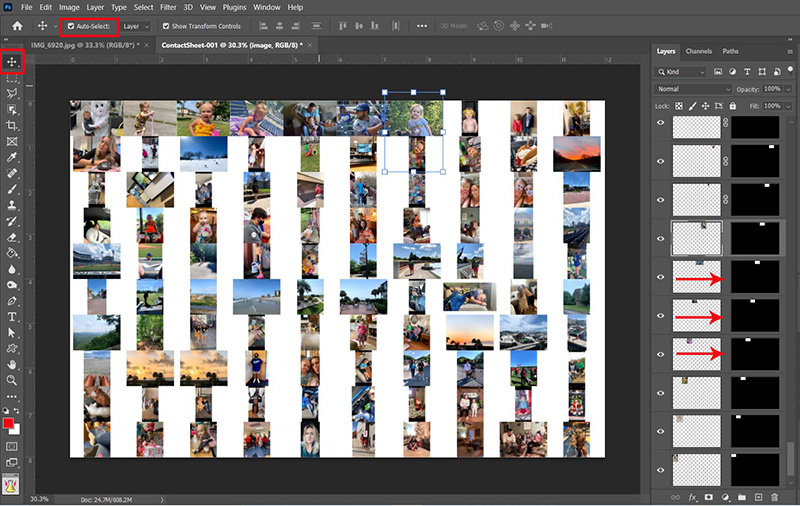
Now we are going to adjust the images in the contact sheet, filling in all the white areas. Select the Move Tool and check Auto-Select.
Choose an image you want to adjust, then click on the chain link to unlink the layer from the mask. With the image selected, resize (transform) it to fit within it’s box. If you need to rotate them, you can do that here as well. In doing this, all the images will be the same size. If there is white space left on the side, you can use the crop tool to crop it out.
This is what it should look like when they are all resized. Of course a different number of photos will have a different look, but there should not be any white space showing.

Once you have resized all the ones you need to and all the white space is filled in, go to Edit>Define Pattern and give your pattern a name.


Hang tight, there's more coming in the next post!
Continued.....
Hey, hey everyone and welcome to Day 14 of MOC10!! I hope you all are enjoying the challenges, learning new things, and stretching your creativity!! The best part of MOC for me is learning something new. Even if I don’t ever use all of the technique again, there are parts of it that I can take with me into other projects! So, I hope you learn something new or get a refresher from this challenge
Today, I am challenging you to create a Photo Mosaic! We’re going to make a photo look like it was made from a lot of little photos!
There are probably lots of different ways to go about doing this, some more time consuming than others, and how you go about creating this look is entirely up to you, but today I’m going to show you one fairly easy way to go about this all within Photoshop. Don’t let the length of the post intimidate you, it’s really not that bad! I’ll have some links I found for other programs at the end of this post
The first thing you want to do is find your main image, the one you are going to add the mosaic overlay to. My layout is going to be a little 2021 recap, so I’ll be using this one:
You’ll also want to find all the other photos you want to use for your mosaic. For the purposes of this tutorial, you’ll want to create a folder on your computer and copy all your photos in there. You can use as many as you’d like, but the more you have the better. It also should not be a prime number of photos and you’ll see why. For my example, I chose 100 photos, a couple from each week of this year. You definitely don’t have to use 100, but you’ll want more than just a couple. I’m leaving that part up to you, and they can be any photos you’d like…new, old, stock, whatever. Trust the process
Now to Photoshop. First open the main photo you selected.
Go to File>Automate>Contact Sheet II. Select Folder and then choose the folder where you have your mosaic images.
In the Document section, uncheck Flatten All Layers, set the units to inches, and then set the width, height, and resolutions. Mine are 12, 8, and 300 because my photo is landscape. You could also use 10 x 10. This is your preference and doesn’t make much of a difference in the final image, don’t sweat over it too much
*Also make sure the Rotate for Best Fit is unchecked as well as Use File Name for Caption.Under Thumbnails, uncheck Use Auto Spacing. Then set the values of columns and rows. These two numbers should multiply together to equal your number of photos (Didn’t know you were going to math, huh? lol). For example, if you have 50 photos, the values could be 5 and 10. If you have 20 photos, it would be 5 and 4… 6 photos would be 3 and 2. I tried a bunch of combinations and they all turn out fine in the end.
Click OK
Now Photoshop will work on arranging all the images in layers with a layer mask. The more photos you have the longer this will take
It will look something like this when it’s done, depending on the photos you used:
Now we are going to adjust the images in the contact sheet, filling in all the white areas. Select the Move Tool and check Auto-Select.
Choose an image you want to adjust, then click on the chain link to unlink the layer from the mask. With the image selected, resize (transform) it to fit within it’s box. If you need to rotate them, you can do that here as well. In doing this, all the images will be the same size. If there is white space left on the side, you can use the crop tool to crop it out.
This is what it should look like when they are all resized. Of course a different number of photos will have a different look, but there should not be any white space showing.
Once you have resized all the ones you need to and all the white space is filled in, go to Edit>Define Pattern and give your pattern a name.
Hang tight, there's more coming in the next post!
Continued.....


 . Does it matter? Not really, it's the final look that matters. It's just an opportunity to maybe learn something new and challenge you a bit


