April 2017 Look Book - assignments + deadline

@lmccandless @norton94
I want to work on my article from Post #55, but I'm unsure how big the images should be. Will the images be clickable to a larger size? Or, am I to take up that a lot pages in the book (maybe the back so it doesn't ruin the flow)? I'm sorta at a stand still until I know what the about the layout/how images will function. Sometimes, my images aren't square, but I can try to stick to that rather than a rectangle. I'm a bit lost at the moment, sorry.
 
@jk703 most of my images weren't square either ... I found a few templates that I thought would fit between space for my images and space for my copy (text) ... and then I just turned off the square photo masks and sized the rectangles to the closest I could get them to fit in the space provided. (looking back at my pages 2 and 3 ... for the Inspo article - I'm like WHOA those JCs are large! Compared to pages 1 and 4!) Mine still needs some tweaking/fine tuning!

There are some templates that have different size blocks like 11, 12 and 7. I think #11 you could do a square LO image in the two middle grey squares - and maybe some of the wonky rectangle images off to the left. Then the far right side is copy. Maybe the templates like that would work for your tutorial where you have lots of different shapes?

Issuu is pretty cool - because it is like a flip through book where the pages actually feel like you are flipping through a real book. You can make the book larger or even go full screen - so people can definitley zoom in and see details. We just have to make sure to save at high resolution. I've seen Issuu mags with low resolution and when you go full screen it is not pretty.

flip through a couple mags to get the feel for it! https://issuu.com
 
@jk703 most of my images weren't square either ... I found a few templates that I thought would fit between space for my images and space for my copy (text) ... and then I just turned off the square photo masks and sized the rectangles to the closest I could get them to fit in the space provided. (looking back at my pages 2 and 3 ... for the Inspo article - I'm like WHOA those JCs are large! Compared to pages 1 and 4!) Mine still needs some tweaking/fine tuning!

There are some templates that have different size blocks like 11, 12 and 7. I think #11 you could do a square LO image in the two middle grey squares - and maybe some of the wonky rectangle images off to the left. Then the far right side is copy. Maybe the templates like that would work for your tutorial where you have lots of different shapes?

Issuu is pretty cool - because it is like a flip through book where the pages actually feel like you are flipping through a real book. You can make the book larger or even go full screen - so people can definitley zoom in and see details. We just have to make sure to save at high resolution. I've seen Issuu mags with low resolution and when you go full screen it is not pretty.

flip through a couple mags to get the feel for it! https://issuu.com

I will, thanks for the link! I know I can work with the templates, but I worry about space and amount of pages. Do you know from using it, if someone were to click on a small image, can it become larger in a new window? That feature might allow me to fit my article on 2 pages nicely. I really don't want to take up 6-7 pages of a look book, so that my images are clear. These are screen grabs, I don't know that they would be call high res, lol! That many pages seems to interrupt the "style and flow" in my mind. I hope I'm making sense? I will try this evening and give it a go. Thank you so much! Off to flip through some... :)
 
@jk703 I don't think I've ever seen any pop outs (for small images to make them bigger) just links to landing pages. The sizes are Std, Larger (which is a pretty nice size) and then you can go Full Screen.
 
From looking at issu, it doesn't appear that you can click to get a bigger image, only zoom in. I honestly, will have to see how screen grabs will do zoomed in. I don't think it will fare well, but I must have hope. I think I will be taking up a lot of space.
 
Yes... and this one is for Photoshop Techniques (https://issuu.com/marcelocabrera5/docs/beyond_photoshop_-_advanced_techniq)... the images don't appear to get bigger, or even the hover magnifier-like enlargement. I'm not really worried about the linking... I don't really have anything to link, except the styles themselves and my layout/products. I was hoping to make my images smaller, and then clickable for a bigger size with more detail. (Sorta like a thumbnail, I think). I will play this evening. :)
 
Yes... and this one is for Photoshop Techniques (https://issuu.com/marcelocabrera5/docs/beyond_photoshop_-_advanced_techniq)... the images don't appear to get bigger, or even the hover magnifier-like enlargement. I'm not really worried about the linking... I don't really have anything to link, except the styles themselves and my layout/products. I was hoping to make my images smaller, and then clickable for a bigger size with more detail. (Sorta like a thumbnail, I think). I will play this evening. :)
That's true. I forgot... yours is How To, rather than linking.

Could be the settings? (why the magnifier doesn't work?) Or image resolutions aren't big enough to support zooming in?
 
Thanks, Jenn! @jenn mccabe :) I really appreciate your thoughts, ways to make it work and ideas!
Jenn - that Beyond Photoshop link you shared - check out page 8. I was viewing in the Larger mode. And then zoomed in to see the detail for those layers palettes and I could see the details clearly. We can help you test your screen shots once they go in the layout and make sure they are readable - but I do think it is do-able.
 
Jenn - that Beyond Photoshop link you shared - check out page 8. I was viewing in the Larger mode. And then zoomed in to see the detail for those layers palettes and I could see the details clearly. We can help you test your screen shots once they go in the layout and make sure they are readable - but I do think it is do-able.

Which page? 8? I see Reader's Images on page 8. @jenn mccabe
How do you take a high resolution image of a screen grab? I'll google that too! lol!
 
@jk703 I'm sorry but I don't know the answer to your question. Not sure what Laura @lmccandless has in mind.
I do think you could show your close ups in squares though if you wanted - it would cut off some of the letters but show the look/changes up close and still keep the very clean look of the magazine.
 
@jk703 I'm sorry but I don't know the answer to your question. Not sure what Laura @lmccandless has in mind.
I do think you could show your close ups in squares though if you wanted - it would cut off some of the letters but show the look/changes up close and still keep the very clean look of the magazine.

Very good point and option, Krista! Thanks! @norton94
 
Which page? 8? I see Reader's Images on page 8. @jenn mccabe
How do you take a high resolution image of a screen grab? I'll google that too! lol!
the actual magazine pages 8-9 (but issuu has them labeled 22-23 - I guess they count all the fluff in the beginning! :giggle Sorry Jenn I was zoomed in and just looking at the 8 printed on the mag page! )
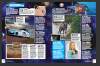
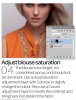
 
the actual magazine pages 8-9 (but issuu has them labeled 22-23 - I guess they count all the fluff in the beginning! :giggle Sorry Jenn I was zoomed in and just looking at the 8 printed on the mag page! )


lol... what is the words on the page? I'm still missing it. 22-23... is blue with tips. Even when I look closely at the layer palettes and other tutorial images later in the mag, it's blurry and unreadable. It should work out, though. I will do the close close up, I think.

p22-23
22-23.PNG
LayersP.PNG
 
I tweaked the things that were bothering me on my Inspiration article.

I used 9 products in this All About Me Project (to get the products on there - I can put them all in a row at the bottom but with no text. Or I can split them up 5 on one page and 4 on the other - on pages 1 and 4 of my article. The one with 5 products will be tight though).

Page 1 : I changed up the copy a bit - added a graphic (can't get enough of Paula's horoscopes!!!) - and have an optional "Follow our Board on Pinterest" (maybe we can pin some of the graphic resumes as inspiration somewhere to TLP's Pinterest page?). Here I lined up all the products - nine! So you can see what that looks like.
AprilBYOC_Inspiration_1_v2.jpg

Page 2: Made those JC details a bit smaller - and further defined the page with the header from page 1 of the article. Played with a color for the detail title copy.

AprilBYOC_Inspiration_2_v2.jpg


Page 3: Same changes as above for page 2.

AprilBYOC_Inspiration_3_v2.jpg


Page 4: You can see how the products would fit with text next to them if you wanted to go that route. This is 4 - so you can see the 5 products would be really tight.

AprilBYOC_Inspiration_4_v2.jpg
 
Last edited:
lol... what is the words on the page? I'm still missing it. 22-23... is blue with tips. Even when I look closely at the layer palettes and other tutorial images later in the mag, it's blurry and unreadable. It should work out, though. I will do the close close up, I think.

p22-23
View attachment 268922
View attachment 268923
I said the Beyond Photoshop magazine - I think you are looking at the other link you shared jenn
 
Back
Top