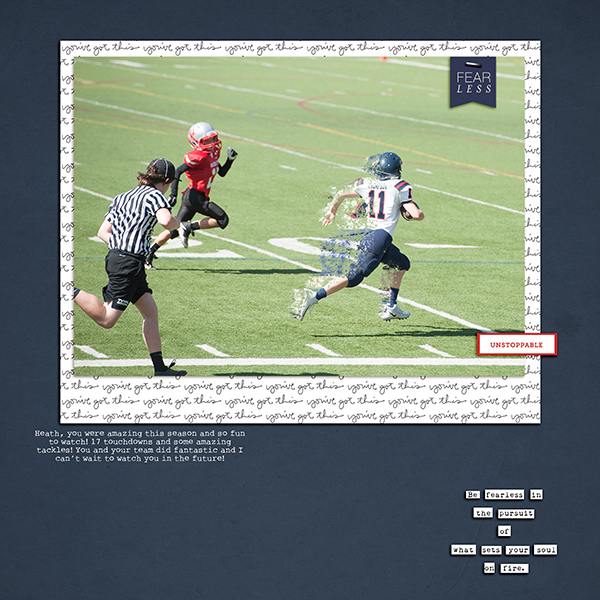
January 6: Dispersion (Technique Challenge)

This challenged me but what a fun technique to learn and play around with. I included just my photo because I layered things on my layout.
full

full
 
Thanks for the challenge, Jan. It was definitely a challenge!! But I really love learning new techniques. I want to play around with this some more as I am not 100% satisfied, but I think it will do for now! :)

 
This is foreign to me but I'm working through it. I'm currently stuck on this part:
Now, with the liquified layer selected, add a layer mask and use ctrl-I or cmd-I to invert that mask. Go to the top layer of just the subject and add a layer mask to that one, leaving it white.
So, i was viewing the great video @IntenseMagic posted somewhere in this thread and now I can't find it...I think it had me on the right track. Could someone point me to it?? Thanks
 
HELP!!! I'm losing my mind! I tried it by reading the first post. No go. Tried it by watching the video. Mostly worked. BUT...... whenever I hit the add mask button I don't get an all white mask or all black mask. It looks like this. Any ideas?
Screen Shot 2018-01-06 at 4.27.06 PM.png
 
When I first read the challenge on my phone this morning, I thought "No Chance" but sitting down this evening and going through your instructions it worked, and that is down to your instructions, thank you! I think I need to retry with another brush but after 3 tries I am going with this one for now.

 
Well this technique has surely started plenty of dialogue. I have not used masks well in past and my first attempts at this challenge were confirming my hesitation. Thank you for the video (girl in red dress) that was easier to follow along with. After lots of trouble shooting, I think I have the issue sorted. My trouble was somehow my 2 extracted layers with masks were linked. Once I released the links I was able to work with them. Not sure why they became linked, as I hadn't purposely done it. Maybe this is a problem for others to check out. I can see so many inspiring pages posted, so it's onwards and upwards (hopefully). Off to try again! As others have said, it's hard to find a suitable photo.......If I master this it should make me more comfortable (hopefully) with using masks if nothing else. Thank you for your help.
 
Well this technique has surely started plenty of dialogue. I have not used masks well in past and my first attempts at this challenge were confirming my hesitation. Thank you for the video (girl in red dress) that was easier to follow along with. After lots of trouble shooting, I think I have the issue sorted. My trouble was somehow my 2 extracted layers with masks were linked. Once I released the links I was able to work with them. Not sure why they became linked, as I hadn't purposely done it. Maybe this is a problem for others to check out. I can see so many inspiring pages posted, so it's onwards and upwards (hopefully). Off to try again! As others have said, it's hard to find a suitable photo.......If I master this it should make me more comfortable (hopefully) with using masks if nothing else. Thank you for your help.

How did you unlink mask?? I just posted a problem & I think this is it?
 
Here is mine, for some reason I ended up with butterflies around the rooster...
Ooooh! I love the butterflies. Wish my program had this effect just so I could get butterflies. I may have to spend time doing some work using PSE just so I can get butterflies too! :)
 
I'm too new at this, so I'm feeling terrible posting, but for my first try, here is how I did. thank you sooooo much for the tut!
 
Right click on the linked layer and choose unlink layers.
That didn't work. And I am using PSCC. Whenever I hit that add layer mask icon, the above is what I see. I never see the added white layer mask. Even when I tried unlinking (if that was what I was supposed to do) it doesn't change. I'm losing my ever loving mind. I've been searching all over the internet but I don't think I'm wording my search correctly.
 
Well clearly I don't get it. I have tried the instructions step-by-step many times but am still not getting the effect.

I need to see someone's layer stack. If I read the instructions correctly I should have 5 layers. The bottom layer would be the original photo. Layer 2 and 3 would be a duplicate of that photo.

On layer 2 (the first duplicate of the photo I am taking the subject out and background and leaving just background (in my case using the clone tool).

On layer 3 (the second duplicate of the photo, I am selecting the subject and taking him out of the background -- so I end up with this layer as an extracted copy of the subject). Then I am to make two duplicates of this subject.

Layer 4 (the first duplicate of the extracted subject)
Layer 5 (the second duplicate of the extracted subject)

Now going back to layer 3 (the original extraction) I am to liquidify the subject. Add layer mask and do control I (inverting and giving me a black mask)

On layer 5 (the second duplicate of the extracted subject) I am now
adding a layer mask (it will be white).

Now I go back to layer 3 and using white as a foreground and making sure the mask is active (has brackets around it), I select a scatter brush and work on it. THIS IS MY FIRST PROBLEM. For some reason even with the mask bracketed, my brush is not registering black splatters.

Can anyone give me any insight on this?
 
So many gorgeous pages. Thanks for the challenge and tutorial. This is my first image using the technique. I don't think I did enough on the liquify step but I did learn a lot. Here's mine:

I also found these 2 You Tube sites helpful.
 
That didn't work. And I am using PSCC. Whenever I hit that add layer mask icon, the above is what I see. I never see the added white layer mask. Even when I tried unlinking (if that was what I was supposed to do) it doesn't change. I'm losing my ever loving mind. I've been searching all over the internet but I don't think I'm wording my search correctly.
See, I can't figure out why your layers have a brush in front of them? Mine don't look like that.
This is just the photo:
Layer.PNG

And then with the photo selected, I click the button circled in red, and get this:
layer mask.PNG

I don't know if the brush at the front of yours is causing the problem.
 
Back
Top