- Joined
- Oct 22, 2012
- Messages
- 4,169
Hello Lilypad Dwellers!
I am here this month with the Style Challenge. And while perusing my inspiration files, I kept coming across some pages that had bookmarks anchoring the layout. It seems that I am really liking this style lately, and voila…here we are!!
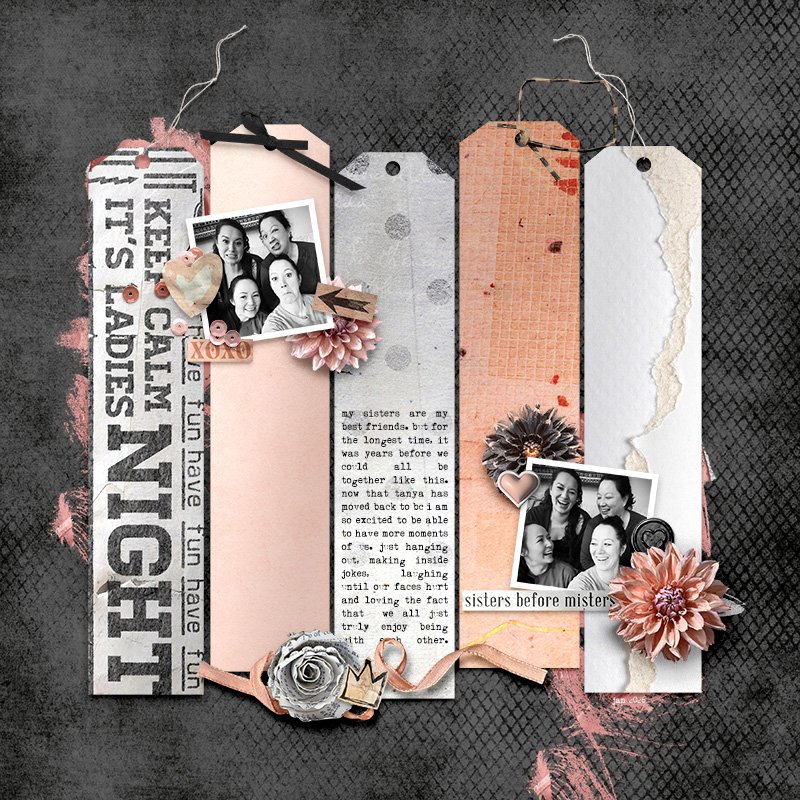
Your challenge this month is to use at least 3 bookmarks to anchor your page. In my layout below, I used 5…and I made them myself with the paper in the kits, cutting off the corners, adding a circle punch out and some string or ribbon!! You can use them as just some background anchoring strips, or you can decorate each one!
Here is my layout suing Galentine's Day from Little Butterfly Wings
And here are some of the ones that I have saved for inspiration. Check out how different they all are!!


And now it's your turn!!
As always, please remember our monthly challenge rules:
Your page must contain at least 75% Lilypad product. Your page should be posted to the Lilypad Gallery and then linked to the February Challenge Layouts thread so it can be tracked, and to this thread. (Please use the share BB IMG code found on the right side of the gallery).
The Lilypad uses a percent system for our challenges; the number of challenges you participate in determines the store discount you will receive at the end of the month:
2 challenges = 10% off
4 challenges = 20% off
6 challenges = 30% off
If you complete 7 challenges, you will receive a coupon for 30% off, plus you will be entered to win a $50 Challenge Cash prize from the Lilypad! The first seven challenges will be posted on the first of the month; the eighth challenge is the BYOC challenge, which is posted on BYOC release day. Each page counts for one challenge (you cannot use one layout for multiple challenges).
I can't wait to see your bookmarked layouts!
I am here this month with the Style Challenge. And while perusing my inspiration files, I kept coming across some pages that had bookmarks anchoring the layout. It seems that I am really liking this style lately, and voila…here we are!!
Your challenge this month is to use at least 3 bookmarks to anchor your page. In my layout below, I used 5…and I made them myself with the paper in the kits, cutting off the corners, adding a circle punch out and some string or ribbon!! You can use them as just some background anchoring strips, or you can decorate each one!
Here is my layout suing Galentine's Day from Little Butterfly Wings
And here are some of the ones that I have saved for inspiration. Check out how different they all are!!
And now it's your turn!!
As always, please remember our monthly challenge rules:
Your page must contain at least 75% Lilypad product. Your page should be posted to the Lilypad Gallery and then linked to the February Challenge Layouts thread so it can be tracked, and to this thread. (Please use the share BB IMG code found on the right side of the gallery).
The Lilypad uses a percent system for our challenges; the number of challenges you participate in determines the store discount you will receive at the end of the month:
2 challenges = 10% off
4 challenges = 20% off
6 challenges = 30% off
If you complete 7 challenges, you will receive a coupon for 30% off, plus you will be entered to win a $50 Challenge Cash prize from the Lilypad! The first seven challenges will be posted on the first of the month; the eighth challenge is the BYOC challenge, which is posted on BYOC release day. Each page counts for one challenge (you cannot use one layout for multiple challenges).
I can't wait to see your bookmarked layouts!