
FarrahJobling
FarrahJobling
- Joined
- Dec 17, 2012
- Messages
- 6,974
I'm so sorry for the craziness this month. I have no idea where the first half of the month has gone. Thankfully, we are back to school next week and will have a normal routine again. =) I really appreciate your patience and I especially appreciate @Angela Toucan for already posting the Affinity tutorial HERE.
This month, we are using the shape tool and using the shape as a text box.
1. Select a shape tool
From the toolbar, click and hold the Shape tool group icon to bring up the various shape tool options — Rectangle, Ellipse, Triangle, Polygon, Line, and Custom Shape. Select a tool for the shape you want to draw

Now that we have our path, we're ready to add our text! Select the Type Tool from the Tools panel:
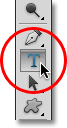
Select the Type Tool.
This month, we are using the shape tool and using the shape as a text box.
1. Select a shape tool
From the toolbar, click and hold the Shape tool group icon to bring up the various shape tool options — Rectangle, Ellipse, Triangle, Polygon, Line, and Custom Shape. Select a tool for the shape you want to draw
- 2. Draw a shape
- Click and drag on the canvas with your selected shape tool to draw a shape. This automatically creates a new shape layer in the Layers panel.
- Hold the Shift key while drawing to make your shapes proportional.
- With your shape layer selected, use the Move tool to move your shape around and reposition on the canvas.
- To easily scale, transform, or rotate your shape, choose Edit > Free Transform or press Control+T (Win) / Command+T (Mac).
- Hold the Shift key while drawing to make your shapes proportional.
Now that we have our path, we're ready to add our text! Select the Type Tool from the Tools panel:
Select the Type Tool.
4. Choose Your Font
Select the font you want to use for your text in the Options Bar. For my design, I'll use Palatino Italic set to 12 pt:

Choose your font from the Options Bar.
To choose a color for my text, I'll click on the color swatch in the Options Bar:

Click on the color swatch to choose a color for your text.
This opens Photoshop's Color Picker. I'll choose a dark green from the Color Picker to match the color from the flowers in my image. Once you've chosen a color, click OK to close out of the Color Picker:
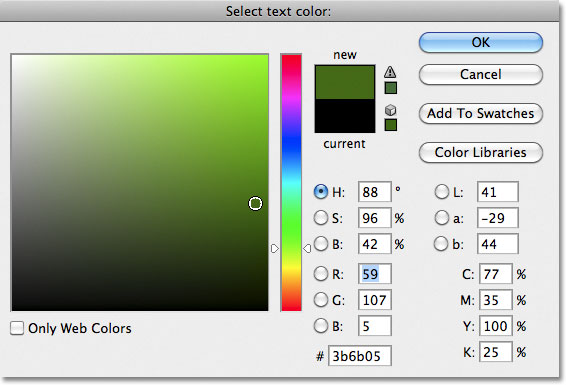
Choose a color for your text from the Color Picker.
5. Open The Paragraph Panel
Click on the Character / Paragraph panel toggle icon to the right of the color swatch in the Options Bar:

The toggle icon opens and closes the Character and Paragraph panels.
This opens Photoshop's Character and Paragraph panels which are hidden by default. Select the Paragraph panel by clicking on its name tab at the top of the panel group:
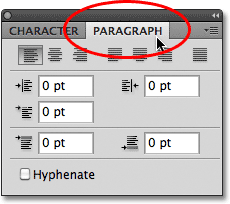
Click on the Paragraph panel's tab.
6. Choose The "Justify Centered" Option
With the Paragraph panel now open, click on the Justify Centered option to select it. This will make it easier for the text we're about to add to fill the entire width of the shape. When you're done, click again on the toggle icon in the Options Bar to hide the Character and Paragraph panels since we no longer need them:
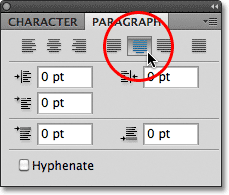
Select the "Justify Centered" option.
7. Add Your Text
At this point, all that's left to do is add our text. Move the Type Tool's cursor anywhere inside the shape. You'll see a dotted ellipse appear around the cursor icon, which is Photoshop's way of telling us that we're about to add our text inside the path:
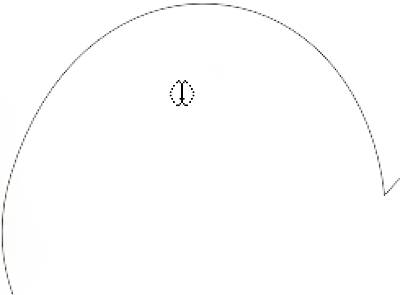
A dotted ellipse appears around the cursor icon when you move it inside the shape.
Click anywhere inside the shape and begin typing your text. As you type, you'll see that the text is constrained to the area inside the path:

 I'm sorry I was late in posting. It's been a rough couple of weeks. My dad started chemo today. He's got a good prognosis, but it's still a very difficult process and there have been many hoops to get to today.


