Template organization

Joined
Dec 20, 2015
Messages
36
I haven't been digital scrapbooking long but I am getting a little (or not so little) collection. I like my organization for kits and photos but I am finding that the way I am storing my templates does not work for me. Right now I have them all in one folder, this way makes it hard to look through them. Any ideas, how do you store them?
 
Are you just using Windows File Explorer and/or a MAC to organize your templates?

I use ACDSee to organize my digital supplies, but Lightroom also does it, as well as Picasa/Google Photos and Photoshop Elements Organizer will as well.

I keep all my templates in folders under the designer, and then they are tagged with the number of photos. Of course, I am woefully behind, BUT . . . it's the thought that counts, right? LOL
 
I like to tag mine by the number of photos too, but I use a range: 1; 2-4; 5-8; 10+. I find that I modify templates a lot so the range works for me. I used to do it more specific, but it wasn't worth the extra categories.

Oh, and I sorted them into folders like that until I moved to Organizer then Lightroom.
 
I organize them in the same folder with the designer by date. I just use *.psd to search. I do have an app I got a long time ago which shows an image of the template though so that makes it easy to scroll through and see what I want.
 
I keep them how I bought/downloaded them. I use previews to be able to scroll and see what I'd like. I love the idea of tagging with amount of photos, but I usually don't scrap with an intended number.
 
I have templates separated from my supplies. My template workflow is basically this:
Unzip, put preview in designer's folder, then put the TIF file in my correct templates folder.
Template folders are 1 photo, 2 photos, 3 photos, etc. Up to "11 plus". I have a different folder for pocket style/grid templates, and a few other template types.

If TIF is not available, I have to copy the jpg to the designer folder, and to the template folder. I keep TIF files because I can view them in windows explorer, without needing the jpg preview.
I keep previews in with the designer folders so I know I already downloaded/purchased if I were looking at their folder. For example.... Scrapping with Liz sells "Recyclables", which are previously released freebies. If I head to her folder, and see that I have 3 of the 4 freebies, I don't need to buy that pack. :)

If I am looking for a specific designer's template in my template folders, I sort by name and look for their initials or however they typically name their files (Scrapping with Liz starts hers with SwL)
 
As my supplies are all in a LR catalog, I have them tagged with designer name under current store, 'template', and a few other options e.g. Project Life, December Daily etc.

I was going to do 1, 2, 3 etc for the number of photos that can go on the template but finally decided on 'multi-photo especially as I often add more. I also tag templates as 'album' if they are that kind of set (OR could be used as an album e.g December Daily). I love the ones @LynnG makes and have used them for lots of trips!fwiw, I rarely make a 1 photo layout except for challenges and just for fun.

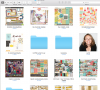
Mac also allows me to put the preview image on the folder and I use the free image2icon app. I think you can do this without an app on various editions of Windows.
Screen Shot 2016-03-22 at 10.28.24 AM.png
 
I have all my templates in one folder. For a while I was sorting by number of photo spaces too. I haven't started doing that for my TLP stash yet because I don't have that many templates yet.

My favorite advice for stash organization (including templates) is to change the standard folder icon to the kit preview which I explain in this post on my blog. So when I scroll through my digiscrap supplies, I see the kit or template previews, not just folders.

p.s. I use image2icons like Maureen @cookingmylife sometimes too. But mostly when I'm gathering previously separated kits back together (because long ago I used to organize by item type). Now I just right click on the kit preview and make it my folder icon every time I get a new kit or template.
 
Last edited:
I use the preview image on the folder, too. Does the image2icon app do it automatically?

Image2icon makes a new folder though. It's easier to just copy the preview image, right click on the kit/template folder, and apply the image to that folder. (See my blog post linked up a couple of messages above for detailed directions).
 
I keep my templates by designer in one folder by store. I need to find out more about how to organize in Lightroom to make searching easier. Right now I use the search field but it only works if I have the right term to search with. For example, I was searching for string but later I noticed that some designers use the word "twine."

I absolutely love templates and appreciate all the designers that create them!
 
I also have ACDSee and have them all in one folder. It doesn't bother me to scroll through them to pick one because I'm usually looking for more than just number of photos. I find I'm frequently looking for something that will accommodate the size of the title I have in mind too. I scrap on a Mac and my ACDSee app is no loner supported, so I've resisted upgrading my operating system like the plague. Eventually of course, I won't have a choice but to find another system for organizing my stash.
 
I have templates separated from my supplies. My template workflow is basically this:
Unzip, put preview in designer's folder, then put the TIF file in my correct templates folder.
Template folders are 1 photo, 2 photos, 3 photos, etc. Up to "11 plus". I have a different folder for pocket style/grid templates, and a few other template types.

If TIF is not available, I have to copy the jpg to the designer folder, and to the template folder. I keep TIF files because I can view them in windows explorer, without needing the jpg preview.
I keep previews in with the designer folders so I know I already downloaded/purchased if I were looking at their folder. For example.... Scrapping with Liz sells "Recyclables", which are previously released freebies. If I head to her folder, and see that I have 3 of the 4 freebies, I don't need to buy that pack. :)

If I am looking for a specific designer's template in my template folders, I sort by name and look for their initials or however they typically name their files (Scrapping with Liz starts hers with SwL)

This is EXACTLY what I do! :) I mean, EXACTLY. I find this works really well for me to locate what I need, when I need it.

I used to use ACDSee. Loved the program. However, all my tags were corrupted when I did a windows upgrade a couple years ago. I thought it was a fluke and spent untold hours retagging everything with a fresh install. I then purchased a new computer and the conversion over to the new computer caused another corruption. So... I have gone old school and use the exact same process as Kristina.
 
I had an app on Mac that did not make a separate folder. I can't remember if it's image2icon, but that sounds right. You just drag the folder and then drag the image (or maybe it was the other order) but it didn't create anything new. It did the same thing as copy paste into the properties, but it was a bit faster.

On PC, you just call the preview "folder.jpg" and then it shows up automatically on the folder.
 
Thanks for all the responses!! I think folders with shop name and then designer is the way I will go. It seems that it will work well with what I am doing with my kits.
You ladies are awesome!! I love this forum.
 
I mostly use Scrapping with Liz templates, but I don't have a good way to browse them. Each template set has a folder, and the preview image for each is inside that folder, so I can't just thumb through to find one I like. I always end up going to the store and browsing from there!
 
Image2icon makes a new folder though. It's easier to just copy the preview image, right click on the kit/template folder, and apply the image to that folder. (See my blog post linked up a couple of messages above for detailed directions).

I have the older version of img2icns where you drag the preview to the app, then drag the kit/template etc folder to the app and it puts the image on the folder. Occasionally, I seem to get the newer version automatically which I delete and go back to my older version because while the new version has more options, it's more fiddly. imho.
 
Back
Top