
FarrahJobling
FarrahJobling
- Joined
- Dec 17, 2012
- Messages
- 6,974

This month, we have started something new. We want to take advantage of some of our scraps to teach techniques based on a theme. This month's theme is journaling. Earlier this month, Anne hosted an amazing scrap with a fun twist on the theme. Today, my slow scrap is based on techniques to add interest to your journaling. Today we will be playing with text shapes and paths.
This is a slow scrap, meaning you have 24 hours to complete your LO. As with all scraps, you must have your page posted here and in the Speed Scrap Gallery by: 1pm EST- March31 to qualify! I will be PMing the eligible scrappers their participation prize from this thread. I can't wait to see what you all come up with!
INSTRUCTIONS:
1. CHOOSE TWO PAPERS AS YOUR BACKGROUND - A NEUTRAL SOLID PAPER LAYERED ON TOP OF A PATTERNED PAPER.
2. ADD UP TO THREE PHOTOS IN ANY SHAPE OR SIZE. ADD A WHITE STROKE/BORDER/MAT AROUND THEM.
3. ADD A CLUSTER OF ELEMENTS, USING ANYTHING YOU'D LIKE (MY DEFINITION OF "CLUSTER" IS MORE THAN 3 ITEMS)
4. ADD A TITLE SOMEWHERE ON YOUR PAGE
5. ADD SOME JOURNALING USING ONE OF THE TECHNIQUES WE DISCUSSED IN THE CHAT & LISTED BELOW. DON'T FORGET TO ADD A DATE TO YOUR JOURNALING.
6. SAVE AND POST IN THE SPEED SCRAP GALLERY AND IN THIS THREAD.
TEXT TECHNIQUES (YOU MUST USE ONE OF THESE)
1. Fill it in | Using the shape tool, draw any shape. Click on the text tool and hover over the shape. The text tool will now have a dotted circle around it (instead of the usual dotted square). Click on the shape and start typing to fill the shape with text. Make sure the paragraph is set to justified. Adjust the spacing, kerning, and text size until you are happy. Once you have finished the text, delete the shape itself.
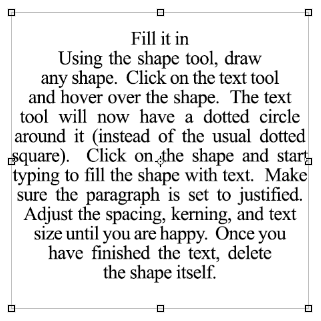
Screen Shot 2016-03-30 at 9.09.11 AM by farrahj, on Flickr
2. Surround it | Once again, using the shape tool, draw a shape. Click on the text tool and hover over the shape’s outline. The text tool will now have a dotted squiggly line through the middle (instead of the usual dotted square). Click on the shape and start typing. The text will follow the path of the outside of the shape. Make sure the paragraph is set to justified. Adjust the spacing, kerning, and text size until you are happy. Once you have finished the text, delete the shape itself. This makes a great frame!
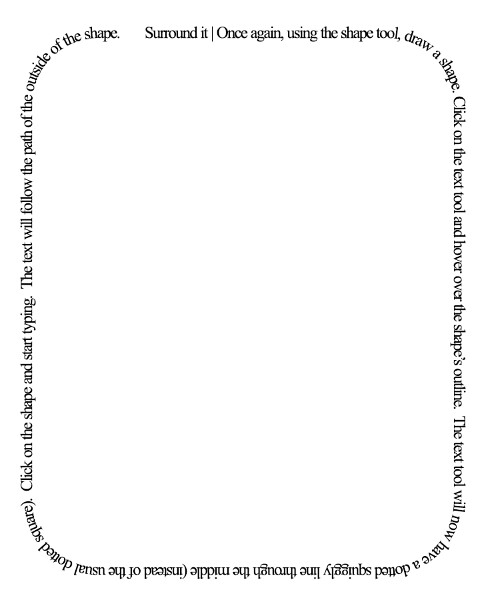
Screen Shot 2016-03-30 at 9.13.47 AM by farrahj, on Flickr
3. Walk the line | Using the freeform pen tool, draw a line. Click on the text tool and hover over the line. The text tool will now have a dotted squiggly line through the middle (instead of the usual dotted square). Click on the line and start typing. The text will follow the path of the line. Make sure the paragraph is set to justified. Adjust the spacing, kerning, and text size until you are happy.

Screen Shot 2016-03-30 at 9.22.52 AM by farrahj, on Flickr
4. Work around it | Using the pen tool, draw a shape by clicking points around the elements you’re working around. Make sure you close the shape by clicking your last point on the same spot as your first point (the pen tool will have a little circle next to it). Click on the text tool and hover over the shape. The text tool will now have a dotted circle around it (instead of the usual dotted square). Click on the shape and start typing to fill the shape with text. Adjust the paragraph justification, spacing, kerning, and text size until you are happy. This works great for working around shaped photos or clusters of elements.
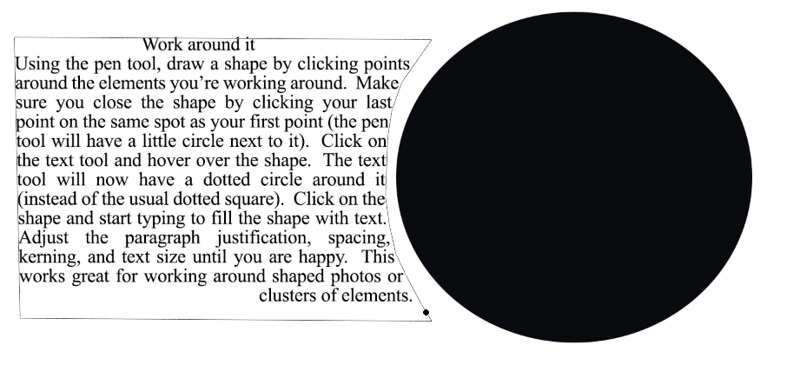
Screen Shot 2016-03-30 at 9.33.12 AM by farrahj, on Flickr


