
ArmyGrl
Merlot, Cab, Chard, Reisling - all 4 food groups!
- Joined
- Sep 1, 2012
- Messages
- 4,994
Love is in the air! So first, let us give some love to the winners of January’s Mixed Media Challenge: $10 @Dady AND $6 @carrie1977
Coupons will be sent out by Friday Congratulations, ladies!
February 2020 Challenge
Each month we’ll host a different Mixed Media Challenge. This month’s challenge is to creatively use Text on your layout. The text must include one of Rachel’s alphabets, either .pngs or .abr brushes. While you can use installed fonts, to qualify for this challenge, you must creatively use one of Rachel’s alphabets. Here are some examples of Text used in art from Pinterest.

To qualify for this challenge, your layout must:
1. Use one of Rachel’s alphabets in a creative and artistic way. You may use her .png or .abr forms. Be sure to list your ALPHABET in the credits.
2. Your alphabet MUST be one of the design elements on your page. It is NOT good enough to simply use the alphabet as a title. While you may use the alphabet in your title the alphabet MUST be used in another artistic way beyond use as a title.
Here are links to several of Rachel’s Alphabets that qualify for the challenge:
·Captivating Basics: Stamped Alpha 01
·Fear Not: Messy Alpha Stamps
·Utterly and Completely: Alphabet Stamps
·Alpine: Inky Stencils
·Paint and Pen Alpha
Challenge Requirements:
· Show us your artsy, creative use of one of Rachel’s alphabets. You may use more than one. Be sure to list your alphabet in the credits. This is critical to meet the requirements of February’s challenge.
· Your alphabet must be a design element. You may use it for the title…but, it must be more than the title.
· Your layout must use 100% Rachel Jefferies Designs currently available in the TLP store (collaborations, including Rachel’s Mixed Media Monthly and Add-Ons count). A few elements from Rachel’s retired products are permissible but should account for less than 10% of your layout.
· Upload your layout to Rachel Jefferies Designs Gallery at TLP.
· For your challenge entry to be counted, you MUST reply to this tread with your finished layout. Please link your thread layout to your gallery.
· NO double-dipping with other challenges. This must be a new layout created for this challenge.
· Its Leap Year!!! Which happens to be me and Donald’s anniversary. Thus, this challenge is open until FEBRUARY 29TH!!!!!! The winner will be announced in March when the new challenge is posted.
· New Release Bonus Entry! If you use one of Rachel’s products released in February 2020 (a new release, M3, BYOC and even SOSN released in February 2020 count) you will get a bonus entry for a chance to win the $6 coupon (should you not be the $10 winner). Please let me know if you are eligible for the $6 entry by stating “New Release Bonus Entry” when you post in the forum.
· Questions? Please respond to this forum and tag me @ArmyGrl or @Rachel Jefferies.
Note: You are NOT required to follow the examples below, but you are more than welcome to.
Alphabet brushes in their .abr file are an arty way to add visual interest to your layout. Using alphabets as brushes gives you much control of their size, angle, and position. Or, you can adjust brush settings to give a completely random look. I used both techniques in the layout below to make random marks, “love” and XOXO.

1. Installing brushes is easy-peasy using Photoshop Creative Cloud. All I do is double click on the .abr file and it automatically loads.
2. On a new layer, select the brush tool.

3. Click the arrow next to size indicator and a drop down of your installed brushes should appear. In this menu, you can rename your brushes by right clicking on them. You can also organize your brushes by grabbing and moving them.
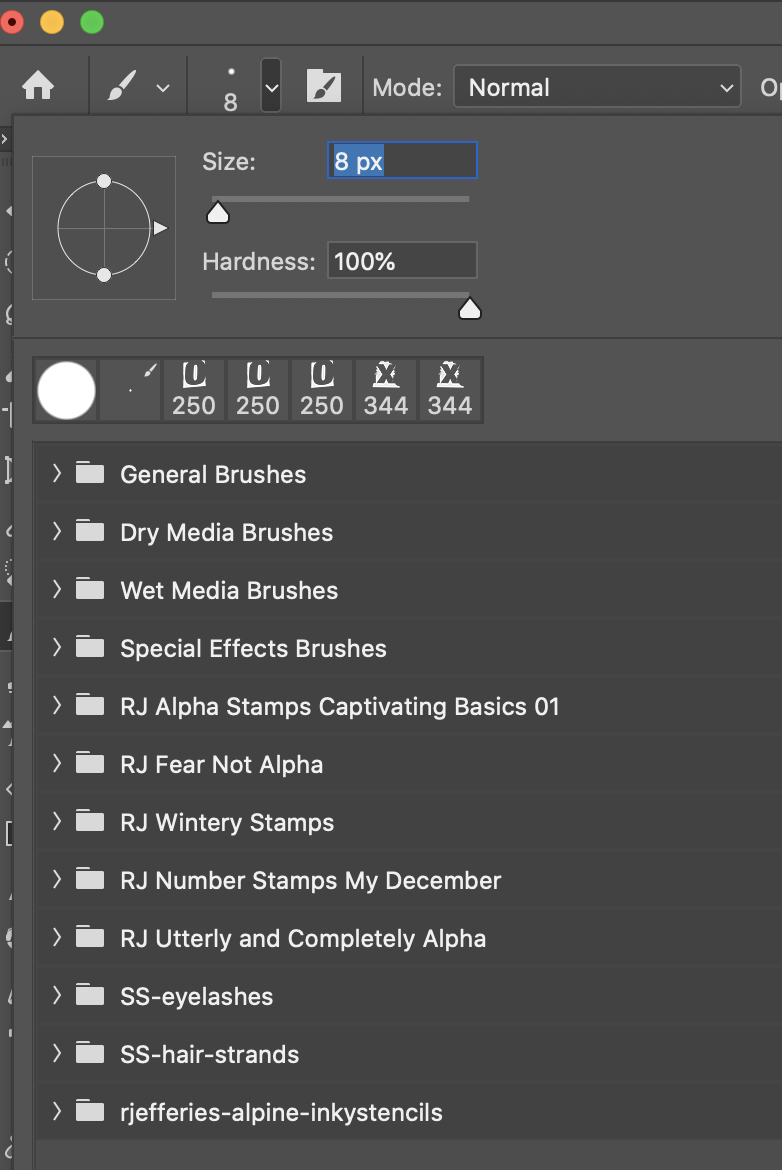
4. Select the brush you wish to work with. I am using Rachel’s Alpine Inky Stencils and the letter “E” for this tutorial. The size of the brush is easily adjusted by using the left and right square bracket keys on the keyboard. You can also adjust the opacity, flow and smoothing.
5. You can change the color by selecting the color picker tool.
6. And of course, you can run a myriad of filters on your brushes.
7. But, the magic beings when you enter the Brush Settings. This tool is found in Window…Brush Settings. I use it often, so its one of my quick tools.

8. One of the first settings I’d like you to play with is Shape Dynamics. Click on Shape Dynamics to open up its sub-menu. Here you’ll find fun setting such as Size Jitter, Angle Jitter, and Flip X Jitter and Flip Y Jitter.


9. The next setting I’d like you to play with is Scattering. In the example below, I set scatting to 400% with and without “Both Axes” selected. For this feature to work, you must drag your brush. Examples include a vertical drag and a horizontal drag.
10. Next, play with Count. When you tap your brush once, the count represents how many marks are placed with each tap.
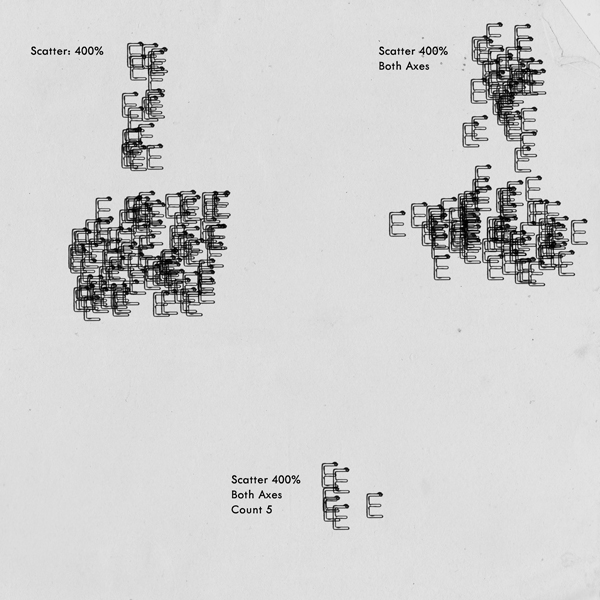
11. Now, add it all together for very random look.

12. How you use these tools is up to you. You can go for a very controlled look or hog wild. Here are examples from Rachel and the Captivating Sistas:

I love text in art! I am so excited to see what you create! Please keep in mind, you can use the alphas in their .png form and get the same effects.
Coupons will be sent out by Friday
Congratulations, ladies!February 2020 Challenge
Each month we’ll host a different Mixed Media Challenge. This month’s challenge is to creatively use Text on your layout. The text must include one of Rachel’s alphabets, either .pngs or .abr brushes. While you can use installed fonts, to qualify for this challenge, you must creatively use one of Rachel’s alphabets. Here are some examples of Text used in art from Pinterest.
To qualify for this challenge, your layout must:
1. Use one of Rachel’s alphabets in a creative and artistic way. You may use her .png or .abr forms. Be sure to list your ALPHABET in the credits.
2. Your alphabet MUST be one of the design elements on your page. It is NOT good enough to simply use the alphabet as a title. While you may use the alphabet in your title the alphabet MUST be used in another artistic way beyond use as a title.
Here are links to several of Rachel’s Alphabets that qualify for the challenge:
·Captivating Basics: Stamped Alpha 01
·Fear Not: Messy Alpha Stamps
·Utterly and Completely: Alphabet Stamps
·Alpine: Inky Stencils
·Paint and Pen Alpha
Challenge Requirements:
· Show us your artsy, creative use of one of Rachel’s alphabets. You may use more than one. Be sure to list your alphabet in the credits. This is critical to meet the requirements of February’s challenge.
· Your alphabet must be a design element. You may use it for the title…but, it must be more than the title.
· Your layout must use 100% Rachel Jefferies Designs currently available in the TLP store (collaborations, including Rachel’s Mixed Media Monthly and Add-Ons count). A few elements from Rachel’s retired products are permissible but should account for less than 10% of your layout.
· Upload your layout to Rachel Jefferies Designs Gallery at TLP.
· For your challenge entry to be counted, you MUST reply to this tread with your finished layout. Please link your thread layout to your gallery.
· NO double-dipping with other challenges. This must be a new layout created for this challenge.
· Its Leap Year!!! Which happens to be me and Donald’s anniversary. Thus, this challenge is open until FEBRUARY 29TH!!!!!! The winner will be announced in March when the new challenge is posted.
· New Release Bonus Entry! If you use one of Rachel’s products released in February 2020 (a new release, M3, BYOC and even SOSN released in February 2020 count) you will get a bonus entry for a chance to win the $6 coupon (should you not be the $10 winner). Please let me know if you are eligible for the $6 entry by stating “New Release Bonus Entry” when you post in the forum.
· Questions? Please respond to this forum and tag me @ArmyGrl or @Rachel Jefferies.
Note: You are NOT required to follow the examples below, but you are more than welcome to.
Alphabet brushes in their .abr file are an arty way to add visual interest to your layout. Using alphabets as brushes gives you much control of their size, angle, and position. Or, you can adjust brush settings to give a completely random look. I used both techniques in the layout below to make random marks, “love” and XOXO.
1. Installing brushes is easy-peasy using Photoshop Creative Cloud. All I do is double click on the .abr file and it automatically loads.
2. On a new layer, select the brush tool.
3. Click the arrow next to size indicator and a drop down of your installed brushes should appear. In this menu, you can rename your brushes by right clicking on them. You can also organize your brushes by grabbing and moving them.
4. Select the brush you wish to work with. I am using Rachel’s Alpine Inky Stencils and the letter “E” for this tutorial. The size of the brush is easily adjusted by using the left and right square bracket keys on the keyboard. You can also adjust the opacity, flow and smoothing.
5. You can change the color by selecting the color picker tool.
6. And of course, you can run a myriad of filters on your brushes.
7. But, the magic beings when you enter the Brush Settings. This tool is found in Window…Brush Settings. I use it often, so its one of my quick tools.
8. One of the first settings I’d like you to play with is Shape Dynamics. Click on Shape Dynamics to open up its sub-menu. Here you’ll find fun setting such as Size Jitter, Angle Jitter, and Flip X Jitter and Flip Y Jitter.
9. The next setting I’d like you to play with is Scattering. In the example below, I set scatting to 400% with and without “Both Axes” selected. For this feature to work, you must drag your brush. Examples include a vertical drag and a horizontal drag.
10. Next, play with Count. When you tap your brush once, the count represents how many marks are placed with each tap.
11. Now, add it all together for very random look.
12. How you use these tools is up to you. You can go for a very controlled look or hog wild. Here are examples from Rachel and the Captivating Sistas:
I love text in art! I am so excited to see what you create! Please keep in mind, you can use the alphas in their .png form and get the same effects.
Last edited:


 Thanks for the fun !!

