- Joined
- Jun 2, 2020
- Messages
- 4,886
As you complete your Month of Challenges 13 layouts, please ensure that your layout is uploaded to the Month of Challenges 13 Gallery.
Only one gallery can be selected when uploading a layout, and for MOC and that gallery must be the Month of Challenges 13 Gallery.
Please do not upload MOC 13 layouts to:
Gallery placement and designer credit are two separate steps:
All MOC 13 layouts must be uploaded to the Month of Challenges 13 Gallery.
Uploading to the Month of Challenges 13 Gallery
Click on 'Gallery' on the forum menu bar.

You should then land right into the gallery area. Once you are here, there are 2 ways you can add a layout to the Month of Challenges 13 gallery.
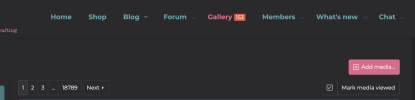
Option #1: Immediately click on the 'pink add media' button. when you do that, a screen will pop up and look like this and Month of Challenges 13 gallery is the very second option.

Option #2: This approach allows you to navigate to the gallery of your choice. If you head over the navigation pane on the left side of the screen, Month of Challenges 13 gallery is the second choice on the list. Once you find the gallery of your choice, click on it----THEN click that 'pink add media' button.

Option #1 or Option #2 'pink add media' button will lead you to this screen: (notice that it lets you know which Gallery you are in)

Go ahead and click upload, and navigate to where your layout is stored and upload it.

Once your layout is uploaded, complete the Title and the Description (required) fields. These are absolutely required.
When adding your description, please include the following information:
Designer Name
Product Name
Link to the Store Product (we all want to click on that link and shop easy too & this make it easier for us to verify product used)
If the product is retired, then document retired after the product name
Under tags, you can see I added the designer and MOC 13.
Once your title/description (credits) and tags have been added, then hit 'save'
After you hit save, your layout should appear in the gallery like this (the image is above--it's just cut off in my example). I did this particular view for this so that I could highlight the gallery that my layout is saved in.

Let's say, that is the wrong gallery. No worries. We can fix that.
Changing or Moving the Layout from one Gallery to another
It happens to us all. Here's the easy fix. See that little upside down triangle?
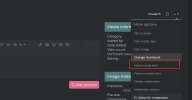
By clicking on that, it gives you this cute little menu.
From this menu, click 'move' media.

When you click on 'move media', the following screen pops up.
If you click in that 'gray' box, it will pop open a list of all the galleries. All you have to do is find the 'correct' gallery and select it.
Once you have the correct gallery, then click out of the box and hit 'save'

After you hit 'save' you can then see the new gallery indicated in you media post.
Only one gallery can be selected when uploading a layout, and for MOC and that gallery must be the Month of Challenges 13 Gallery.
Please do not upload MOC 13 layouts to:
- Designer galleries
- Personal galleries
Gallery placement and designer credit are two separate steps:
- Gallery: Month of Challenges 13 (required)
- Tags: Designer names (optional but encouraged)
All MOC 13 layouts must be uploaded to the Month of Challenges 13 Gallery.
Uploading to the Month of Challenges 13 Gallery
Click on 'Gallery' on the forum menu bar.
You should then land right into the gallery area. Once you are here, there are 2 ways you can add a layout to the Month of Challenges 13 gallery.
Option #1: Immediately click on the 'pink add media' button. when you do that, a screen will pop up and look like this and Month of Challenges 13 gallery is the very second option.
Option #2: This approach allows you to navigate to the gallery of your choice. If you head over the navigation pane on the left side of the screen, Month of Challenges 13 gallery is the second choice on the list. Once you find the gallery of your choice, click on it----THEN click that 'pink add media' button.
Option #1 or Option #2 'pink add media' button will lead you to this screen: (notice that it lets you know which Gallery you are in)
Go ahead and click upload, and navigate to where your layout is stored and upload it.
Once your layout is uploaded, complete the Title and the Description (required) fields. These are absolutely required.
When adding your description, please include the following information:
Designer Name
Product Name
Link to the Store Product (we all want to click on that link and shop easy too & this make it easier for us to verify product used)
If the product is retired, then document retired after the product name
Under tags, you can see I added the designer and MOC 13.
Once your title/description (credits) and tags have been added, then hit 'save'
After you hit save, your layout should appear in the gallery like this (the image is above--it's just cut off in my example). I did this particular view for this so that I could highlight the gallery that my layout is saved in.
Let's say, that is the wrong gallery. No worries. We can fix that.
Changing or Moving the Layout from one Gallery to another
It happens to us all. Here's the easy fix. See that little upside down triangle?
By clicking on that, it gives you this cute little menu.
From this menu, click 'move' media.
When you click on 'move media', the following screen pops up.
If you click in that 'gray' box, it will pop open a list of all the galleries. All you have to do is find the 'correct' gallery and select it.
Once you have the correct gallery, then click out of the box and hit 'save'
After you hit 'save' you can then see the new gallery indicated in you media post.