
ziesenil
Well-Known Member
- Joined
- Dec 31, 2015
- Messages
- 357
WOW what a cool technique!! I think I was also amazed at how much my kids have grown and changed since 2012!!
Here is my LO:
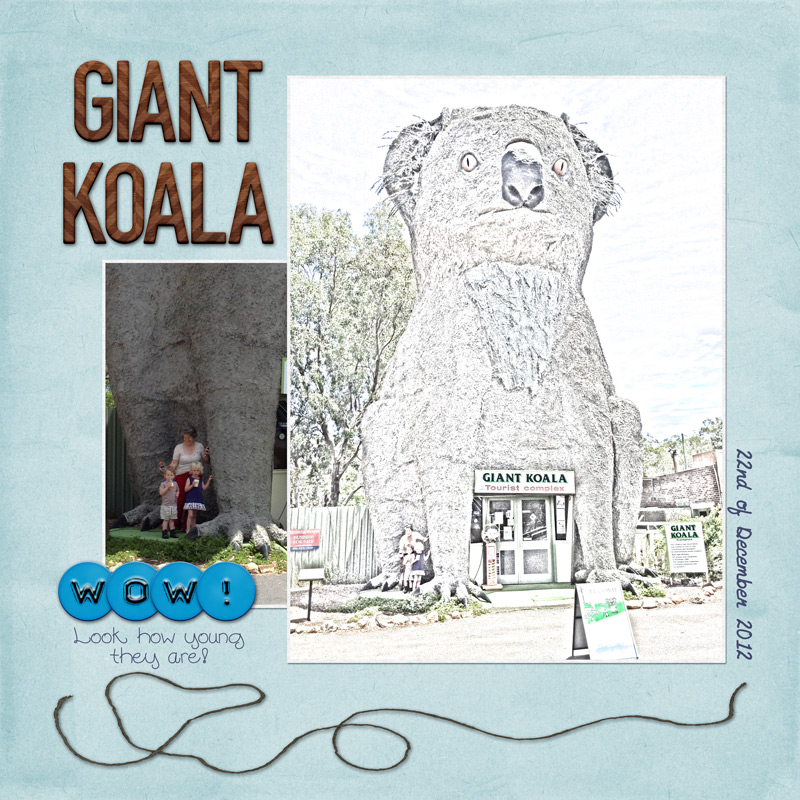
Here is my LO:
Follow along with the video below to see how to install our site as a web app on your home screen.
Note: This feature may not be available in some browsers.


@prospurring - Anne this is the tutorial I used back when to do my sketchHello MOCers! If you've been around for any of the previous MOC years, I just KNOW that you've been waiting for this! Some of you will LOVE my challenge and some will absolutely HATE it, but in the spirit of "challenge" please give it a try! I know it's one of the harder ones, but you might learn a new technique.
This is a photography challenge. You must include an artistic sketch of a photo in your project. You do not need to take a new photo if you have an existing photo that matches the requirements for this challenge.
I know that there are many ways to use filters or even extensions and stand alone programs to create an artistic sketch of your photo. You do not need to use my method if you already have your own. If you don't know how to make an artistic sketch, here is one method:
1- Choose a photo. Really, any photo will work, but keep in mind that images with higher contrast will be easier to work with. I've chosen this photo of Cinderella's Castle at Disney World. Portraits also work nicely, so don't be afraid to play around with different types of photos.
Cinderella-castle by farrahj, on Flickr
2- Duplicate your photo and turn it to black and white. Go to Layer > Duplicate layer or use the shortcut CMD+J to create a duplicate of the layer. Then go to Image > Adjustments > Desaturate.
Screen Shot 2017-01-22 at 1.14.01 PM by farrahj, on Flickr
Screen Shot 2017-01-22 at 1.16.10 PM by farrahj, on Flickr
3- Duplicate your black and white layer and invert it. Make sure you are on the BW layer and go to Layer > Duplicate layer (or CMD+J) to create a duplicate of the layer. Then, go to Image > Adjustments > Invert (or CMD+I)
Screen Shot 2017-01-22 at 1.18.29 PM by farrahj, on Flickr
Screen Shot 2017-01-22 at 1.18.45 PM by farrahj, on Flickr
4- Change the blending mode on the inverted BW layer to Color Dodge. Make sure you are on the inverted BW layer and change the blending mode from Normal to Color Dodge. You may not see anything at all, but a completely white layer, or perhaps a few marks here and there. DON'T PANIC!
Screen Shot 2017-01-22 at 1.21.34 PM by farrahj, on Flickr
Screen Shot 2017-01-22 at 1.22.45 PM by farrahj, on Flickr
5- Using the minimum filter, create a sketch. Make sure you are on the same inverted BW layer that you changed to Color Dodge and go to Filter > Othere > Minimum. A new box will open and change the radius to something between 3-6. Play around with the numbers to create the desired effect. You will now have the BW sketch of your photo.
Screen Shot 2017-01-22 at 1.23.52 PM by farrahj, on Flickr
Screen Shot 2017-01-22 at 1.25.25 PM by farrahj, on Flickr
6- Duplicate your original color photo layer and drag it to the top of the layers pallet. Make sure you are on the very bottom layer and go to Layer > Duplicate layer (or CMD+J) to create a duplicate of the layer. Then drag that layer to the top.
Screen Shot 2017-01-22 at 1.28.14 PM by farrahj, on Flickr
Screen Shot 2017-01-22 at 1.28.26 PM by farrahj, on Flickr
7- Change the blending mode on the top color photo layer to Color Burn and create a layer mask. Make sure you are on the very top layer and change the blending mode from Normal to Color Burn. Next, go to Layer > layer mask -> Hide all.
Screen Shot 2017-01-22 at 1.30.57 PM by farrahj, on Flickr
Screen Shot 2017-01-22 at 1.31.10 PM by farrahj, on Flickr
8- Add back some of the color. Make sure you are on the layer mask and using a large WHITE brush, add some color back to your sketch. You may choose to lower the opacity of the color layer.
Screen Shot 2017-01-22 at 1.32.58 PM by farrahj, on Flickr
9- Add some more color for an extra artistic feel (optional). You may want to add some more color. Create a blank layer and use any color you'd like. You will need to change the blending mode from Normal to Color Burn and perhaps lower the opacity. You can repeat this process as much as you'd like. I added a tiny bit of pink.
Screen Shot 2017-01-22 at 1.35.24 PM by farrahj, on Flickr
Screen Shot 2017-01-22 at 1.35.32 PM by farrahj, on Flickr
Screen Shot 2017-01-22 at 1.47.30 PM by farrahj, on Flickr
10- Create a layout. Flatten your image and use it in a layout. Feel free to add anything you'd like to your layout.
11- Have FUN! I know it isn't the easiest challenge, but have fun with it and play around with different types of photos.
Here is my final layout:
11.02.2014-Dining-with-Royalty by farrahj, on Flickr
I used the same technique on this LO:

For non- PS users, please refer to the links below
PSE - Pretty much the same as PS, with minor differences
GIMP
OTHER - Here is a great online resource that will turn your photo into a sketch (among other techniques)
***IMPORTANT***
Requirements:
1. You must include an artistic sketch of a photo in your project
Your page must be a new page in order to count for the Month of Challenges. Your page should be uploaded to the TLP Gallery and not an outside hosting site. Please post your page in your page thread you created in the MOC Layouts Folder. You should have one post per completed challenge page. If you complete all 31 challenges, your thread should contain 31 posts. Please do not comment in the participants’ page threads so we can keep them clean. You should also post your page here in this thread, and people can comment here if they wish. Pages should contain at least 75% current Lilypad product (currently for sale in the store). All MOC pages must be posted in your main MOC page thread by 11:59 pm eastern time on February 2 in order to count!