Day 16 Slow Scrap at 6:00 PM Pacific Time

bcgal00

Say, "birdseed!"
Pollywog
Joined
Nov 18, 2010
Messages
9,653
Hi everyone. We are going to be in the chat room at 6:00 pm Pacific Time (Jan 16) tonight and we'll chat for an hour as I give out the instructions for the slow scrap.

You will have 24 hours to complete your layout and post it in the speed scrap gallery HERE. You then need to copy the SHARE BB IMG CODE (found to the right of your gallery image) and paste it here in this thread, (which will paste your gallery image here), to be counted for the participation prize, to be given out tomorrow night.

Slow Scrap instructions will be given in the chat room and then will be added here, in this post. We'll be working with an off-center photo and enhancing our photo.

(INSTRUCTIONS FOR ENHANCING YOUR PHOTO ARE IN THE NEXT POST IN THIS THREAD, WITH A VARIETY OF METHODS TO CHOOSE FROM).

It's going to be fun. Hope you come and join in!

INSTRUCTION #1
Choose a background paper, then select one photo (off center photo, please see the MOC Day 16 challenge for further explanation but in a nutshell, your subject would not be smack dab in the middle of your image). You will enhance it later. You may add additional photos to your page but only one needs to be enhanced. Place the photo anywhere on your page but leave a bit of space to the right of your photo (something will go in that spot later).

INSTRUCTION #2
Tuck a journal card partially under your photo on the right side. Journal or add a title overtop of it.

INSTRUCTION #3
Add at least three elements.

INSTRUCTION #4
Add paint, overlay, brush work, etc as desired, but use at least one.

INSTRUCTION #5
Add a string, bow, ribbon and/or lace to your page.

INSTRUCTION #6
Add at least two lines of text/journaling somewhere on your page.

INSTRUCTION #7
Add title if you didn't put it on the journal card and finish up your page with any other products you wish to use.

Here is my page.
 
Last edited:
***Photo Enhancement Methods*** (please try one of these on your photo).
If you have any questions, post them here or in the chat room (until 7:00 pm).

You are going to selectively apply emphasis to the focal pont of your photo to emphasize it, to make it stand out more.

Enhancing a focal point of your photo can be done using blend modes, brushes, adjustment layers, etc. Please pick one method to try, based on your preference and editing software capability, from the methods listed.

METHOD #1 (BLEND MODES)
If your editing program has blend modes, then duplicate your photo layer (Control + J shortcut in Photoshop). Change the blend mode to overlay, soft light or color dodge (my faves) but you can try any other blend mode if you wish. Continue with either option A or option B (for the masking portion of this method).

(Option A) Select a layer mask by selecting Layer>Layer Mask>Hide All (from the menu at the top in Photoshop). There will now be a black box in the layer. Click on the black mask box (you will see a broken thin black line around it) so it is selected, before you start to paint over your subject to apply the enhancement of the blend mode.
(Option B) Another way to select a mask (my preferred method) is to hold down the ALT key and click onto the bottom of the layer's panel on the mask icon (black box with a white circle in the middle). There will now be a black mask in your duplicated layer now. Choose a brush and paint overtop of your focal point to apply some emphasis to it. I like to lower the opacity and brush over the area a few times to build up the intensity. The opacity may also be adjusted afterwards too. The opacity slider is to the right of the blend mode menu at the top of the layers palette.

METHOD #2 (ADJUSTMENT LAYER)
Apply an adjustment to your photo layer (image > adjustment >hue/sat) from the top menu. Or you can click onto the adjustment layer icon to open up an adjustment layer.

Increase the hue/sat color a bit. This will add a bit of pop to your overall photo.

METHOD #3 (BRUSH METHOD)
Open a new layer above your photo layer and select a brush. With a medium or light color stamp overtop of your focal area. Change the blend mode (I prefer overlay or soft light) and then reduce the opacity.

.....................................................
For this photo, I changed the blend mode to overlay and brushed overtop of the flower pots on the right side. It's a subtle enhancement but helps to direct your eye to them, enhancing the selective focus of the image.

i-KXmZmCC.jpg


i-b4qvxM9.jpg


Pixlr info about blend modes:
http://photoraster.com/DocInfoBlendModes.php

Photoshop Elements info about blend modes:
https://helpx.adobe.com/photoshop-elements/using/opacity-blending-modes.html

Masking & Layers in Forever Artisan:
 
Last edited:
So, I managed to finish it up. I used Method #3 on the photo. I brushed a peachy color (from the flower) over my daughter and changed the blend mode to overlay.

 
Okay, I'm thrilled with how my enhancement turned out, looks more like water dripped on parts of my photo with some blown out lighting in the bottom left tree, but I'm done!

 
Thanks for the chat (although I was busy catching up the whole time!)
I hope I did that right:
I applied color dodge the first time for the whole photo to improve the colors, reduced the opacity of that, then a second time over my son only, to make him stand out further.


I used Method 1 and soft light blending mode.

INSTRUCTION #3
Add at least three elements.
reindeer, flower, and number 25 element

INSTRUCTION #4
Add paint, overlay, brush work, etc as desired, but use at least one.
the paint border overlay on the green paper

INSTRUCTION #5
Add a string, bow, ribbon and/or lace to your page.
The string of lights and the bow on the candy cane.
 
I used the brush method to enhance Jim & me in the photo. It was a rainy day and we were somewhat dark in the original. The difference is subtle but I can definitely see it. My 3 elements were: flower, leaves and button. Used paint and ribbon (which has words printed on it).
 
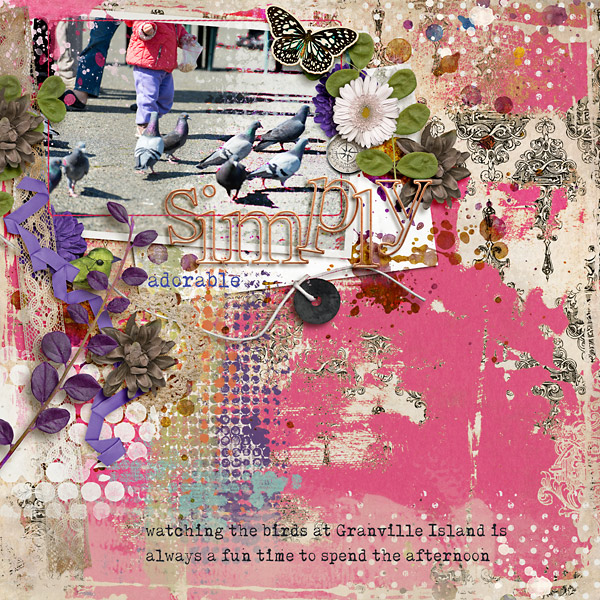
Thanks for the TUT. Here's mine:

I took this photo of a black, spotted squirrel standing on a sidewalk at Niagara Falls. I chose it for the speed scrap at The Lilypad. We had to enhance the photo. I duped the photo and went through the blend modes. The color dodge blend mode was so cool. Next I used option A and brushed onto the mask. It was so cool to see the squirrel go from black to black with blue highlights.
 
I missed the chat (it was 4.00 am here!), but here is my page. Thank you for the instructions and the tutorial.
I used METHOD #1 (BLEND MODE: Overlay), with Option B.


I used the blend mode adding a duplicate photo with the Screen mode, masking out everything but my niece. Then I added brushwork over the image but again, masking her out.

Fun, once I had a clue of what was being asked for. I think I was too tired to grasp the concept IN the chat and go back and forth with PSE at the same time. But sometimes that's fun too.
 
I was late to the chat, but thanks for posting the guidelines!
In my original, the subjects were too dark, so I duplicated the photo and used screen mode at about 70%. Then I made a mask to remove some of the screen layer since the snow and sky were too light. Lots of playing around with brushes, but I like the result.
 
Back
Top