
AnneofAlamo
Slippers IN sunshine? Even better!
- Joined
- Aug 30, 2009
- Messages
- 19,714
You have made your gorgeous layout. Hopefully you have saved as a high resolution JPG so you can one day print it out. (that is a whole different post)
NOW, you want to show the Pad your gorgeousness. Since it is online, and every page takes precious room, you now need to SAVE for WEB! (make smaller)
Here at the Pad, there are a few things you can use, I have only used this one and it is FREE!
resize for web photoshop action

Here is HOW to use the Action:
a huge thank you to @LeeAnn for helping me get this together and your beautiful page!
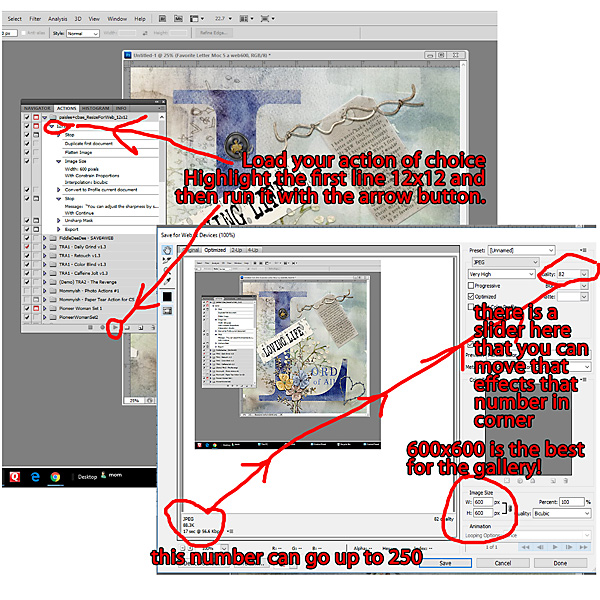
YOU must have the OPTIMIZED page up
MAKE SURE YOU HIT SAVE
now your save for web page is some where on your computer. I recommend having a SAVE for WEB folder somewhere. (these are horrible to print, very low resolution). You don't have to keep them, but they load up good for Facebook, other galleries and I use mine on a photo album thingee.
Now, lets step by step load it to the LIly Pad gallery.
remember:
GALLERY RULES: Layouts must contain at least 50% TLP products. (Templates count as 15%.) Uploads must be less than 250k. List all credits; no off-site linking allowed.
1. Find the
Add Layout button - it is PINK
2. You must CHOOSE a category BEFORE you can upload your LAYOUT
once you choose the category the screen will change and you will see a button that says
Upload Image
3. Click the Upload Image button. A black/gray pop up will show up, with a white button that says. CHOOSE FILE
4. Click Choose File and it will go to your computer, browse and find your save for web image.
5. Now you can change the Title, add credits and fun things about your page, and if you want to add it to different categories, you can do that too. HOLD control to pick as many as you want.
6. SAVE MEDIA button-click on it. NOW your page is in the gallery.
NEXT- How to post your page to the forum to help everyone come and see your page to leave love!
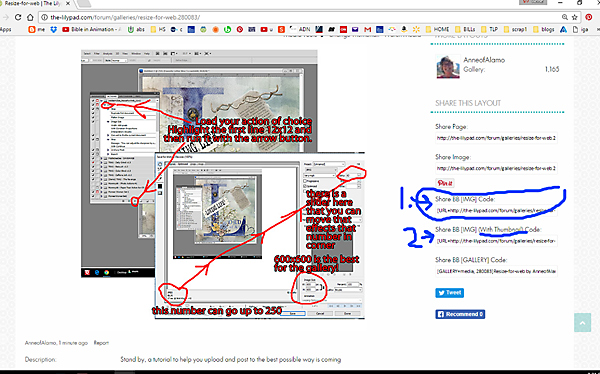
1. Share BB [*img]Code Code
all you have to do is click and copy the code under this title
PASTE in the forum...you do NOT have to use the add image box at all! This will make a full size image and when anyone clicks on it...BAM they go right to it in the gallery! This is really great for MOC challenge threads, Speed scraps, and any other challenge.
2. Share BB [*IMG] (with Thumbnail) Code - this is a smaller (thumbsize) image that will still bring you right to your page. (this is helpful for your MOC thread and challenges to come)
*red asterisk is to keep the codes from messing up the post, they aren't actually on the titles
If you are still lost, please post and we are here to help you!
Also, my amazing boss has a step by step tutorial HERE to help you
EDIT your Layout Image in the Gallery
NOW, you want to show the Pad your gorgeousness. Since it is online, and every page takes precious room, you now need to SAVE for WEB! (make smaller)
Here at the Pad, there are a few things you can use, I have only used this one and it is FREE!
resize for web photoshop action
Here is HOW to use the Action:
a huge thank you to @LeeAnn for helping me get this together and your beautiful page!
YOU must have the OPTIMIZED page up
MAKE SURE YOU HIT SAVE
now your save for web page is some where on your computer. I recommend having a SAVE for WEB folder somewhere. (these are horrible to print, very low resolution). You don't have to keep them, but they load up good for Facebook, other galleries and I use mine on a photo album thingee.
Now, lets step by step load it to the LIly Pad gallery.
remember:
GALLERY RULES: Layouts must contain at least 50% TLP products. (Templates count as 15%.) Uploads must be less than 250k. List all credits; no off-site linking allowed.
1. Find the
Add Layout button - it is PINK
2. You must CHOOSE a category BEFORE you can upload your LAYOUT
once you choose the category the screen will change and you will see a button that says
Upload Image
3. Click the Upload Image button. A black/gray pop up will show up, with a white button that says. CHOOSE FILE
4. Click Choose File and it will go to your computer, browse and find your save for web image.
5. Now you can change the Title, add credits and fun things about your page, and if you want to add it to different categories, you can do that too. HOLD control to pick as many as you want.
6. SAVE MEDIA button-click on it. NOW your page is in the gallery.
NEXT- How to post your page to the forum to help everyone come and see your page to leave love!
1. Share BB [*img]Code Code
all you have to do is click and copy the code under this title
PASTE in the forum...you do NOT have to use the add image box at all! This will make a full size image and when anyone clicks on it...BAM they go right to it in the gallery! This is really great for MOC challenge threads, Speed scraps, and any other challenge.
2. Share BB [*IMG] (with Thumbnail) Code - this is a smaller (thumbsize) image that will still bring you right to your page. (this is helpful for your MOC thread and challenges to come)
*red asterisk is to keep the codes from messing up the post, they aren't actually on the titles
If you are still lost, please post and we are here to help you!
Also, my amazing boss has a step by step tutorial HERE to help you
EDIT your Layout Image in the Gallery
Last edited:


