
FarrahJobling
FarrahJobling
- Joined
- Dec 17, 2012
- Messages
- 6,974
well...... it's midnight my time...on my husbands 56th birthday...so fair warning that I won't be around for at least 12 hours to answer questions
January 23: Photo treatment | Double exposure (Photography Challenge)
Hi Everyone! I’m so happy to be back for my third year hosting an MOC challenge. This year, I’m hosting a photography challenge. The purpose of this challenge is to learn a new photo treatment technique. Today, you must include TWO photos, blended together to create a double exposure in your project. They do not need to be new photos if you have existing photos that match the requirements for this challenge. If you do not have any photos, or the ability to take them, then you may use stock photos.
Double Exposure is a photographic technique that combines 2 different images into a single image. In the days of film, a photographer would take a photo, then take another photo without advancing the film roll. Now that we’re well into the digital age, we must use graphic editing software like Photoshop to create the effect, but now our creative possibilities are endless.
I’ve done a lot of research on this technique and I’ve come up with an easy method for combining two photographs in these three steps.
1 Starting image
While looking for photos, think about what sort of image you’d like to create. Your possibilities of a starting image are endless, but work best with strong lines, contrast and shadows with little to no background. Black and White images work very well here.
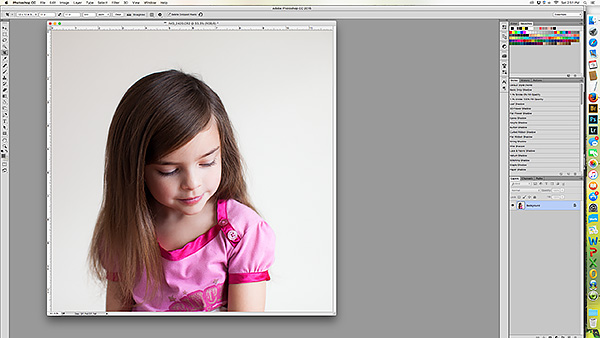
FOR MY EXAMPLE: I am starting with a basic portrait of my daughter in which I increased the shadows and contrast. I have cropped mine to 12x12 for example sake, but your photo does not need to be as large. Since my background is plain, and to make things easier for clipping my second image, I made a duplicate layer, used the color selector wand and deleted the background. Other options certainly exist, in that you might choose to add a person to a background scene (maybe a ghost like image, or maybe imagining yourself in a location). The possibilities are endless =)
 MOC4-1 by farrahj, on Flickr
2 Add a 2nd image
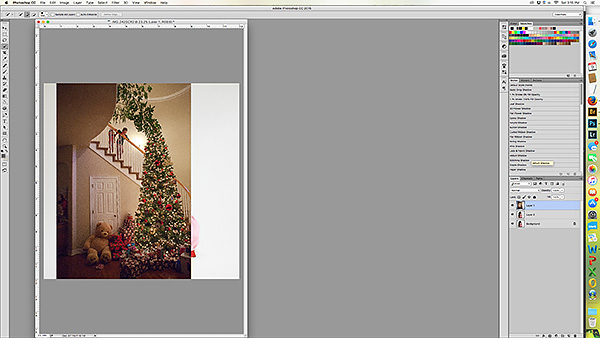
Choose a second image. Your second image can be anything. A landscape works well, or even a random photo of trees would work. Heck, you could even go 80’s style and choose another portrait. I’ve picked a photo of my children coming down the stairs on Christmas morning. Drag your 2nd photo onto your canvas and adjust the size to fit within the constraints of your first image. If you don’t have a plain starting image, or want some of the background showing, then make sure your 2nd image is smaller than the first, or erase some of the image that extends outside of your first image.
FOR MY EXAMPLE: I clipped my second image to the layer of just my daughter's portrait. It's an easy way to eliminate the part of the 2nd photo that extends beyond the borders of my portrait. Your image may be different or you may need to erase some of your second image. Either way works fine =)
 MOC4-2 by farrahj, on Flickr
3 Blending mode and tweak
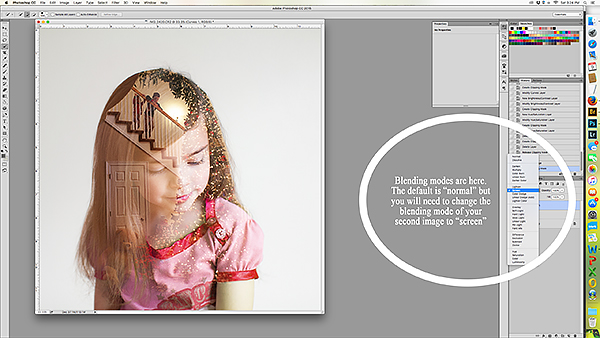
Change you’re the blending mode of your second image to SCREEN. At this point, you may need to tweak the contrast, color, or other fine adjustments of your second image and then clip it to your first image.
FOR MY EXAMPLE: I didn't need to do any fine adjustments, but you will have to see what yours looks like once you've changed the blending mode.
***tip*** I purposely choose my first image to have a lot of contrast and my second image to have the main focal point aligned with the darkest part of my first image. The second image will show up best on the darker areas of the first image, while the lighter areas of the first image will show less of the second image, but will retain more of your starting image.
 MOC4-3b by farrahj, on Flickr
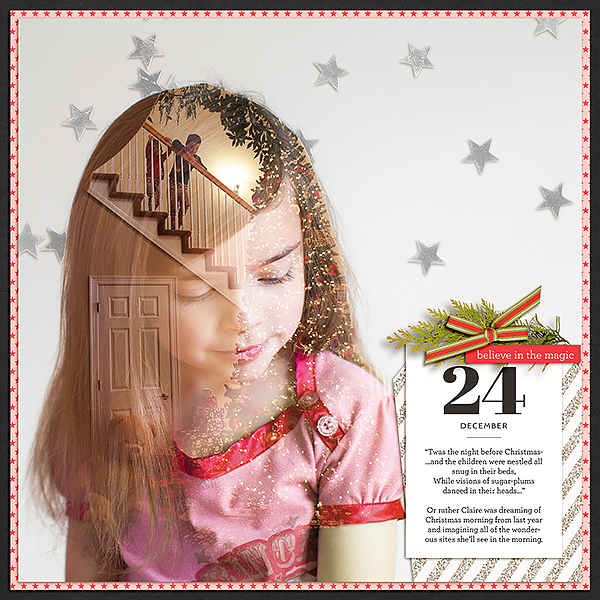
Voila’! Now use your awesome double exposure image to create a layout.
 12.24.2015-twas-the-night-before-Christmas by farrahj, on Flickr
Requirements (as many as needed for your page):
1. TWO photographs blended together to create a double exposure.
****NOTE: If your camera has the feature to take a double exposure - go for it! Also, if you don't have photoshop, but do have a cell phone, feel free to try out this app for iPhone or Android*******
Check out this awesome example of an in-camera double exposure: http://www.clickinmoms.com/cmprodaily/a-walk-in-the-clouds/
Your page must be a new page in order to count for the Month of Challenges. Please post your page in your page thread you created in this forum. You should have one post per completed challenge page. If you complete all 31 challenges, your thread should contain 31 posts. Please do not comment in the participants’ page threads so we can keep them clean. You should also post your page here in this thread, and people can comment here if they wish. Pages should contain at least 75% current Lilypad product (currently for sale in the store from either permanent designers or guest designers.
January 23: Photo treatment | Double exposure (Photography Challenge)
Hi Everyone! I’m so happy to be back for my third year hosting an MOC challenge. This year, I’m hosting a photography challenge. The purpose of this challenge is to learn a new photo treatment technique. Today, you must include TWO photos, blended together to create a double exposure in your project. They do not need to be new photos if you have existing photos that match the requirements for this challenge. If you do not have any photos, or the ability to take them, then you may use stock photos.
Double Exposure is a photographic technique that combines 2 different images into a single image. In the days of film, a photographer would take a photo, then take another photo without advancing the film roll. Now that we’re well into the digital age, we must use graphic editing software like Photoshop to create the effect, but now our creative possibilities are endless.
I’ve done a lot of research on this technique and I’ve come up with an easy method for combining two photographs in these three steps.
1 Starting image
While looking for photos, think about what sort of image you’d like to create. Your possibilities of a starting image are endless, but work best with strong lines, contrast and shadows with little to no background. Black and White images work very well here.
FOR MY EXAMPLE: I am starting with a basic portrait of my daughter in which I increased the shadows and contrast. I have cropped mine to 12x12 for example sake, but your photo does not need to be as large. Since my background is plain, and to make things easier for clipping my second image, I made a duplicate layer, used the color selector wand and deleted the background. Other options certainly exist, in that you might choose to add a person to a background scene (maybe a ghost like image, or maybe imagining yourself in a location). The possibilities are endless =)
MOC4-1 by farrahj, on Flickr2 Add a 2nd image
Choose a second image. Your second image can be anything. A landscape works well, or even a random photo of trees would work. Heck, you could even go 80’s style and choose another portrait.
I’ve picked a photo of my children coming down the stairs on Christmas morning. Drag your 2nd photo onto your canvas and adjust the size to fit within the constraints of your first image. If you don’t have a plain starting image, or want some of the background showing, then make sure your 2nd image is smaller than the first, or erase some of the image that extends outside of your first image.FOR MY EXAMPLE: I clipped my second image to the layer of just my daughter's portrait. It's an easy way to eliminate the part of the 2nd photo that extends beyond the borders of my portrait. Your image may be different or you may need to erase some of your second image. Either way works fine =)
MOC4-2 by farrahj, on Flickr3 Blending mode and tweak
Change you’re the blending mode of your second image to SCREEN. At this point, you may need to tweak the contrast, color, or other fine adjustments of your second image and then clip it to your first image.
FOR MY EXAMPLE: I didn't need to do any fine adjustments, but you will have to see what yours looks like once you've changed the blending mode.
***tip*** I purposely choose my first image to have a lot of contrast and my second image to have the main focal point aligned with the darkest part of my first image. The second image will show up best on the darker areas of the first image, while the lighter areas of the first image will show less of the second image, but will retain more of your starting image.
MOC4-3b by farrahj, on FlickrVoila’! Now use your awesome double exposure image to create a layout.
12.24.2015-twas-the-night-before-Christmas by farrahj, on FlickrRequirements (as many as needed for your page):
1. TWO photographs blended together to create a double exposure.
****NOTE: If your camera has the feature to take a double exposure - go for it! Also, if you don't have photoshop, but do have a cell phone, feel free to try out this app for iPhone or Android*******
Check out this awesome example of an in-camera double exposure: http://www.clickinmoms.com/cmprodaily/a-walk-in-the-clouds/
Your page must be a new page in order to count for the Month of Challenges. Please post your page in your page thread you created in this forum. You should have one post per completed challenge page. If you complete all 31 challenges, your thread should contain 31 posts. Please do not comment in the participants’ page threads so we can keep them clean. You should also post your page here in this thread, and people can comment here if they wish. Pages should contain at least 75% current Lilypad product (currently for sale in the store from either permanent designers or guest designers.


