
- Joined
- Oct 10, 2010
- Messages
- 17,368
*** Update: Congrats to @mary kate who is the lucky winner for this challenge! ***
Hi there!
I'm back today with a Scrap Challenge and we are going to have SNOW much fun! (

 )
)
It's a 'Make your own digiscrap snow globe' challenge!

Let me start by showing you some of my snowglobe collection. If you know me, you know I'm currently in Winter, Down Under, but I'm also snow challenged and don't like the cold anyway but let's leave the psychoanalysis and the why I love snowglobes to another day and just look at them). Some of them have a single figure inside, you can have a complete scene and yes, I've bought tourist trap photo frame ones too. (And yes, for the snow globe officionado's out there, some of them are technically glitter globes but i love them regardless).

For today's challenge, you can make a snow globe with any method you like. I'll walk you through one method to create the one shown above but you don't have to use it specifically. Your snowglobe can contain whatever you want inside your snowglobe, a photo or elements from a kit; & you can have glitter, beads, sequins, snow, anything really as your shakey goodness! In fact, thinking about making a 'shaker pocket' is really the basic premise of this process so let's start with that.
OK let's go:
Step 1 - Snowglobes have a round shape traditionally but you can make it in whatever shape you wish. So the first step is decide on a shape and create it.
For this example, I will just make a spherical snowglobe.
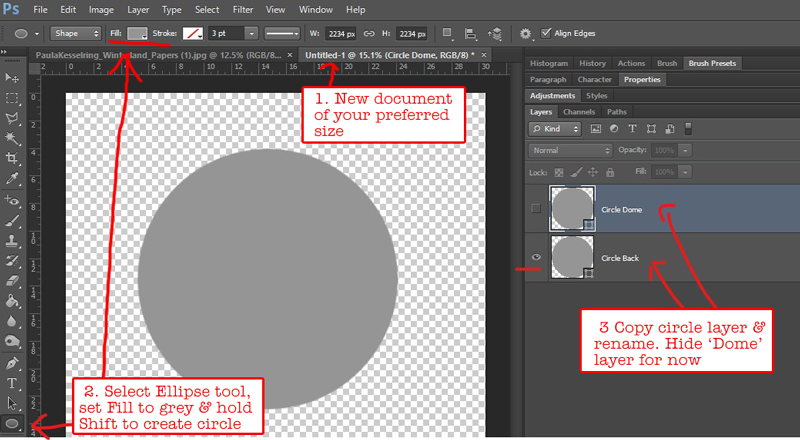
So open a new document, 12x12 size, and I've use the Ellipse Tool to drag out a circle shape in a medium grey, holding the 'shift' key to make it a perfect circle.
We're going to use a few copies of this layer so I changed the name of this one to 'circle back'.
I also copied it and called it 'circle dome' for later, we don't need it yet so you can hide it for now (by clicking the eye next to the layers palette).
Step 2 - Now we need a 'base' or something to 'stand' the globe on.
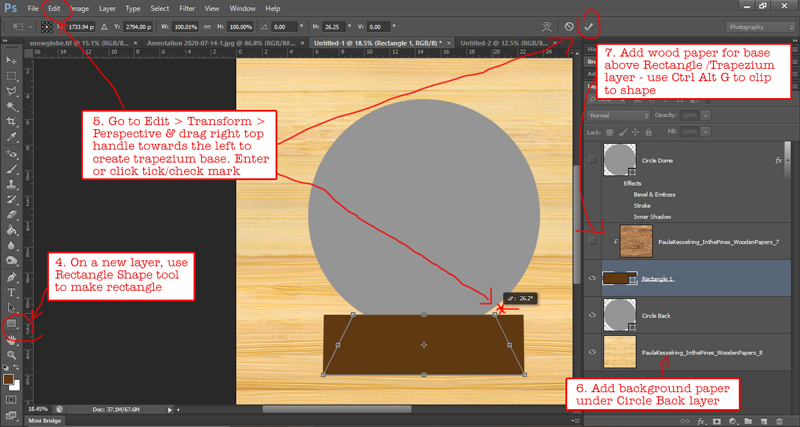
Using the Rectangle Tool, I've dragged out a rectangle on the layer above my 'circle back' layer. Then go to the Edit menu at the top and go to Transform > Perspective to get the dragging handles on the rectangle. Drag one of the top corners in towards the midline of the rectangle to create a trapezium shape (the other corner will automatically drag to the same angle). Hit Enter or click the tick/check mark on the toolbar at the top to accept the transformation. I've clipped some woodgrain paper to the shape (it's hidden at the moment) and dragged a different woodgrain for the background layer, to give my snowglobe a 'table' to sit on.
Feel free to create a rectangle or other more intricate shape or experiment with 'Custom Shapes' and decorate the base in any way you wish. Different Styles or Actions can be fun to play with here as well if you want it to be more metallic or different.
Step 3 - This is where you decide what you want inside your snowglobe.
I've used some of Kristin's cute little snow dudes from her Winter Wishes kit for this literal snowglobe. I just dragged and resized like when I scrap a normal page. I've kept them more central and towards the bottom of the circle. Anything that is outside your circle shape at this point will not be under the dome or will stick out and spoil the illusion. Erase anything outside your circle or hide it with a layer mask.
I masked the House layer because I don't want the parts of the snowy ground to stick out. To hide all the parts outside the circle, I clicked on the House layer in the Layers Palette so it was active (blue); then clicked the thumbnail picture of the Circle Back (clicking on the name of the layer won't work, it needs to be the image of the circle itself) and then after the marching ants/dashed lines appear around the circle, I hit the 'Add layer mask' icon at the bottom of the Layers Palette - it's the white rectangle with the grey circle in the middle.
I'll shadow them in a minute when I create the 'dome'. You could consider adding a photo or clipping a paper to the Circle Base layer as well.

Step 4 optional - Now we are going to use filters and create a clear-ish bubble like you'd have in the bath or blow with a wand in the backyard to give this a dome appearance.
** I'm aware these filters may not exist in every program. Applying a clear epoxy or a different shiny, glossy gel type of Style or effect, like if you were making a brad or flair (Mommyish, Just Jaimee, NBK & Elif Sahin all make style packs) can give a similar effect. I experimented with a Glossy Epoxy style from Mommyish's Just the Basics style pack on the Circle Dome layer, I changed the layer blend mode to Overlay and played with the sliders in Bevel etc. Then I reduced the Opacity on the Circle Back to 30%. Here's what that looks like to this point.


... continued in next post...
Hi there!
I'm back today with a Scrap Challenge and we are going to have SNOW much fun! (
)It's a 'Make your own digiscrap snow globe' challenge!
Let me start by showing you some of my snowglobe collection. If you know me, you know I'm currently in Winter, Down Under, but I'm also snow challenged and don't like the cold anyway but let's leave the psychoanalysis and the why I love snowglobes to another day and just look at them). Some of them have a single figure inside, you can have a complete scene and yes, I've bought tourist trap photo frame ones too. (And yes, for the snow globe officionado's out there, some of them are technically glitter globes but i love them regardless).
For today's challenge, you can make a snow globe with any method you like. I'll walk you through one method to create the one shown above but you don't have to use it specifically. Your snowglobe can contain whatever you want inside your snowglobe, a photo or elements from a kit; & you can have glitter, beads, sequins, snow, anything really as your shakey goodness! In fact, thinking about making a 'shaker pocket' is really the basic premise of this process so let's start with that.
OK let's go:
Step 1 - Snowglobes have a round shape traditionally but you can make it in whatever shape you wish. So the first step is decide on a shape and create it.
For this example, I will just make a spherical snowglobe.
So open a new document, 12x12 size, and I've use the Ellipse Tool to drag out a circle shape in a medium grey, holding the 'shift' key to make it a perfect circle.
We're going to use a few copies of this layer so I changed the name of this one to 'circle back'.
I also copied it and called it 'circle dome' for later, we don't need it yet so you can hide it for now (by clicking the eye next to the layers palette).
Step 2 - Now we need a 'base' or something to 'stand' the globe on.
Using the Rectangle Tool, I've dragged out a rectangle on the layer above my 'circle back' layer. Then go to the Edit menu at the top and go to Transform > Perspective to get the dragging handles on the rectangle. Drag one of the top corners in towards the midline of the rectangle to create a trapezium shape (the other corner will automatically drag to the same angle). Hit Enter or click the tick/check mark on the toolbar at the top to accept the transformation. I've clipped some woodgrain paper to the shape (it's hidden at the moment) and dragged a different woodgrain for the background layer, to give my snowglobe a 'table' to sit on.
Feel free to create a rectangle or other more intricate shape or experiment with 'Custom Shapes' and decorate the base in any way you wish. Different Styles or Actions can be fun to play with here as well if you want it to be more metallic or different.
Step 3 - This is where you decide what you want inside your snowglobe.
I've used some of Kristin's cute little snow dudes from her Winter Wishes kit for this literal snowglobe. I just dragged and resized like when I scrap a normal page. I've kept them more central and towards the bottom of the circle. Anything that is outside your circle shape at this point will not be under the dome or will stick out and spoil the illusion. Erase anything outside your circle or hide it with a layer mask.
I masked the House layer because I don't want the parts of the snowy ground to stick out. To hide all the parts outside the circle, I clicked on the House layer in the Layers Palette so it was active (blue); then clicked the thumbnail picture of the Circle Back (clicking on the name of the layer won't work, it needs to be the image of the circle itself) and then after the marching ants/dashed lines appear around the circle, I hit the 'Add layer mask' icon at the bottom of the Layers Palette - it's the white rectangle with the grey circle in the middle.
I'll shadow them in a minute when I create the 'dome'. You could consider adding a photo or clipping a paper to the Circle Base layer as well.
Step 4 optional - Now we are going to use filters and create a clear-ish bubble like you'd have in the bath or blow with a wand in the backyard to give this a dome appearance.
** I'm aware these filters may not exist in every program. Applying a clear epoxy or a different shiny, glossy gel type of Style or effect, like if you were making a brad or flair (Mommyish, Just Jaimee, NBK & Elif Sahin all make style packs) can give a similar effect. I experimented with a Glossy Epoxy style from Mommyish's Just the Basics style pack on the Circle Dome layer, I changed the layer blend mode to Overlay and played with the sliders in Bevel etc. Then I reduced the Opacity on the Circle Back to 30%. Here's what that looks like to this point.
... continued in next post...
Last edited:


