
- Joined
- Sep 2, 2011
- Messages
- 25,814
*This also can be done in PSE with work around for seperating out shadows. PSE version of the tutorial is located here*

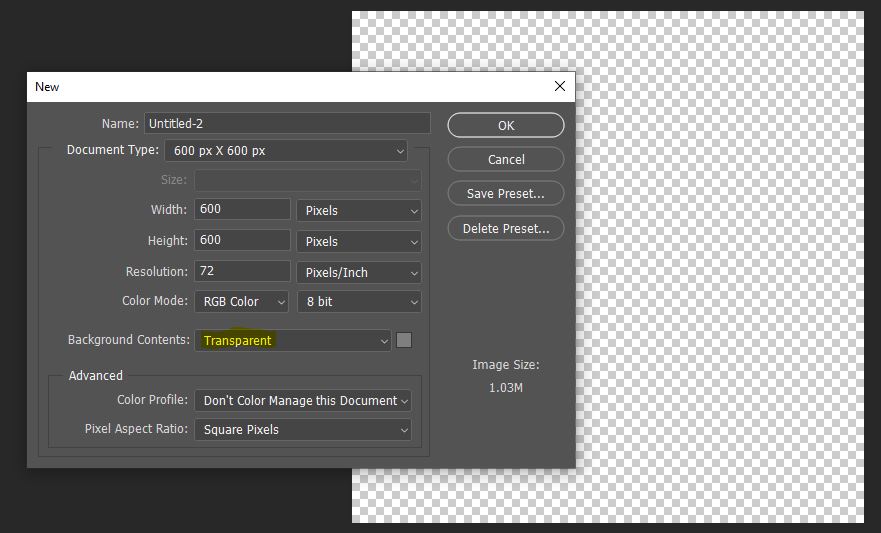
1. Start with a transparent workspace (choosing size and resolution of your choice and background content set to Transparent), so you can see the tiny squares on the transparency.
2. Start with 4 square shapes. (Via Rectangle Marquee tool and create a square and flood fill, or use the square custom shape tool.) (Make one and duplicate it 3 times so you make sure you have 4 the same size.) Shortcut Ctrl/Cmmd J in the layer pallet or hold down Alt/Opt Key and grab the square with your mouse to duplicate.
3. Layer them one vertically allowing them to touch.

4. On the top square using the transform tool go to Edit>Transform>Distort

5. Grabbing the top left corner, move over 2 squares to the left
6. Do the same with the top right corner and distort 2 squares to the left.

7. Move to the next Square (Top Middle) Edit>Transform>Distort
8. Grabbing the bottom left corner, move over 2 squares to the right. Do the same with the bottom right corner and distort 2 squares to the right.

9. Repeat those steps again for the bottom two squares.

10. In the layer panel, select one of the square layers and add a shadow to it.
(Click on the fx on the bottom of the layer panel and select drop shadow. Settings: Linear Burn with brown color (hex 271a0b) is good or another similar Opacity 44%, Angle 45 degrees, Distance 3 size 5... OK)
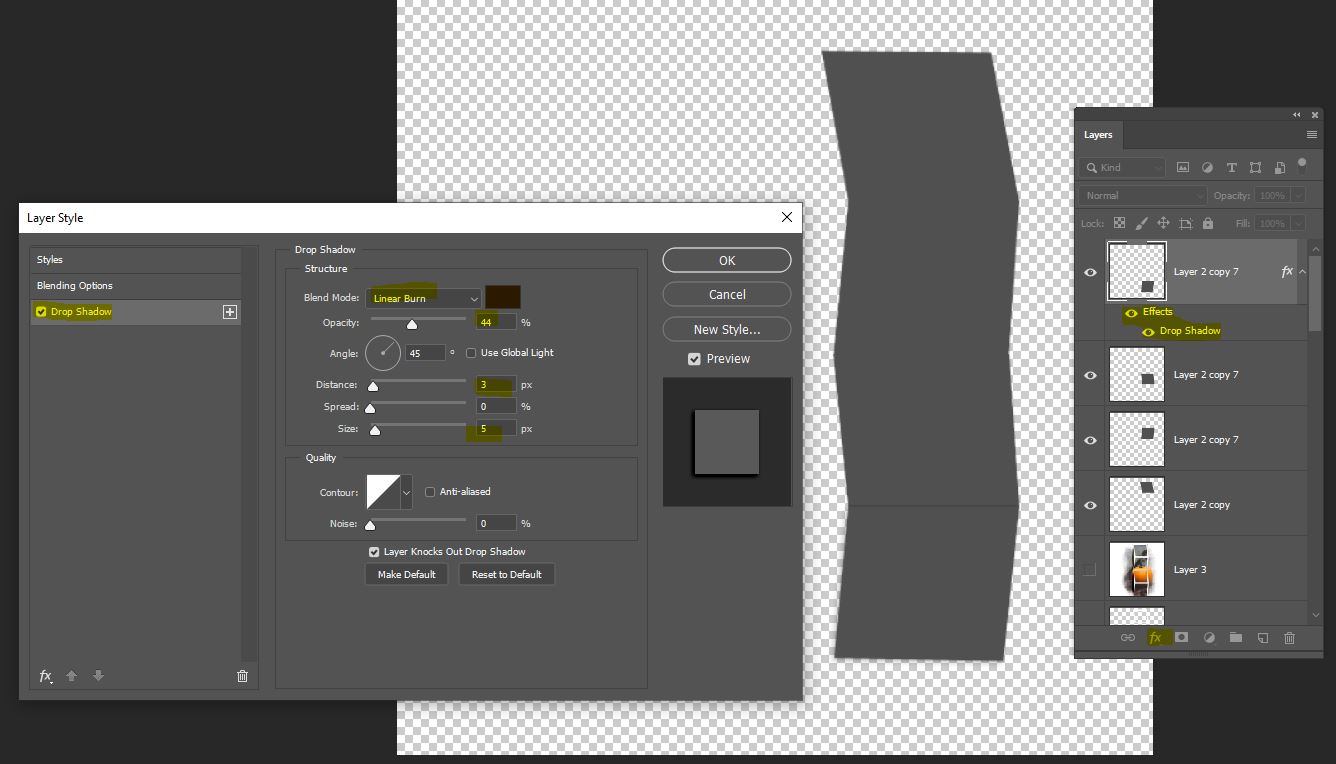
11. Right click on the same layer re the drop shadow and copy layer style. Apply that style to remaining 3 squares by paste layer style.

12. Now for each square, separate shadow by right clicking with mouse create layer.
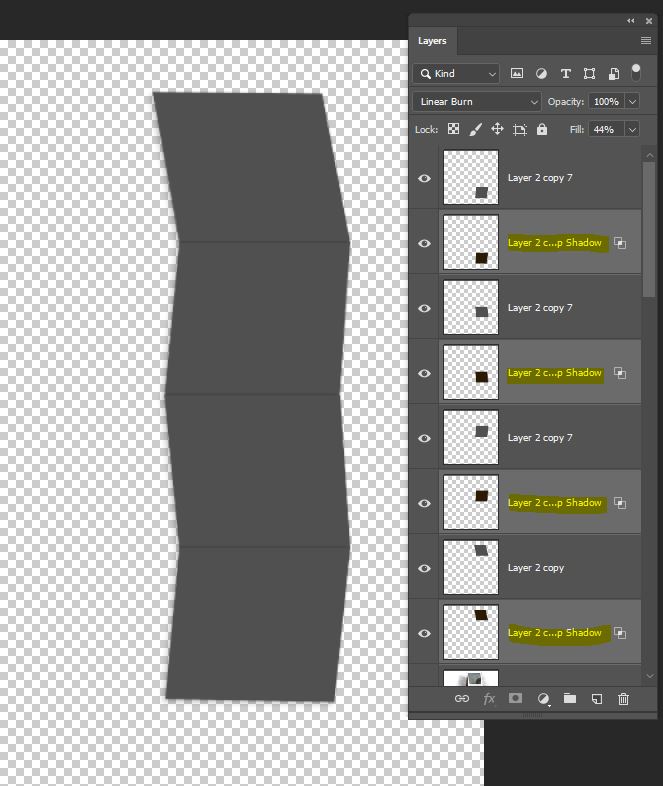
13. Once all of the shadows are on their own layers, hold the Control /Cmmd key and click on each of the shadow layers in the layer pallet. Now grab and drag them to move the separated shadows down in the layer panel below all of the squares.
14. With all the shadow layers still selected in the layer panel, go to Edit>Transform>Horizontal. That will flip the shadow to give that 3D shadowing to make it look like it is popping off the page. Adjust opacity of the shadow layers so it works for your page.
1. Start with a transparent workspace (choosing size and resolution of your choice and background content set to Transparent), so you can see the tiny squares on the transparency.
2. Start with 4 square shapes. (Via Rectangle Marquee tool and create a square and flood fill, or use the square custom shape tool.) (Make one and duplicate it 3 times so you make sure you have 4 the same size.) Shortcut Ctrl/Cmmd J in the layer pallet or hold down Alt/Opt Key and grab the square with your mouse to duplicate.
3. Layer them one vertically allowing them to touch.
4. On the top square using the transform tool go to Edit>Transform>Distort
5. Grabbing the top left corner, move over 2 squares to the left
6. Do the same with the top right corner and distort 2 squares to the left.
7. Move to the next Square (Top Middle) Edit>Transform>Distort
8. Grabbing the bottom left corner, move over 2 squares to the right. Do the same with the bottom right corner and distort 2 squares to the right.
9. Repeat those steps again for the bottom two squares.
10. In the layer panel, select one of the square layers and add a shadow to it.
(Click on the fx on the bottom of the layer panel and select drop shadow. Settings: Linear Burn with brown color (hex 271a0b) is good or another similar Opacity 44%, Angle 45 degrees, Distance 3 size 5... OK)
11. Right click on the same layer re the drop shadow and copy layer style. Apply that style to remaining 3 squares by paste layer style.
12. Now for each square, separate shadow by right clicking with mouse create layer.
13. Once all of the shadows are on their own layers, hold the Control /Cmmd key and click on each of the shadow layers in the layer pallet. Now grab and drag them to move the separated shadows down in the layer panel below all of the squares.
14. With all the shadow layers still selected in the layer panel, go to Edit>Transform>Horizontal. That will flip the shadow to give that 3D shadowing to make it look like it is popping off the page. Adjust opacity of the shadow layers so it works for your page.
Last edited:


 I will try tomorrow if I have time in the afternoon to write it up for PSE too... for other users. The only difference with PSE is the seperation of the shadows, otherwise it is done the same way in PSE just some tools may be in different spots. I really should do the videos but haven't been up to it lately. We shall see .. I may change my mind and do them too over the weekend! Thank Marilyn & Gaelle!

 Thank you very much for your effort, dear Christa, you have explained everything so well - I will definitely be working on your TUT, it just looks gorgeous
 thank you Charlotte!!!


